
This guide covers how to assign training plans to learners in Brevity, including setting due dates, scheduling future start dates, and managing enrollment.
Overview
Assigning a training plan is how you enroll learners. In the assignment flow, you select users, set a due date, and optionally schedule a future start date — all from a single modal.
How to Assign a Training Plan
- Open a training plan (or find it in the All Training Plans list).
- Click Assign.
- Search for and select individual users.
- Set Days Until Due — the number of days the learner has to complete the plan.
- (Optional) Set a Scheduled Start date — the date the plan becomes visible to the learner.
- Confirm the assignment. The Assign button shows how many net new learners are being enrolled.
Note: Assignments are made to individual users. Group-based assignment is not currently supported.
Removing Learners from a Training Plan
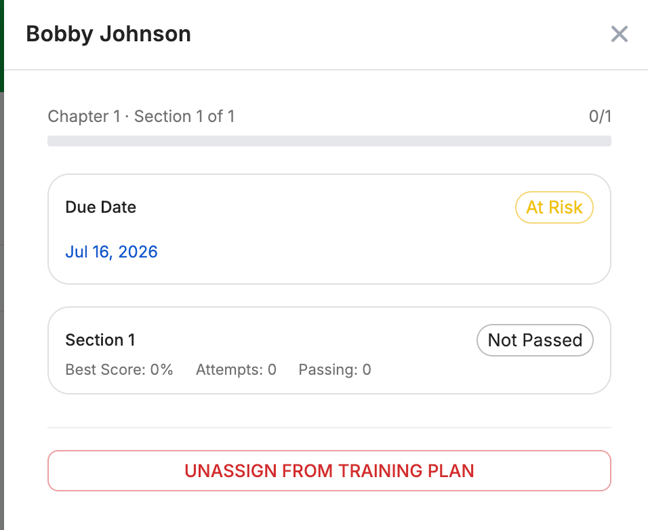
Learners can be removed from a training plan through individual or bulk removal on the Training Plan's Analytics page. Either select the checkbox next to a learners name and select "Unassign" from the Actions menu or select a specific learner in the list and click "Unassign from Training Plan" in the side panel.
How Due Dates Work
You set due dates as a number of days (e.g., "30 days until due"), not a specific calendar date. The system calculates the actual due date based on when the assignment activates:
- No scheduled start: Due date = assignment date + days until due.
- With scheduled start: Due date = scheduled start date + days until due.
This means the deadline always gives learners the full number of days from when the plan actually becomes available to them.
Scheduled Start Dates
A scheduled start date lets you create assignments in advance that don't appear to learners until a specific date.
What Happens with a Scheduled Start
- Before the start date: The assignment exists in the admin view with a "Scheduled" status, but the learner cannot see the plan.
- On the start date: The plan appears in the learner's My Training Plans automatically. If assignment notifications are enabled, the learner receives their notification on this date.
- Due date: Calculated as the start date + the days-until-due value you set.
What Happens Without a Scheduled Start
The plan is visible to the learner immediately upon assignment. The due date counts from the assignment date.
What the Learner Sees
- Immediate assignment: The plan appears in My Training Plans right away with the due date shown.
- Scheduled assignment: Nothing appears until the start date. On that date, the plan appears automatically.
What the Admin Sees
- The assignment appears in the admin view immediately, regardless of scheduling.
- Scheduled status is shown until the start date.
- After the start date, the status reflects the learner's progress (Not Started → In Progress → Completed) and due date status (On Track → At Risk → Overdue).
Adjusting Due Dates After Assignment
You can adjust individual due dates after assignment:
- Open the training plan and go to the Analytics tab.
- Use filters to narrow your list of learners who need an updated due date
- For bulk changes, select the checkboxes next to all relevant learner's who need a new due date, select the Actions button that will appear above the learner list, then adjust the due date.
- For changing a single learner's due date, you can also open their individual drill down by clicking on the learner's row and adjust the due date in the side panel.

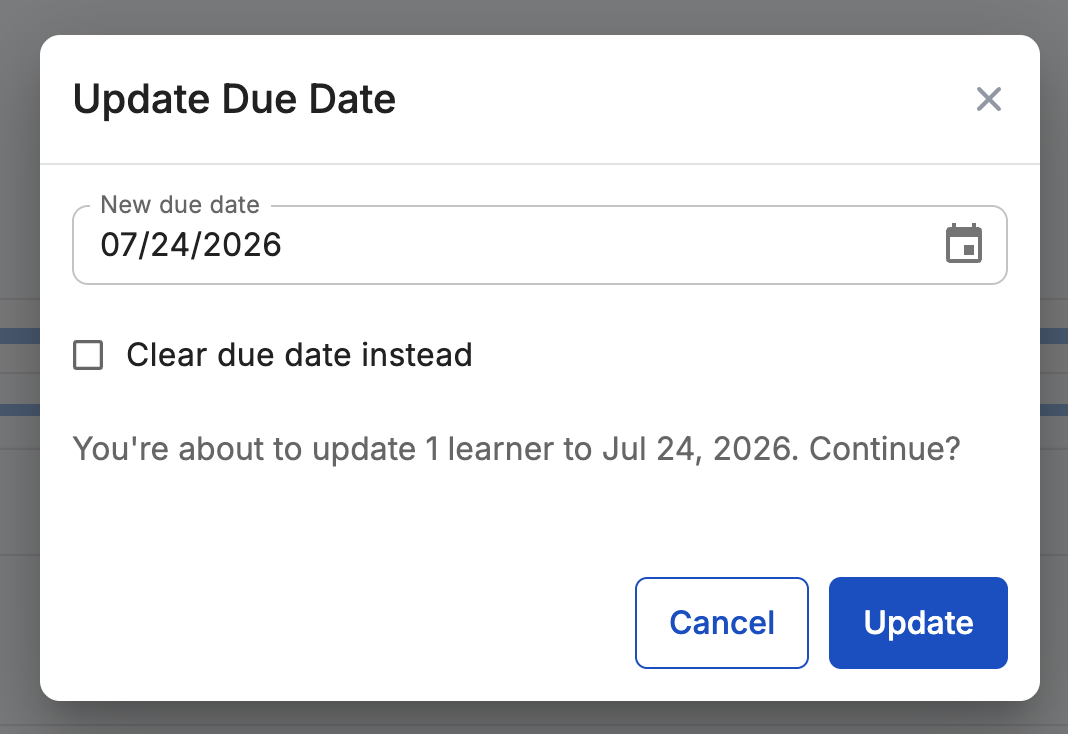
The updated due date takes effect immediately, and the learner's due date status (On Track, At Risk, Overdue) recalculates accordingly. Learner's receive an email and in-app notification of their updated Due Date.
Bulk due date changes applies the same date to all selected users. If learner's require unique due dates, use the side panel to update one-by-one or bulk to update in subgroups.
Editing Scheduled Assignments
- The scheduled start date cannot be changed after the assignment is created.
- The due date can be adjusted after assignment from the analytics learner drill-down.
FAQs
Can I assign to user groups?
Currently, assignments are made to individual users but users can be filtered by user groups. Search for and select users in the assignment modal.
What happens if I edit plan content after I enroll Learners but before the start date?
The learner sees the current version of the plan when it activates. Any edits you make to the plan content are reflected.
How is the due date calculated?
You enter a number of days until due. If a scheduled start is set, the due date = start date + that number of days. If no start date is set, the due date = assignment date + that number of days.
Can I cancel a scheduled Training Plan before it starts?
Yes. Open the training plan from the admin view and change the status to inactive before the start date.
Can I change the scheduled start date after creating the assignment?
No. The scheduled start date is locked once the assignment is created. To change it, cancel the existing assignment and create a new one with the desired start date.
Related Articles
- Building a Training Plan in Brevity — Full walkthrough of creating a plan
- Training Plan Analytics — Track progress, adjust due dates, and monitor statuses
- Training Plan Notifications — Reminders and alerts fire relative to due dates
- Assignment Setting Defaults — Practice settings applied when learners start each section