---
title: Completing a Brevity Role Play
description: How to complete a Brevity role play from start to finish — connecting your devices, starting the conversation, and reviewing feedback.
---
[Skip to content](https://support.brevitypitch.com/en-us/knowledgebase/completing-a-role-play#main-content)

Open main navigation
Close main navigation
- [Contact us](mailto:support@brevitypitch.com)
[Contact us](mailto:support@brevitypitch.com)
How can we help you?
- There are no suggestions because the search field is empty.
1. [Brevity Knowledge Base](https://support.brevitypitch.com/en-us/knowledgebase?hsLang=en-us)
2. [Using Brevity](https://support.brevitypitch.com/en-us/knowledgebase/using-brevity?hsLang=en-us)
3. [Practicing Role Plays](https://support.brevitypitch.com/en-us/knowledgebase/using-brevity?hsLang=en-us#practicing-role-plays)
# Completing a Brevity Role Play
## Instructions for completing a Brevity role play from start to finish
### Accessing your Role Play Assignments
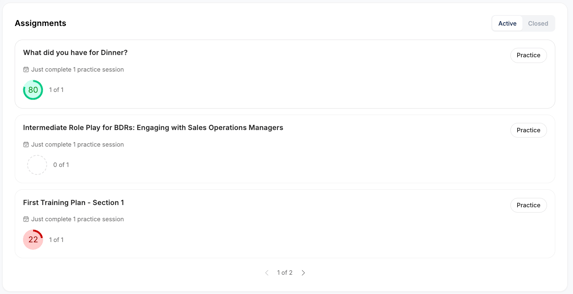
You can find your active role plays that have been assigned to you directly on your new Home Page. Looking for your next practice session? Start at the top and click **Practice** to navigate directly to that assignment's page.
Alternatively, see a complete list of assignments on your Assignments tab. Here, you can see a list of all available role plays and choose a role play assignment to practice. Simply click on the assignment name to access the role play.
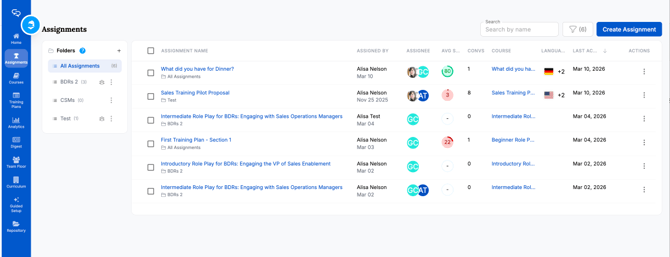
**Brevity Org and Team administrators will see an intermediary screen between the Assignments page and the preview screen**. On this intermediary screen, administrators can click other users' names to see a history of role plays for the selected user.
If you are an administrator and you want to complete the role play yourself, click your own name on this intermediary screen, and you will be taken to the role play preview screen.
### Preparing for a Role Play
Before completing a Brevity role play, the preview screen provides important information about the conversation context, AI persona, and conversation goals. Carefully review this information as you prepare for the role play.
#### Assignment Overview
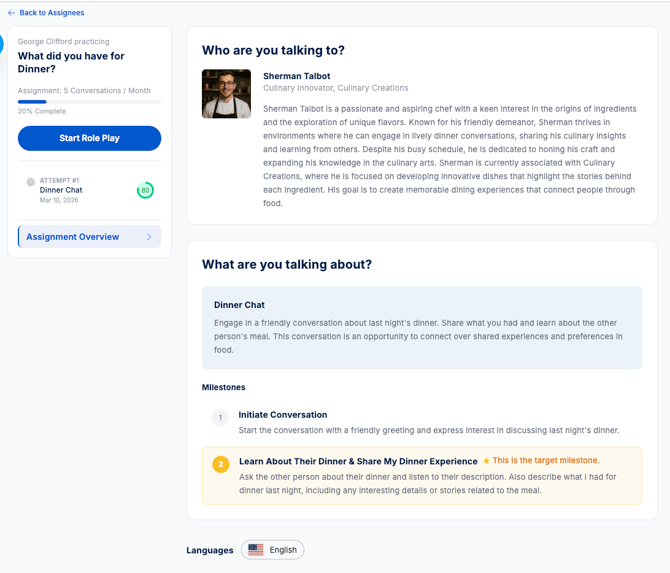
To review the role play objectives and who you'll be talking to, select the **Assignment Overview** button.
#### AI Persona Details
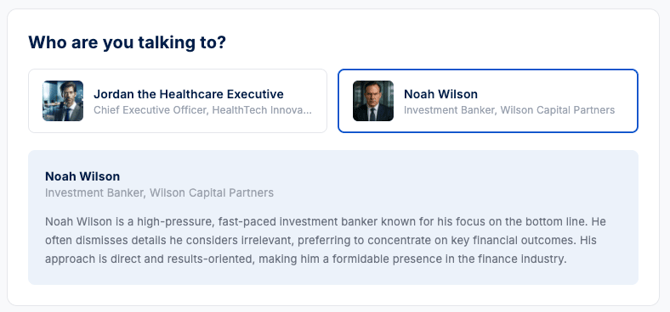
The section titled **Who you're talking to** includes information about your AI conversation partner. This can include information about their role, company, background, and business objectives. It is important to read this section thoroughly to understand what the AI persona might be seeking to achieve in this conversation.
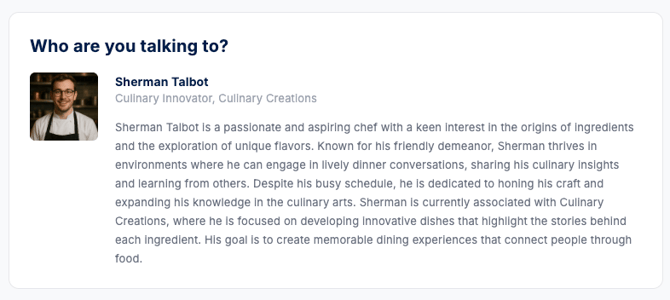
Note that some role plays can include multiple personas. When that is the case, Brevity assigns one of the available personas at random, and you can choose to select a different available persona by clicking the persona drop-down menu.
#### Milestones
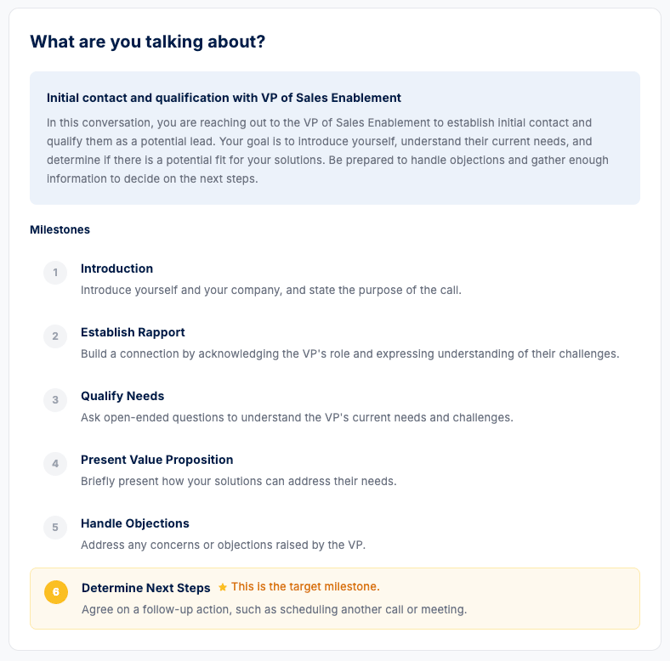
The milestones panel includes information about your objectives for the conversation. Each role play includes one target milestone, which is the ultimate goal for the conversation. Often, there are multiple smaller milestones that can help you orient and build the conversation toward the target milestone. It is important to read and understand the milestones before beginning a role play. Role play scores are ultimately calculated based on whether and how effectively you achieve the milestones.
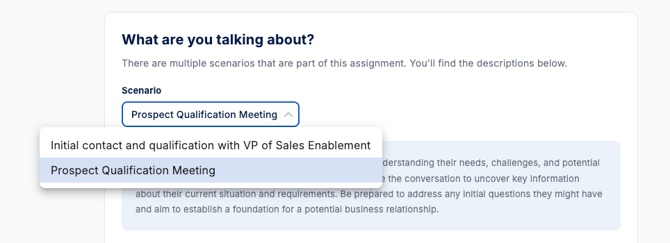
Note, there may also be more than one available context in your assignment. Use the dropdown menu to select each scenario.
**Be aware,** different scenarios in a single assignment may have different milestones representing:
- different stages of a larger conversation
- a range of difficulty levels
- vertical or product-specific milestones
#### Accessing the Role Play Practice Window
When you are ready to start the role play, click Start Practice.
### Completing a Role Play
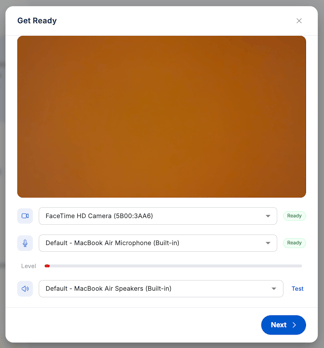
Before your Practice Room opens, take a moment to test your devices and select your starting session settings. The selections available on your conversation preview will depend on the assignment settings. To manage these selections, see [How to Create an Assignment](https://support.brevitypitch.com/en-us/knowledgebase/create-an-assignment?hsLang=en-us). To learn more about their configuration in the practice space, see [Role Play Settings & Options](https://support.brevitypitch.com/en-us/knowledgebase/role-play-settings-and-options?hsLang=en-us).
 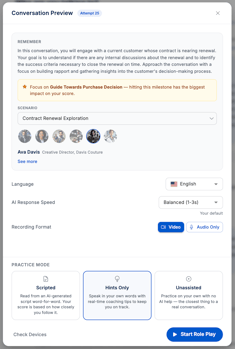
#### Role Play Settings and Options
Before beginning a role play conversation, you can adjust your devices, choose an AI response speed, select the language for the role play conversation, and more. For more information, see:
- [Role Play Settings and Options](https://support.brevitypitch.com/en-us/knowledgebase/role-play-settings-and-options?hsLang=en-us)
**Scripts can be directly configured in a Context Milestone or will be generated by the AI.** If no script or KB items are provided, the LLM will generate a script for you. If your Org has not yet completed Guided Setup or uploaded items to your Knowledgebase, it is recommended that Scripts mode remain off to prevent LLM hallucinations or inaccuracies.
#### Performing a Role Play

When you are ready to begin the role play conversation, click **Start Recording**. A voice prompt will count down from three, then you can start speaking.
**To ensure the best role play experience, keep these tips in mind:**
- Use the milestones to guide your conversation. Remember that your results and feedback will be focused on how successful you were in achieving the milestones for the conversation.
- Ensure that your microphone and speaker devices are set up correctly, and enunciate clearly to achieve the best results.
- Acknowledge the AI persona's points and questions. Avoid adhering too closely to a prepared script, and make sure you are responding to the persona's ideas.
In some cases, the AI persona will end the conversation. If the conversation has reached its natural conclusion, you can also end the conversation by clicking End Conversation.
Congratulations! You have completed a Brevity role play!
### Post-Role Play
After the conversation has concluded, you will receive an overall score. You have the option of immediately practicing the same conversation, or exiting practice to review more detailed feedback about the conversation.
#### Conversation History
As you complete this role play assignment, historical recordings appear in a list in the conversation history panel.
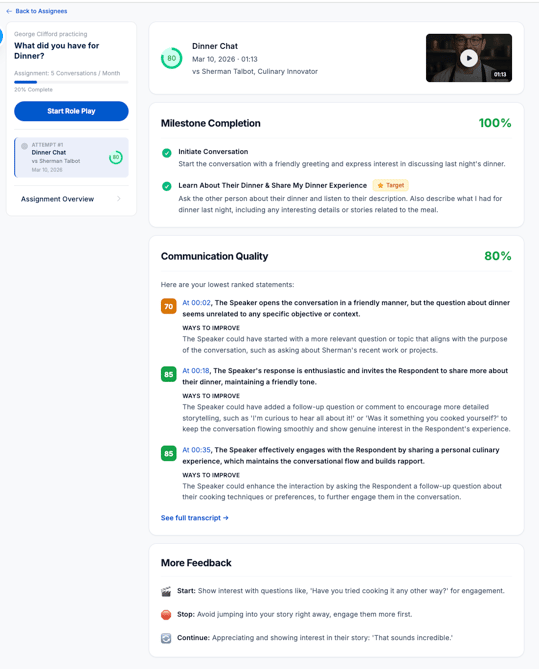
Review each historical recording to watch the recording and access feedback about that conversation. Click on the video to open the side panel with your session transcript and inline statement feedback and suggestions.
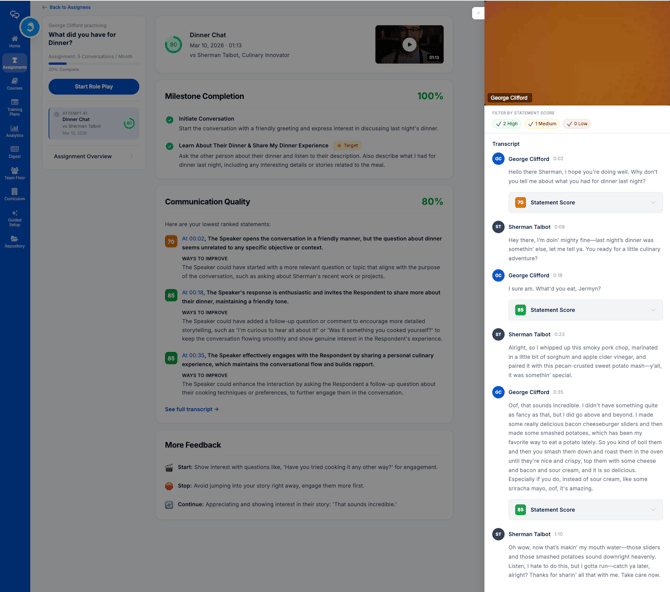
For more information, see:
- [Role Play Scoring and Feedback](https://8989544.hs-sites.com/en-us/knowledgebase/role-play-scoring-and-feedback?hsLang=en-us)
- [New Features and Updates](https://support.brevitypitch.com/en-us/knowledgebase/new-features-and-updates?hsLang=en-us#main-content)
- [Training Plans](https://support.brevitypitch.com/en-us/knowledgebase/new-features-and-updates?hsLang=en-us#training-plans)
- [Meeting Analyzer](https://support.brevitypitch.com/en-us/knowledgebase/new-features-and-updates?hsLang=en-us#meeting-analyzer)
- [Role Play](https://support.brevitypitch.com/en-us/knowledgebase/new-features-and-updates?hsLang=en-us#role-play)
- [Administration](https://support.brevitypitch.com/en-us/knowledgebase/new-features-and-updates?hsLang=en-us#administration)
- [Overview & Getting Started](https://support.brevitypitch.com/en-us/knowledgebase/overview-getting-started?hsLang=en-us#main-content)
- [What is Brevity?](https://support.brevitypitch.com/en-us/knowledgebase/overview-getting-started?hsLang=en-us#what-is-brevity)
- [Getting Started](https://support.brevitypitch.com/en-us/knowledgebase/overview-getting-started?hsLang=en-us#getting-started)
- [Admin & Enablement](https://support.brevitypitch.com/en-us/knowledgebase/admin-enablement?hsLang=en-us#main-content)
- [Managing Users, Teams, & User Groups](https://support.brevitypitch.com/en-us/knowledgebase/admin-enablement?hsLang=en-us#managing-users-teams-user-groups)
- [Admin Settings](https://support.brevitypitch.com/en-us/knowledgebase/admin-enablement?hsLang=en-us#admin-settings)
- [Enablement Best Practices](https://support.brevitypitch.com/en-us/knowledgebase/admin-enablement?hsLang=en-us#enablement-best-practices)
- [User Logs](https://support.brevitypitch.com/en-us/knowledgebase/admin-enablement?hsLang=en-us#user-logs)
- [Integrations](https://support.brevitypitch.com/en-us/knowledgebase/admin-enablement?hsLang=en-us#integrations)
- [Managing Users & Teams](https://support.brevitypitch.com/en-us/knowledgebase/admin-enablement?hsLang=en-us#managing-users-teams)
- [Using Brevity](https://support.brevitypitch.com/en-us/knowledgebase/using-brevity?hsLang=en-us#main-content)
- [Agent Hub](https://support.brevitypitch.com/en-us/knowledgebase/using-brevity?hsLang=en-us#agent-hub)
- [Creating Role Plays](https://support.brevitypitch.com/en-us/knowledgebase/using-brevity?hsLang=en-us#creating-role-plays)
- [Creating & Managing Assignments](https://support.brevitypitch.com/en-us/knowledgebase/using-brevity?hsLang=en-us#creating-managing-assignments)
- [Creating Training Plans](https://support.brevitypitch.com/en-us/knowledgebase/using-brevity?hsLang=en-us#creating-training-plans)
- [Repository](https://support.brevitypitch.com/en-us/knowledgebase/using-brevity?hsLang=en-us#repository)
- [Practicing Role Plays](https://support.brevitypitch.com/en-us/knowledgebase/using-brevity?hsLang=en-us#practicing-role-plays)
- [Working Through Your Training Plan](https://support.brevitypitch.com/en-us/knowledgebase/using-brevity?hsLang=en-us#working-through-your-training-plan)
- [Meetings](https://support.brevitypitch.com/en-us/knowledgebase/using-brevity?hsLang=en-us#meetings)
- [Playbook](https://support.brevitypitch.com/en-us/knowledgebase/using-brevity?hsLang=en-us#playbook)
- [Scores, Feedback, & Analytics](https://support.brevitypitch.com/en-us/knowledgebase/scores-feedback-analytics?hsLang=en-us#main-content)
- [Viewing Feedback](https://support.brevitypitch.com/en-us/knowledgebase/scores-feedback-analytics?hsLang=en-us#viewing-feedback)
- [Interpreting Results](https://support.brevitypitch.com/en-us/knowledgebase/scores-feedback-analytics?hsLang=en-us#interpreting-results)
- [Reporting & Analytics](https://support.brevitypitch.com/en-us/knowledgebase/scores-feedback-analytics?hsLang=en-us#reporting-analytics)
- [Training Plans](https://support.brevitypitch.com/en-us/knowledgebase/scores-feedback-analytics?hsLang=en-us#training-plans)
- [IT, Security, & Compliance](https://support.brevitypitch.com/en-us/knowledgebase/it-security-compliance?hsLang=en-us#main-content)
- [Network & Access](https://support.brevitypitch.com/en-us/knowledgebase/it-security-compliance?hsLang=en-us#network-access)
- [Troubleshooting](https://support.brevitypitch.com/en-us/knowledgebase/troubleshooting?hsLang=en-us#main-content)
- [Account & Access Issues](https://support.brevitypitch.com/en-us/knowledgebase/troubleshooting?hsLang=en-us#account-access-issues)
- [Audio & Role Play Issues](https://support.brevitypitch.com/en-us/knowledgebase/troubleshooting?hsLang=en-us#audio-role-play-issues)
- [Assignments & Scoring](https://support.brevitypitch.com/en-us/knowledgebase/troubleshooting?hsLang=en-us#assignments-scoring)
- [Integrations](https://support.brevitypitch.com/en-us/knowledgebase/troubleshooting?hsLang=en-us#integrations)
- [Known Issues & Status](https://support.brevitypitch.com/en-us/knowledgebase/known-issues-status?hsLang=en-us#main-content)
- [Active Known Issues](https://support.brevitypitch.com/en-us/knowledgebase/known-issues-status?hsLang=en-us#active-known-issues)
- [Resolved Known Issues](https://support.brevitypitch.com/en-us/knowledgebase/known-issues-status?hsLang=en-us#resolved-known-issues)
[](http://brevitypitch.com)
The Revenue Performance Platform
[mailto:support@brevitypitch.com](mailto:support@brevitypitch.com)
Copyright © 2025, Brevity Technologies, Inc.