
The Navigation Panel
Brevity's navigation is a fixed panel on the left side of your screen with icon-based links to each page. Which pages appear depends on your role and any features your admin has enabled.

Here's how the sidebar is organized, from top to bottom:
AI Assistance for Course creation and Assignment - Talk to Brevity AI anytime you want create a role play. See also, Create an Assignment with Ella
Navigation pages — The main pages you use in Brevity, listed vertically. See "What You See by Role" below for which pages appear for your role.
Team button — Displays your organization's logo and your currently selected team. Click it to switch teams, select All Organization, or access your Organization settings.
Your profile photo — At the very bottom. Click it to open a panel with your profile, account settings, organization access, and sign-out option.
What You See by Role
Brevity has three roles: Organization Admin, Team Admin, and Member. Here is the navigation each role sees, listed in the order the pages appear in the sidebar.
Member (End-User / Learner)
| Page | What it's for |
|---|---|
| Home | Onboarding guidance for new users and a quick analytics overview |
| Assignments | Your assigned role plays — this is where you practice |
| Courses | Browse or create courses (only visible if enabled by your admin) |
| Training Plans | Work through structured learning paths assigned to you (if enabled, Coming soon!) |
Note: Your admin controls whether you see Courses and Training Plans. If course permissions are turned off, you will only see Home and Assignments. See Disabling Member-Level Permissions for details.
Team Admin
Team Admins see everything Members see, plus tools for managing their team's content and performance:
| Page | What it's for |
|---|---|
| Analytics | Team performance dashboards — Overview, Adoption, Engagement, Individual Progress |
| Repository | Your team's content library — Knowledgebase items, Contexts, Personas, Topics, Vocabulary, and Files that power your courses. (Visible when you are inside your team.) |
Team Admins can also access Organization settings for team-level configuration (member management, permissions) by clicking the Team button → View Organization, or by clicking your profile photo → Organizations.
Organization Admin
Org Admins see everything Team Admins see, plus org-wide tools:
| Page | What it's for |
|---|---|
| Curriculum | AI-recommended courses generated from your Knowledgebase — browse, refine, and assign |
| Guided Setup | AI-guided workflow that interviews you about your products and goals, then builds your Knowledgebase |
| Repository | Always visible. Manage your content library at the org level — Knowledgebase, Contexts, Personas, Topics, Vocabulary, and Files |
Org Admins access Organization settings (user management, access logs, roles, permissions, and more) by clicking the Team button → View Organization, or by clicking your profile photo → Organizations.
Additional Pages Your Admin May Enable
Depending on your organization's plan and configuration, you may also see these pages in your navigation:
- Meeting Analyzer — AI-powered analysis of recorded sales and customer conversations
- Team Floor — Collaborative learning and virtual sales floor experiences
- Connections — Integrations with external tools and platforms
These appear in the sidebar between your core navigation pages when enabled by an Org Admin.
Want to learn more? Contact your customer success manager or Brevity Support.
Quick Reference: "I Want To..."
Find your task below to see where to go and which roles have access.
Practice & Learn
| I want to... | Where to go | Who can do this |
|---|---|---|
| Start a role play I've been assigned | Assignments → select the assignment → Start | All users |
| Review my scores and feedback | Assignments → select a completed assignment | All users |
| Create my own course to practice with | Courses → Create New | Members (if enabled), Admins |
| Practice via phone (SMS or voice) | Assignments → select a phone-enabled assignment | All users (if enabled by Org Admin) |
| Work through a training plan | Training Plans → select your plan | All users (when assigned a plan) |
Build Content & Courses
| I want to... | Where to go | Who can do this |
|---|---|---|
| Set up Brevity for the first time | Guided Setup | Org Admins |
| Build the knowledgebase via AI chat | Guided Setup | Org Admins |
| Add to the knowledgebase manually | Repository → Knowledgebase | Admins |
| Upload files for Brevity to ingest | Repository → Files | Admins |
| Create a new course | Courses → Create New | Admins; Members (if enabled) |
| Clone or share an existing course | Courses → select course → Clone | Admins; Members (if enabled) |
| Create or edit a context (scenario) | Courses → open a course → edit its context, or Repository → Contexts | Admins |
| Create or edit a persona (AI character) | Courses → open a course → edit its persona, or Repository → Personas | Admins |
| Add a topic (conversation subject) | Courses → open a course → add topics, or Repository → Topics | Admins |
| Set pronunciation for a term | Repository → Vocabulary | Admins |
| Browse AI-recommended courses | Curriculum | Org Admins |
Assign & Track Performance
| I want to... | Where to go | Who can do this |
|---|---|---|
| Assign a course to users or a team | Assignments → Create Assignment | Admins; Members (if enabled) |
| Assign a course to a User Group | Assignments → Create Assignment → select User Group | Admins |
| Create a structured training plan | Training Plans → Create | Admins |
| View org or team performance dashboards | Analytics | Admins |
| Download a report card for a specific user | Analytics → Individual Progress → Download PDF | Admins |
| Set up email digests (daily/weekly/monthly) | Analytics → Configure Digests | Admins |
| Filter analytics by User Group | Analytics → User Group filter | Org Admins (full org); Team Admins (their teams only) |
Manage Users, Teams & Your Organization
| I want to... | Where to go | Who can do this |
|---|---|---|
| Switch to a different team | Team button (bottom of sidebar) | All users |
| Invite a new user | Organization → Invite Users | Org Admins |
| Bulk-upload users via CSV | Organization → Invite Users → Upload CSV | Org Admins |
| Remove a user from the organization | Organization → User list → ⋯ → Remove from organization | Org Admins |
| Change a user's org-level role | Organization → User list → Role column | Org Admins |
| Edit a user's team-level roles | Organization → User list → Role → Edit Team Roles | Org Admins |
| Add or remove members on my team | Organization (team level) → Members | Team Admins, Org Admins |
| Create, rename, or delete a team | Organization → Teams → ⋯ | Org Admins |
| Create or manage User Groups | Organization → User Groups | Org Admins |
| View access logs | Organization → Access Logs | Org Admins |
| Export access logs to CSV | Organization → Access Logs → Export | Org Admins |
How to get to Organization: Click the Team button → View Organization, or click your profile photo → Organizations.
Configure Permissions & Features
| I want to... | Where to go | Who can do this |
|---|---|---|
| Control whether members can create courses | Organization → Permissions → "Member can create Courses" | Org Admins (org level), Team Admins (team level) |
| Control whether members can view all courses | Organization → Permissions → "Member can view All Courses" | Org Admins (org level), Team Admins (team level) |
| Enable phone-based role plays for the org | Organization (All Org level) | Org Admins |
| Send phone verification reminders to users | Organization → User list → ⋯ → Send email reminder | Org Admins, Team Admins |
| Set default language for speech-to-text | Organization (All Org level) → Default Language | Org Admins |
| Update my profile or verify my phone number | Profile photo (bottom of sidebar) → My Profile | All users |
Note: Team-level permission settings override org-level defaults for that team. Permission changes take effect immediately — users may need to refresh their browser.
Navigation Pages in Detail
Home
Your starting point in Brevity. Home includes an Onboarding tab with step-by-step guidance for new users and an Analytics tab with a quick view of your organization's practice data.
Assignments
Where practice happens. Members select an assignment to start a role play, receive real-time AI scoring, and review feedback when done. Admins also use this page to create and manage assignments — the Bulk Assignment Creator lets you assign a single course to many users or teams at once. All practice activity flows into Analytics and individual Report Cards.
Courses
Where role-play courses are created and managed. Each course defines a practice scenario built from a Context (the situation), a Persona (the AI character), Topics (conversation subjects), and Knowledgebase items, along with scoring criteria. You can also edit a course's underlying components — its context, persona, and topics — directly from within the course.
What Members see on this page depends on admin settings. Members may have full access (create, clone, and edit courses), view-only access, or no access at all. See Disabling Member-Level Permissions for the configuration options.
Training Plans
Coming soon to Brevity. Training Plans sequence multiple assignments into a structured learning path with chapters, sections, and completion criteria. Users progress through the plan in order, advancing when they meet each milestone. Admins build plans using a wizard interface and manage them with templates, cloning, and folder organization.
Analytics
(Admins only)
Performance dashboards for your organization and teams, with four views: Overview (high-level metrics), Adoption (activation and engagement trends), Engagement (practice frequency and depth), and Individual Progress (per-user performance with downloadable PDF report cards). Save preset filters for quick check-ins, configure email digests for at-a-glance summaries, and filter by User Group to analyze cross-team cohorts.
For more detail: All about the Analytics Tab | All about Brevity Email Digests
Curriculum
(Org Admins only)
AI-recommended courses generated from your Knowledgebase, tailored to your organization's products and use cases, and categorized by difficulty level. Browse recommendations, edit and refine them, then assign to your teams.
Guided Setup
(Org Admins only)
An AI-guided conversational workflow that interviews you about your products, processes, and goals, then automatically populates your Knowledgebase. You can upload source material (product docs, playbooks, call recordings) and Guided Setup will extract and organize the relevant information. Resume or rewind at any point.
Repository
(Admins only)
Settings is your content library. It houses all the building blocks that power Brevity's courses and AI-generated content: the Knowledgebase, Contexts, Personas, Topics, Vocabulary, and Files. Admins create, edit, and organize these assets here. You can also access most of these components from within a specific course — Settings gives you the full cross-course view.
Organization
(Accessed via Team button → View Organization, or Profile → Organizations)
Organization is where admins manage users, teams, roles, and platform configuration. At the All Organization level, Org Admins can invite and remove users, assign roles, create teams and User Groups, view access logs, enable phone-based role plays, set the default language, and configure org-wide permission defaults. At the team level, Team Admins and Org Admins manage team membership, set team-specific permission overrides, and send phone verification reminders.
Support
(Accessed via "?" icon)
The "Get Help" button is located above the Team button and gives users direct access to Brevity Support. Chat with an AI agent with access to our complete documentation hub. Providing clear descriptions of where you are in the platform and what you are trying to do will help surface the most useful support articles. If our AI can't answer your question, be sure to leave your email so our Brevity Support team can get you a resolution.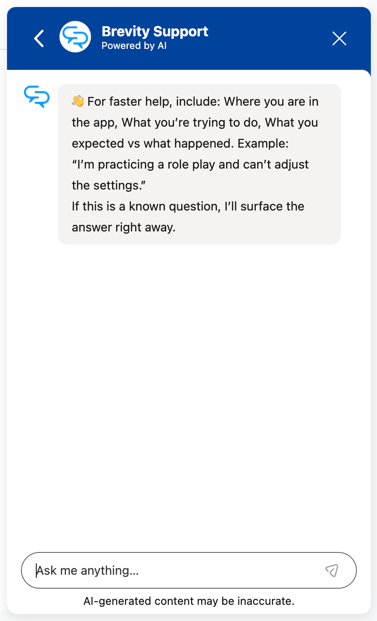
Switching Teams
Click the Team button near the bottom of the sidebar to open the team switcher. You'll see all teams in your organization with member counts, a search bar, and options to switch your current context or select All Organization. Admins can also click View Organization at the bottom of the team switcher to go directly to organization management.
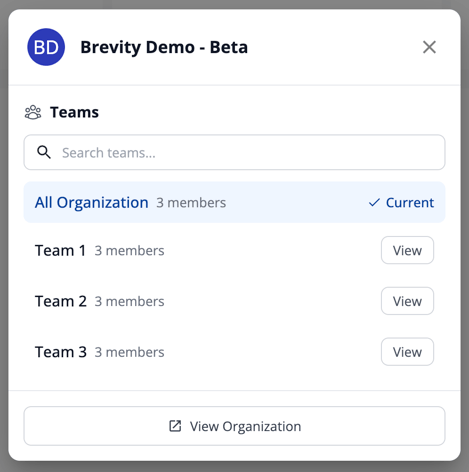
Important: Many actions in Brevity — assignments, courses, analytics, and settings — are scoped to whichever team you have selected. Always check your team context before making changes.
Your Profile & Account
Click your profile photo at the very bottom of the sidebar to open the account panel. From here you can view and edit your profile, verify your phone number (required for phone-based role plays), access your organizations, contact our support agent, and sign out.
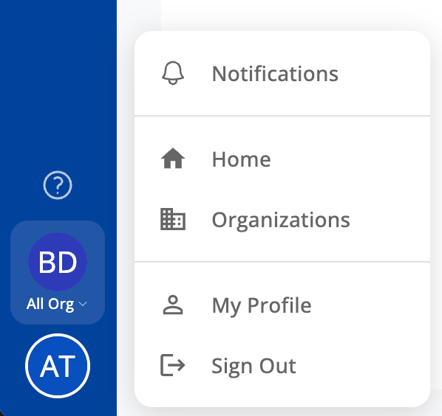
- Notifications alert you to any pending invites or completed AI automations
- Organizations takes you to the org panel
- My Profile lets you view and edit your profile, verify your phone number (required for phone-based role plays)
Tips
Check your team context first. The Team button near the bottom of the sidebar shows which team you're working in. Switch to All Organization when you need to work across teams.
Courses is the fastest path to edit content. While you can manage Contexts, Personas, and Topics in Settings, you can also create and edit them directly from within a course — no need to leave the Courses page.
Team-level settings override org defaults. If a Team Admin configures permissions differently for their team, those take precedence over whatever was set at the All Organization level.
Permission changes are immediate. When an admin changes a permission toggle, it takes effect right away. Users may need to refresh their browser to see updated navigation.
Related Articles
- Roles Overview — Full breakdown of Org Admin, Team Admin, and Member capabilities
- User Management — How to invite, bulk upload, and manage users
- Disabling Member-Level Permissions — Configure what Members can see and do
- Enabling Phone-Based Role Plays — Set up phone practice for your org
- Access Logs — Monitor logins, sessions, and role changes
- Team Administration — Creating & Managing Teams
- Guided Setup Overview — Build your Knowledgebase and first courses
- Uploading Files in Brevity — How file ingestion works