
We’re currently transitioning our admin model from Team > Group to Organization > Team > Group, with admin roles becoming Organization Admin and Team Admin. As a result, some language in this article (for example, references to “Team” or “Group”) may not exactly match what you see in the product today. The underlying functionality described here remains the same, even if the labels and hierarchy in your app look slightly different while we complete this transition.
Add Existing Brevity Users to a Team
If a Brevity organization account has already been created for a user, you can easily add that user to a team:
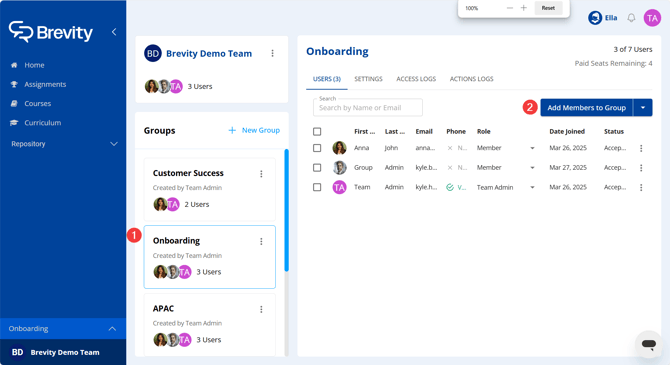
- In Brevity configuration, select the team where the user should be added.
- Click Add Members to Team.
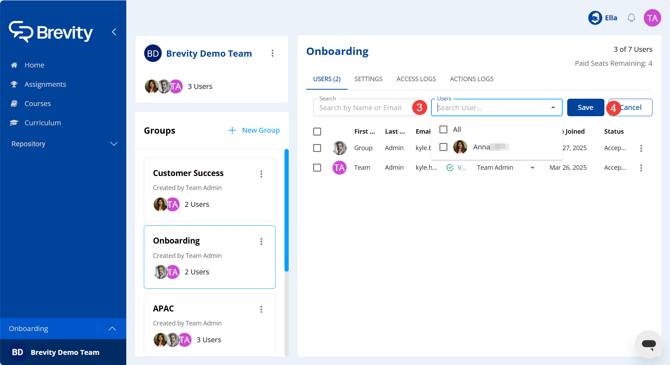
- Click the Users drop-down menu and select the user or users you want to add to the team.
- Click Save.
Remove Brevity Users from a Team
Remove an Individual User from a Team
To remove a single user from a team:
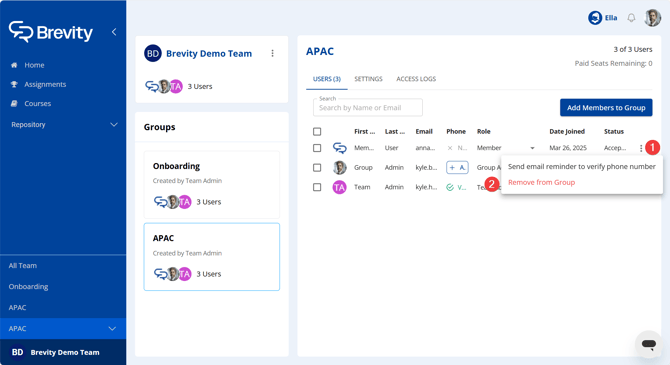
To remove a single group member:
- Click the three-dots menu at the far right of the user's row.
- Click Remove from Team.
- In the Remove Team Member window, click Yes, I'm sure.
Remove Multiple Users from a Team
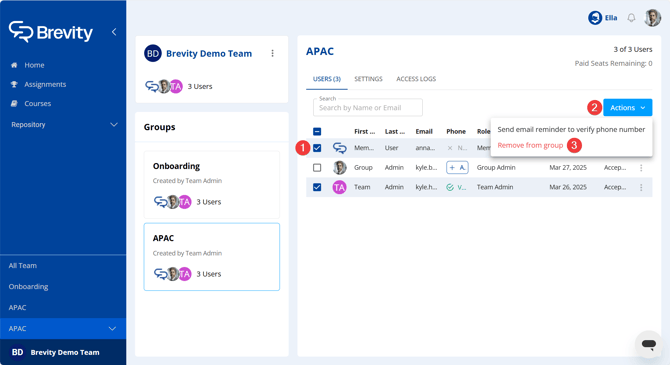
To remove multiple Team members:
- Click the check box next at the far left of each user's row.
- Click Actions > Remove from team.
- In the Remove team Member window, click Yes, I'm sure.