
We’re currently transitioning our admin model from Team > Group to Organization > Team > Group, with admin roles becoming Organization Admin and Team Admin. As a result, some language in this article (for example, references to “Team” or “Group”) may not exactly match what you see in the product today. The underlying functionality described here remains the same, even if the labels and hierarchy in your app look slightly different while we complete this transition.
1. Overview
Welcome to the Brevity Sales Floor! Sales Floor is a new way for your organization to share great practice moments, learn from each other, and spark discussion in one central, easy-to-access spot. It brings the energy of a sales floor—feedback, celebration, and friendly competition—to your virtual training and coaching.
Who is this for? Sales Floor is designed for all Brevity users, from individual members to sales managers and enablement leaders. Whether you’re a rep working on your pitch or an admin looking to spotlight best practices, the Feed is your space for sharing, collaborating, and growing together.
Note: To enable Sales Floor for your Org, talk to your dedicated Customer Success Manager or reach out to support@brevitypitch.com.
2. Key Benefits & Use Cases
Benefits for your Organization
- Learn Faster, Together: See how your peers approach role plays and pick up new techniques every week.
- Celebrate & Motivate: Recognize top performances and encourage teammates, boosting morale and healthy competition.
- Scalable Coaching: Get feedback not just from leaders, but from everyone in your organization—making learning continuous and collective.
Use Cases
- Beat-the-Boss Challenge
- What it is
- A weekly or monthly head-to-head competition where the organization tries to out-perform a manager’s “benchmark” role play or call clip. If any rep’s score tops the boss’s, this unlocks bragging rights—or a fun reward the manager commits to (coffee gift cards, a casual dress day, you name it).
- How it works
- Manager records a short, high-quality role play (e.g., “Discovery Call with a reluctant prospect”) and posts it to the Sales Floor with the tag “🏆 Beat the Boss.”
- Manager sets the bar: “Score to beat = 87/100 on the Brevity rubric.”
- Reps practice, record their own version, and share it as a reply thread or separate post using the same tag before the deadline.
- At week’s end, the manager (or an assigned coach) reviews submissions, highlights top scorers, and announces whether the boss got dethroned.
- Winning clip gets pinned for the following week so everyone can study what “better than the boss” looks like.
- What it is
-
- Why organizations love it
- Injects playful competition that drives more voluntary practice reps.
- Gives managers a chance to model excellence while showing vulnerability (“Here’s my best shot—can you top it?”).
- Generates a library of high-scoring examples that the whole organization can learn from long after the challenge ends.
- Why organizations love it
- Peer Spotlight (“Rep of the Week”)
- What it is
- Every Friday, the enablement manager features one rep’s best role-play clip or live-call snippet that demonstrated a specific skill (e.g., objection handling, crisp value prop).
- How it works
- Manager creates a post titled “🌟 Rep of the Week: Ana’s Discovery Call”
- Includes 90-second audio, quick summary of why it stands out, and a prompt: “Drop an emoji or question below!”
- Teammates react, ask questions, and Ana can elaborate on her approach.
- Why organizations love it
- Highlights real examples of excellence, builds recognition, and turns great moments into organization-wide learning assets.
- What it is
- Crowdsource the Close (“Help Me Out” Thread)
- What it is
- Reps post tough questions or objections they encountered and ask the hive mind for ideas on how to respond next time.
- How it works
- Rep clicks New Post → Title: “Stuck on Budget Pushback—Ideas?”
- Adds 45-sec clip where prospect objects: “We don’t have funds this quarter.”
- Peers and managers jump in with scripts, talk tracks, or similar success stories in the comments.
- Admin can pin the thread for the week so everyone sees it.
- Why organizations love it
- Turns isolated challenges into collective problem-solving, accelerating skill development across the board.
- What it is
- New-Hire Showcase (“First Pitch, First Feedback”)
- What it is
- During onboarding week, each new rep records their first product pitch role play and posts it for rapid, supportive feedback.
- How it works
- New hire uploads clip with context: “Day 3 pitch—open to all advice!”
- Organization members offer thumbs-up emojis, concise pointers, and links to relevant resources.
- Coach replies with a structured rubric so the rep sees strengths and clear next steps.
- Why organizations love it
- Jump-starts onboarding, creates an immediate sense of Sales Floor, and gives new hires a safe space to iterate before they’re in front of prospects.
- What it is
3. Core Features
Posting & Sharing
Share your completed role plays (audio or video), add a quick summary, and choose who can see them—just your team or the whole company (if allowed by your admin).
How to post:
- Click "New Post".
- Add a title, context, and attach your role play (if you wish).
- Select visibility: Private, Team, or Global (if enabled).
- Click "Share"—your post appears in the Feed!
Commenting & Discussion
Anyone with access to a post can leave a comment or a quick emoji reaction.
- Reply to posts, ask questions, or encourage teammates.
- Use emojis to quickly react and celebrate achievements.
Admin Controls
Admins have additional tools to keep the Feed valuable and safe for all users.
- Moderate Content: Remove/report content that doesn’t meet team or company guidelines.
- Control Visibility: Configure whether sharing is team-only or open to all teams (Global).
Privacy & Visibility Settings
- For users: When posting, always choose your intended audience. Team posts are for your team, and global posts are seen by all teams (if enabled).
- For admins: Configure visibility rules and turn the Feed on/off for your whole team in team settings.
4. Admin Control Panel
Admins will find Sales Floor-Specific controls available in the top right corner of the Sales Floor page. Click the gear to configure permissions for your Team. Team Admin have granular control of how your team engages in the Sales Floor.
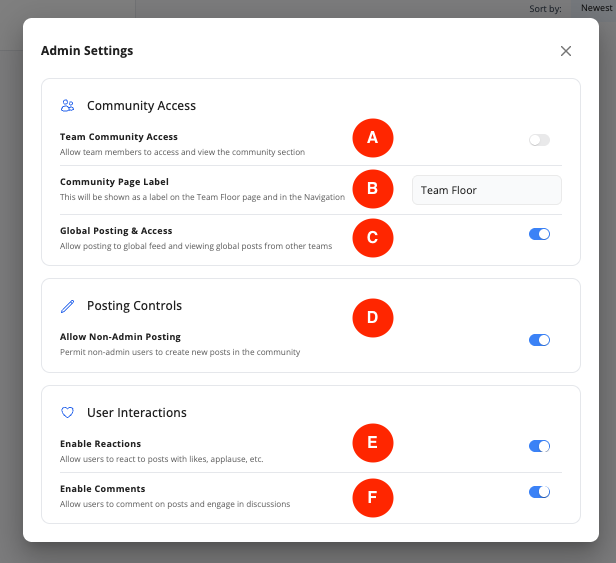
Admin Settings
A. Team Sales Floor Access: Toggle on and off to enable access to the Sales Floor section for your Members.
B. Sales Floor Page label: Choose your own Label for the Sales Floor page - your Team's navigation bar and page label will update automatically.
C. Global Posting & Access: Choose to allow or restrict the creation and viewing of External posts. Global posting allows for sharing ideas and best practices across the wider Brevity Sales Floor.
Note: Restricting Global posts will restrict any posts made by Users outside your own Team. Posts from "the Brevity Team" will still be visible and are limited to platform-related guidance.
Posting Controls
D. Allow Non-Admin Posting: Choose to limit Sales Floor posts to Admins or allow all Members to create their own posts.
User Interactions
E. Enable Reactions: Allow Members to engage with posts through emoji reactions
F. Enable Comments: Allow Members to engage with posts through commenting
5. Getting Started
Accessing the Feed
Find "Sales Floor" on the left sidebar.
Making Your First Post
- Go to the Feed.
- Click "New Post".
- Add your message, attach your role play if you like, and set visibility.
- Post it. That’s it!
Engaging with Others
- React: Tap the emoji button to react to a post.
- Comment: Click "Comment" below a post, type your message, hit "Send."
- Daily/Weekly: Check the Feed to find inspiration and give feedback to teammates.
6. Best Practices
- Start Small: You don’t have to share every practice—share your favorites or posts where you want feedback.
- Be Respectful: Celebrate wins, offer helpful feedback, and encourage questions.
- Admins: Model participation by posting your own examples and spotlighting great team work.
7. Frequently Asked Questions (FAQs)
- Will all my practice sessions automatically appear in the Feed?
No. Only the sessions you choose to share will be visible. You decide whether to keep them private, share with your team, or share globally (if allowed). - As an Admin, how do I control what’s visible?
Go to Team Settings > Sales Floor. From here, you can enable/disable the Feed, set sharing options (team vs. global), and manage moderation. - Can I call my Team's Sales Floor something else?
Yes! A Team Admin can edit the page name in Admin Settings. These settings are found directly on the Sales Floor page in the top right corner. - How is privacy protected?
No post or comment is ever visible outside your chosen audience. Admin controls and compliance rules apply at all times. - What happens if the Feed is disabled for my team?
If your admin disables the Feed, it will disappear from your navigation bar, and all previous posts will remain hidden until reenabling. - Can I remove or edit my post or comment?
Yes, you can delete or edit your own posts and comments at any time.
8. Privacy and Security
Your data is always stored securely and managed according to Brevity’s compliance standards. No post ever leaks beyond your chosen audience, and all moderation actions are tracked for transparency.