
Cloning a Topic
You can clone an existing topic, which creates a copy of the topic that you can then edit and manage separately from the original topic . This allows you to, for example, quickly create multiple topics with slight variations.
To clone a topic:
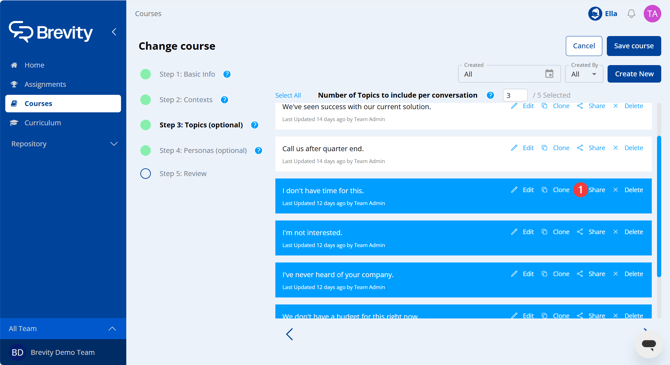
- Click a course from the Courses tab to enter the Change course workflow. From the Topics step, find the topic you want to clone and click Clone.
- Click Yes to confirm that you want to clone the topic.
The cloned topic appears with the text "Copy of" appended to the topic name. From here, you can edit, share, and manage the topic just as you would any other.
Editing a Topic
You can edit existing topics to make them more challenging, relevant, or accurate. Note that when you update a topic, any active assignments that include that topic will be updated automatically. Note that group admin and member users will be able to edit only topics that they have created, or topics that were shared with them with Editor privileges. For more information about editing topics and their relationship with courses and assignments, see:
To edit a topic:
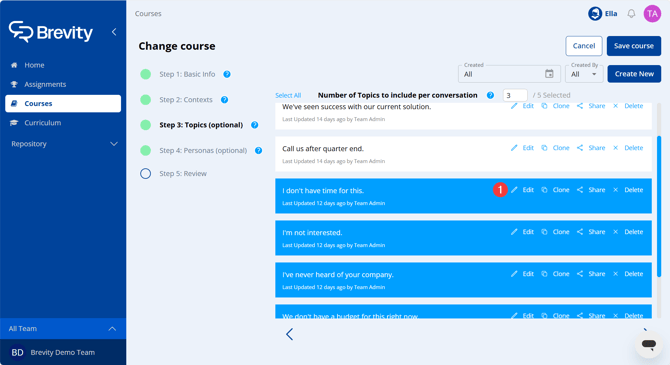
- Click a course from the Courses tab to enter the Change course workflow. From the Topics step, find the topic you want to clone and click Edit.
- Make changes to the topic text directly. When you are finished, use the Enter key to save changes.