
Teams Overview
Organization Administrators can create teams within Brevity to subdivide both users and assets. This allows you to allocate users and resources into teams that mirror your organization's structure and/or needs. For example, if your organization has an East region and a West region, creating a team for each of those regions allows you to allocate managers and employees into their respective region, and allows you to create and manage team-specific courses, assignments, analytics, and more.
Note that Team Admin users can also perform many administrative tasks for their respective groups. For more information about Team Admin functions, see:
In general, we recommend using teams to organize your organization when:
- There are multiple teams within your organization that require or might require unique role play content.
- You want to track and compare the usage and performance of those teams separately in Brevity.
Here are the benefits of using Teams to organize your Brevity team:
- Create teams that align with your internal teams to organize users.
- Create team-specific content that accounts for differences in organizational function, objectives, regions, languages spoken, sales methodologies, etc. You can also share content across groups when appropriate.
- Allow managers to view the conversation history and results for only their team members.
- Allow Team Administrators to create and manage administrative tasks (content creation, user management, etc.) for their teams.
- Track and compare analytics at a more granular level.
Create a Team
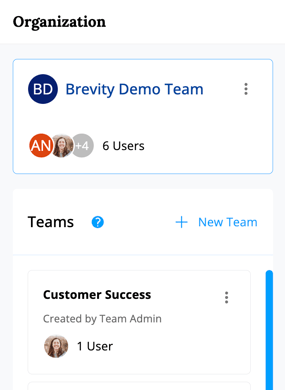
-
Access the All Organization configuration page. Click your company's logo in the bottom-left of the Brevity window, and ensure that the All Organization group is selected.
-
Click "+ New Team".
- Enter a team name.
- Click Save.