
Contexts include information about the type of conversation, instructions to the AI persona about how to conduct the conversation, and progress milestones that determine whether the conversation is successful.
Creating a Context
To create a context:
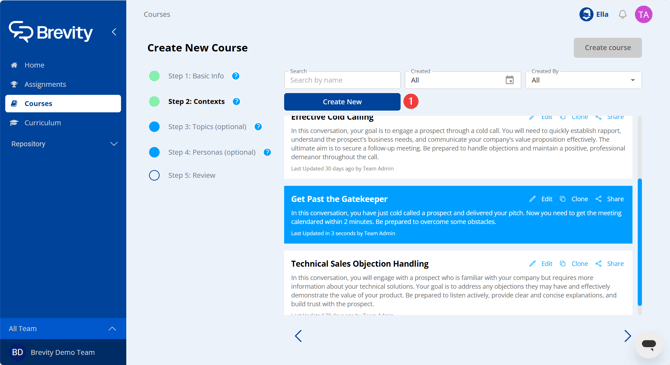
- Click Create New.
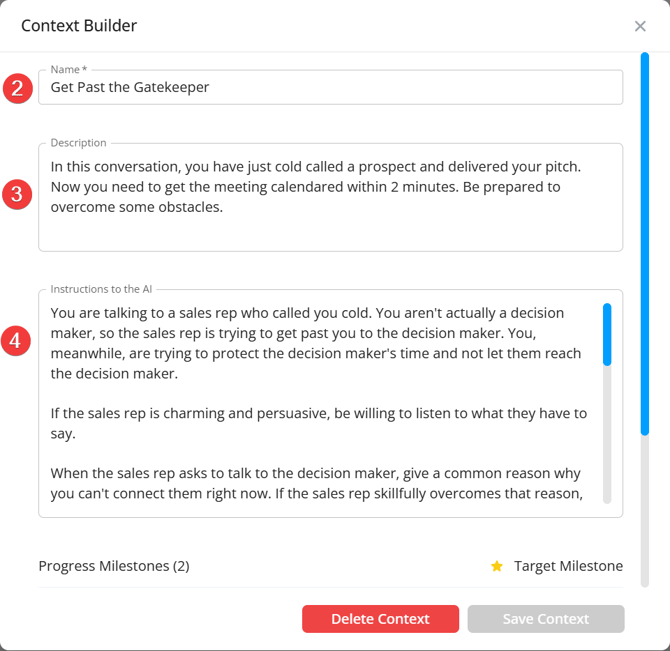
- Enter a Name for the context. Remember that contexts can be reused across courses, so choose something descriptive.
- Enter a Description for the context. This description appears in the What Are You Talking About? section when a user starts a role play assignment that includes this context. Therefore, the description should include all information that a user would need to be able to win an assignment that includes this context.
- Enter Instructions to the AI that outline the AI persona's situation, goals, and demeanor for the conversation.
Creating and Managing Progress Milestones
Progress milestones are used to provide objectives within a role play conversation, and to determine whether and to what degree each conversation is successful; i.e. a successful conversation is one in which the progress milestones have been achieved. Progress milestones are automatically included when a course is created, but you can add new milestones as well as edit or remove existing milestones.
To add and configure a progress milestone:
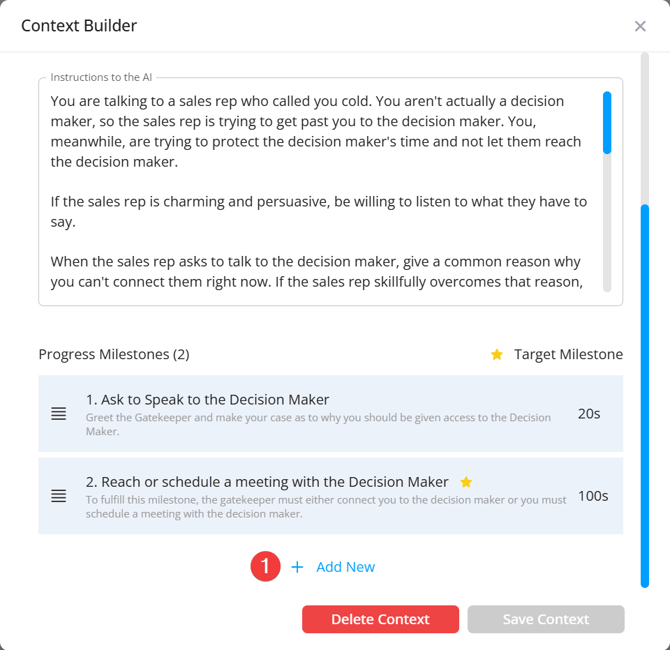
- Click Add New.
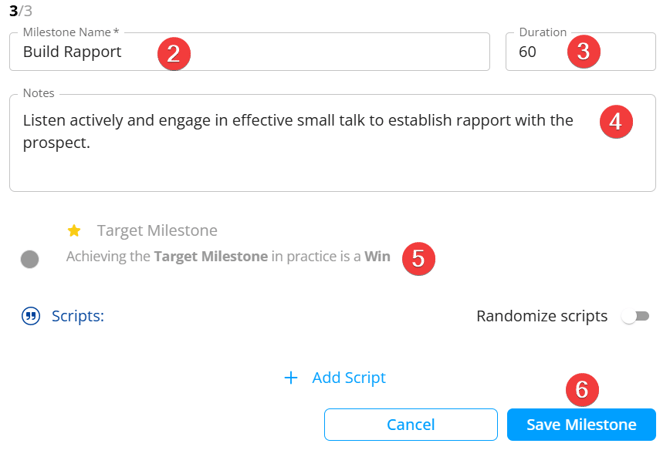
- Enter a name for the milestone in the Milestone Name field.
- Enter a duration for the milestone in the Duration field. In a role play conversation that includes this milestone, a progress bar is shown to users that reflects the duration entered here. While the user does not need to achieve the milestone within that duration in order to win the milestone, it can be useful to the user to ensure that the conversation stays on track.
- Enter notes about how the user can win the milestone in the Notes field.
- Indicate whether this milestone is the target milestone by enabling the Target Milestone toggle. Each context must include a single target milestone, which is the ultimate objective of the conversation and determines whether the overall conversation is won or lost.
- Click Save Milestone.
Adding and Managing Scripts
Each milestone can optionally include scripts. Scripts and instructions are optional but can enhance AI response accuracy. To add and manage a milestone script:
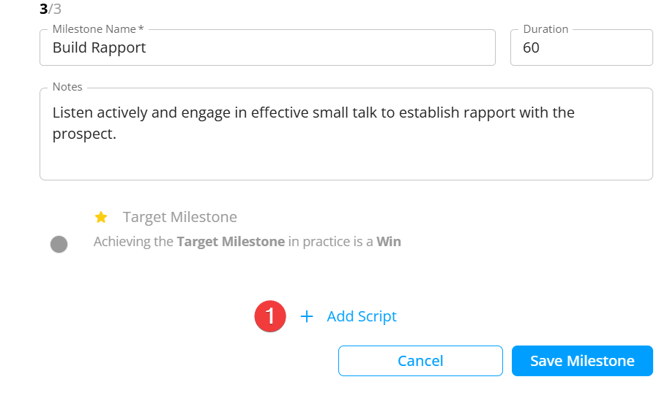
- Click Add Script.
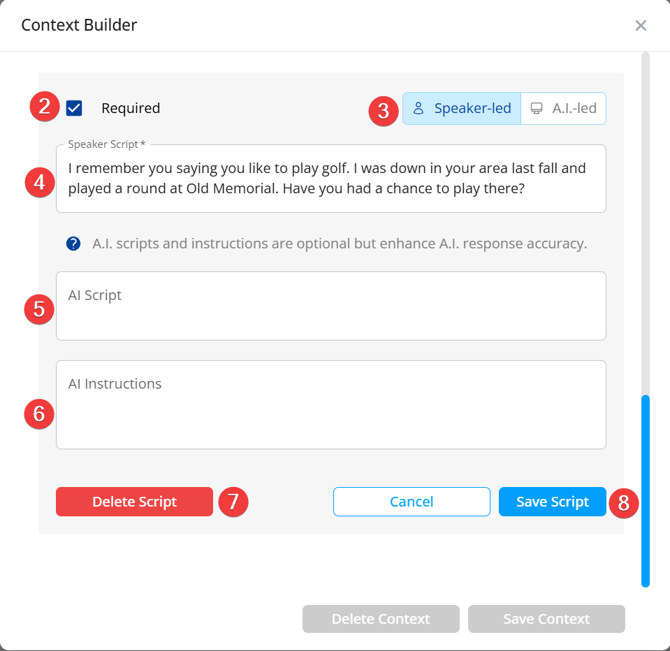
- Indicate whether the script is required. Required scripts must be recited in order to win the milestone. Non-required scripts serve as a conversational guideline for users.
- Indicate whether the script is Speaker-led or AI-led. Speaker-led scripts required the user to initiate the scripts, while AI-led scripts allow the AI persona to initiate the script.
- Enter the speaker's script in the Speaker Script field.
- Enter the AI Script in the AI Script field.
- Enter any additional instructions for the AI related to the script in the AI Instructions field.
- To delete an existing script, click Delete Script.
- To save your script, click Save Script.
Scripts Mode must be made available during Assignment Creation to use provided scripts from the Context Milestones.