
A Topic is a specific point of conversation to be included in a role play. Topics are not mandatory, but including a topic in a course will ensure that the topic comes up as part of the role play conversation.
Creating a Topic
To create a new topic:
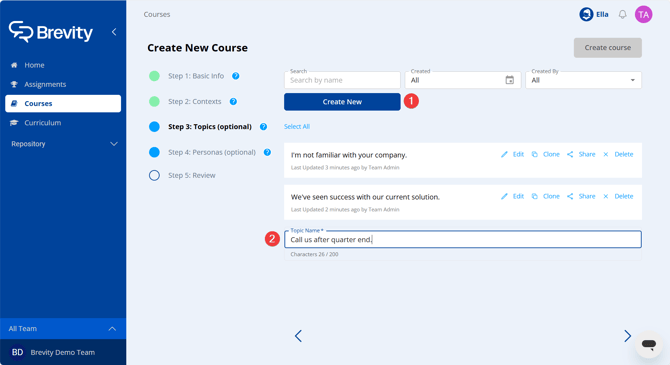
- Click Create New.
- Type to enter the topic in the Topic Name field.
- Press Enter on your keyboard to save the topic.
Selecting Topics
Each course can optionally include one or more specific topics. Selecting multiple topics ensures that each topic will be raised as part of the role play conversation.
Alternately, you can choose to include a subset of the selected topics by limiting the number of selected topics included in the role play. By choosing to include only a subset, the resulting role play conversation will include that number of topics, selected randomly from the larger set of selected topics.
To select topics for inclusion, click each topic from the list. Selected topics turn blue, indicating that they will be included in the role play conversation.
To limit each role play conversation to a randomized subset of selected topics:
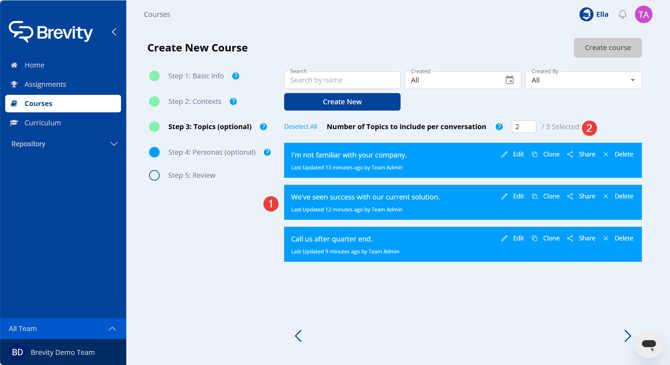
- Select multiple topics by clicking on each topic.
- Change the Number of Topics to include per conversation field as needed. The number entered in this field determines the number of selected topics, chosen randomly, that will be included in the role play conversation.
Managing Topics
Existing topics can be edited, cloned, shared, and deleted. To manage a topic:

- Click Edit to edit the text of the topic. After editing, press the Enter key to save.
- Click Clone to create a copy of the topic. Click Yes to confirm.
- Click Share to share the topic to another team(Organization Admin only).
- Click Delete to delete the topic.