
We’re currently transitioning our admin model from Team > Group to Organization > Team > Group, with admin roles becoming Organization Admin and Team Admin. As a result, some language in this article (for example, references to “Team” or “Group”) may not exactly match what you see in the product today. The underlying functionality described here remains the same, even if the labels and hierarchy in your app look slightly different while we complete this transition.
Table of Contents
- How to turn off your Legacy Digest from the Admin Settings page
- Navigating to the new Digest configuration page
- Understanding your new digest options
- How to configure your new digest emails
- Recommended starting configuration to get you started
1. Turn Off the Legacy Digest (v1.0)
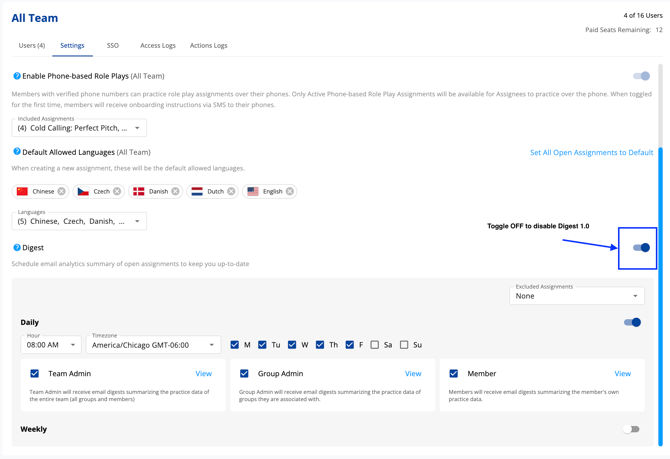
- Go to your Admin page.
- Make sure you’re at the All Organization level (not within a specific group).
- Open the Settings section.
- Scroll down to the Digest area.
- Disable the existing Digest toggle.
Once this toggle is off, the old digest emails will stop sending.
2. Open the New Digests Settings (v2.0)
- From the main navigation, go to the Analytics tab (one below Home, with the bar graph icon).
- Inside Analytics, click the Digests tab.
On the left side, you’ll see the available digests organized by cadence:
- Daily
- Weekly
- Monthly
Each cadence contains different digest types.
3. Understand the New Digest Options
Within each cadence, you’ll see several digest types. These are grouped by who they’re for:
-
Member digests
- Example: Daily Member Scorecard
- Audience: Individual members
- Purpose: Send personal scorecards and activity summaries to help members stay engaged and practice regularly.
-
Team Admin digests
- Audience: Teams owners / team leads
- Purpose: Provide group-level engagement and adoption information for specific departments or cohorts.
-
Organization Admin digests
- Audience: Org-level or team-level admins
- Purpose: Give a broader view of platform adoption, engagement, and usage across the whole team.
Hovering over the ? (question mark) next to any digest will show a short description of what it includes and what you can adjust.
4. Configure a Digest
- Digest Settings
- In the Analytics > Digests tab, select a digest on the left (e.g. Daily Member Scorecard, Weekly Team Admin Engagement, etc.).
- Review the Audience section to confirm who this digest is intended for.
- Set the cadence details:
- For daily: pick the time and time zone.
- For weekly: pick the day of the week, time, and time zone.
- For monthly: pick the day of the month, time, and time zone.

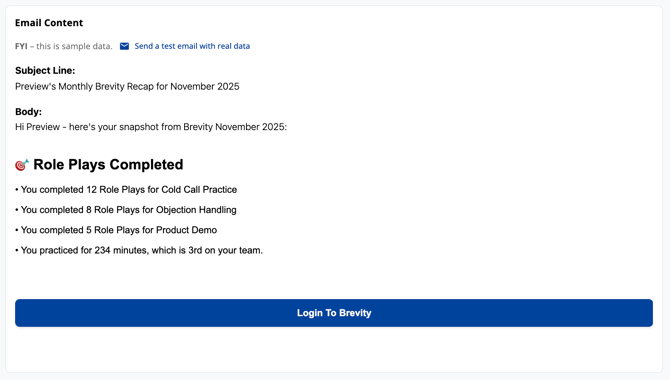
- Use the preview area to see a sample of the information that will be included in the email.
- Add Recipients (Including External Stakeholders)
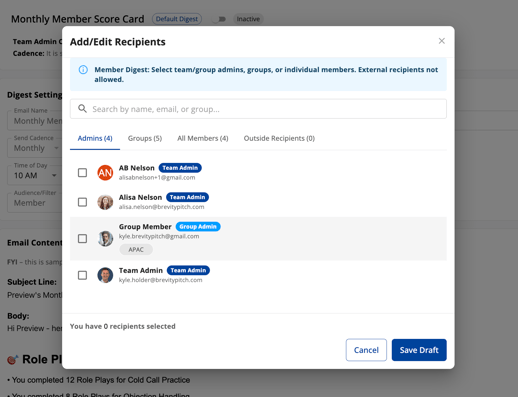
- Within each digest configuration, you’ll see options to set recipients:
- Click Add/Edit to configure who should receive this digest.

- Choose from:
- Members – You can select individual members or choose All members for member-focused digests.
- Team Admins – For digests aimed at team-level activity (e.g., team admin engagement).
- Organization Admins – For team- or org-wide digests.
- Add External Stakeholders (New!)
- You can now add recipients outside your platform -- Enter the email addresses of executives, leaders, or other key stakeholders who do not have accounts
- This is ideal for high-level Organization Admin digests (e.g., a monthly Organization Admin engagement summary to an executive sponsor).
- Activate your Digest
- Once you've added at least one Recipient, you can activate your digest.
- Toggle the switch in the top description box and see the pill change to "Active" and save your changes.

5. Not Sure Where to Start? Recommended Setup
If you’re migrating and want a simple, effective configuration:
-
Enable a Member Scorecard Digest
- Go to Analytics > Digests.
- Under Daily or Weekly, select the Member Scorecard digest.
- Set the cadence (daily or weekly).
- Add All members as recipients.
- Use this to nudge members to log in and practice regularly.
-
Enable a Organization Admin Digest for Leadership
- Still in Analytics > Digests, choose a Weekly or Monthly Organization Admin digest (e.g., Organization Admin Adoption or Organization Admin Engagement).
- Set the day/time and time zone.
- Add yourself and other admins.
- Under Outside recipients, add a key stakeholder (e.g., your VP, department head, or executive sponsor) so they receive a regular recap of adoption and engagement.
This combination gives you:
- Frequent, member-focused nudges to drive behavior.
- A consistent, higher-level summary for leadership to track impact.
Once these are configured and enabled, your organization is fully migrated from Digests v1.0 to Digests v2.0.