
We’re currently transitioning our admin model from Team > Group to Organization > Team > Group, with admin roles becoming Organization Admin and Team Admin. As a result, some language in this article (for example, references to “Team” or “Group”) may not exactly match what you see in the product today. The underlying functionality described here remains the same, even if the labels and hierarchy in your app look slightly different while we complete this transition.
Brevity users can conduct role play conversations in multiple languages, allowing global teams and non-English speaking teams to practice in the languages they sell and support every day.
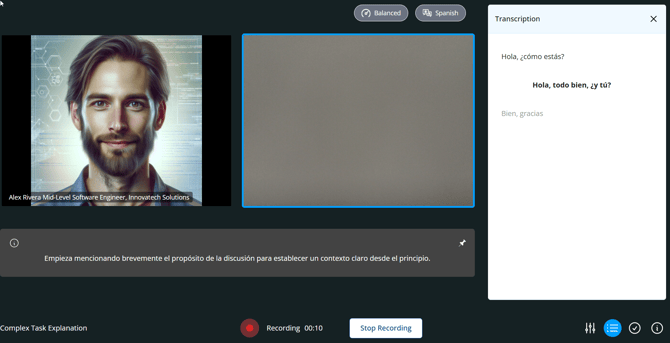
Support for multiple languages can be enabled at the organization level, the team level, and the individual assignment level. Default settings are hierarchical, meaning the defaults set at the organization level will be applied automatically to the team level, and defaults set at the team level will be applied automatically to individual assignments. However, applied default settings can be changed at any level at any time. For more information, see:
To select supported languages at the team level:

- To add or remove supported languages, click the Languages drop-down menu, then select languages to include by clicking the check box.
- Currently supported languages for the organization appear in a banner above the Languages drop-down menu.
- To reset all open team assignments to the team default languages, click Set All Team Open Assignments to Default. This will override any unique language settings at the assignment level within the group.