
Once created, assignments are listed on the Assignments tab. From the Assignments tab, you can manage all existing assignments, including editing and closing, and deleting assignments. Recall that assignments can be created and managed at multiple levels, so before making changes, ensure that you have selected the correct team in the bottom-left corner of the Brevity window.
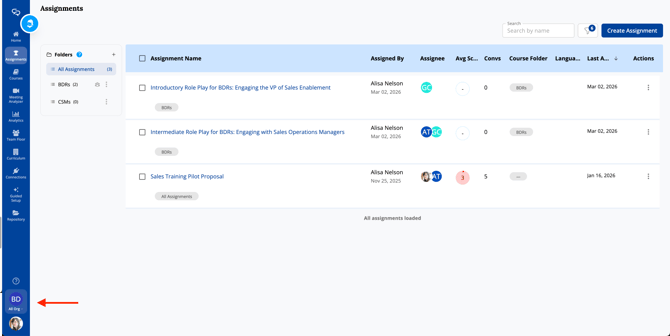
There are several filters you can use to quickly find an assignment:
-
Search
-
- Search for an assignment name.
- Created Date
- Filter by the timeframe in which an assignment was created.
- Assigned By
- Filter by the user(s) who created the assignment.
- Assignee
- Filter by the assignee(s).
- Status
- Filter by Open, Closed, or All assignments.
- Course
- Filter by the course the assignment is based on.
- Language
- Filter by languages available for the assignment.
Folders and Assignments
If a course belongs to a folder that also exists in the Assignments tab, any assignment created from that course will automatically be organized into the corresponding Assignments folder. This keeps your assignments in sync with your course folder structure without any additional steps.
Edit an Assignment
You can edit an assignment to adjust the assignment settings. This is useful to, for example, adjust the assignees, available languages, or goals. To edit an assignment:
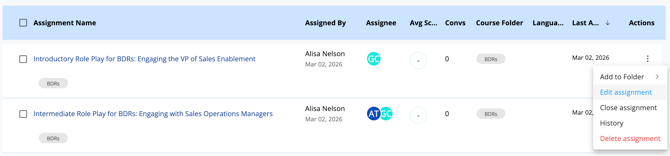
- Click the three-dots menu for the assignment you want to edit.
- Click Edit. The Assignment Settings window appears where you can change any of the components of the course. For more information about these settings, see:
Note: Assignment names are auto-filled by the selected course at the time of creation and cannot be edited.
Close an Assignment
Closing an assignment removes it from assignees Assignments tab. Closed assignments can be viewed by selecting Closed in the Status filter. Historical results for closed assignments are still available in analytics and reporting. To close an assignment:
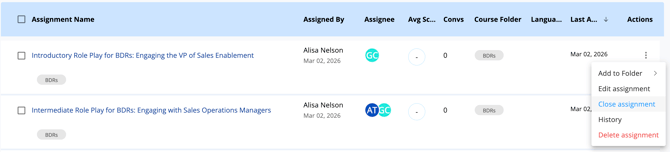
- Click the three-dots menu for the assignment you want to edit.
- Click Close assignment.
Delete an Assignment
Deleting an assignment removes it from all Assignments tabs and cannot be undone. To delete an assignment:
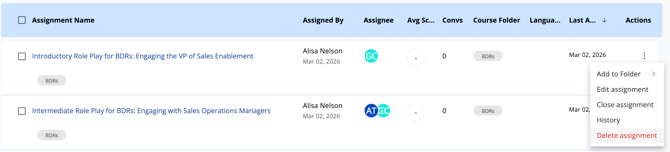
- Click the three-dots menu for the assignment you want to edit.
- Click Delete assignment. The Delete Assignment window appears.
- Select the Notify All Assignees check box to notify assignees of the deletion. Include an optional message to assignees.
- Click Yes to confirm deletion.
Caution: Deleting an Assignment in Brevity removes it permanently from Analytics and Reporting. This action is irreversible.
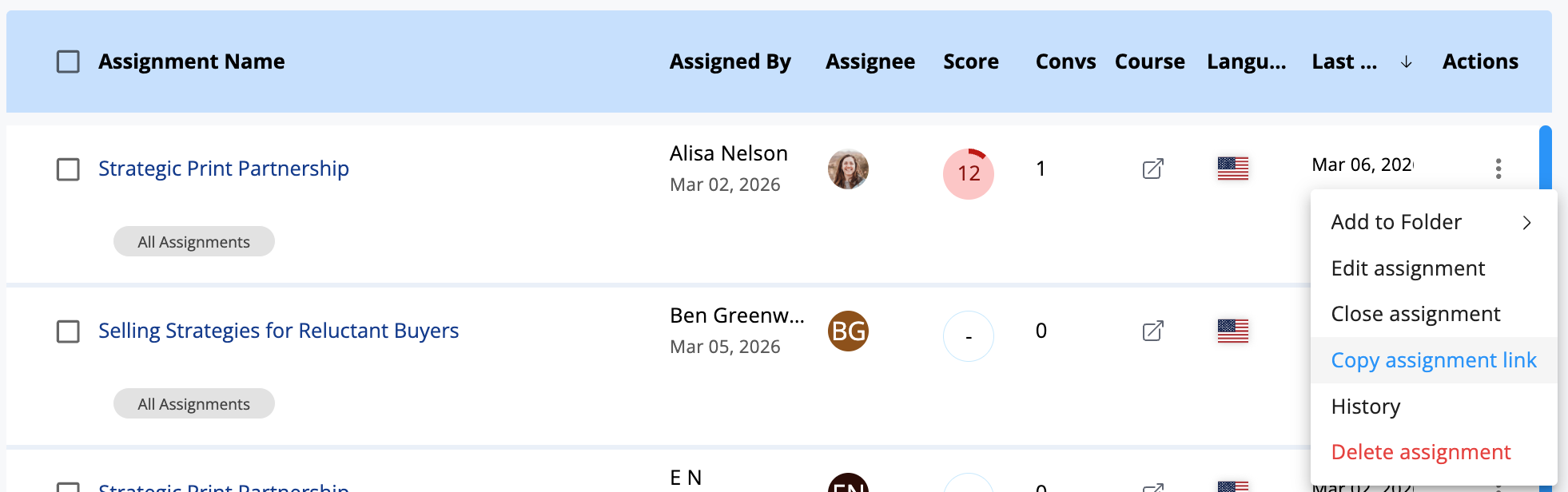
Share an Assignment
Embed a link to your Team's assignment in your Learning Management System, an Email, or a messaging channel by copying the assignment link. Assigned learners will be directed right into their own Assignments page to prepare for the practice and start recording.
Rename an Assignment
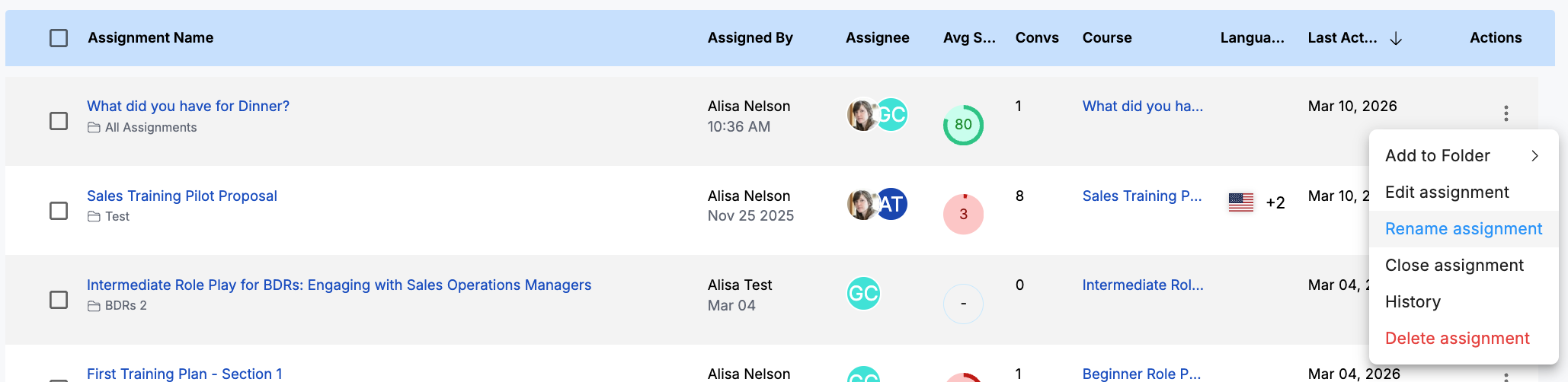
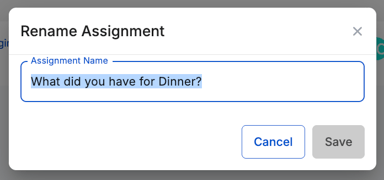
At creation, Assignments take on the name of the Role Play course selected. You can choose to rename an assignment after creation, if needed. Rename an Assignment if you need to create different versions for different audiences while using the same course.
Note: Restoring a previous version of an assignment will revert the name as well. Read more about Version History: How to View and Restore Version History