
We’re currently transitioning our admin model from Team > Group to Organization > Team > Group, with admin roles becoming Organization Admin and Team Admin. As a result, some language in this article (for example, references to “Team” or “Group”) may not exactly match what you see in the product today. The underlying functionality described here remains the same, even if the labels and hierarchy in your app look slightly different while we complete this transition.
The All Organization User List Overview
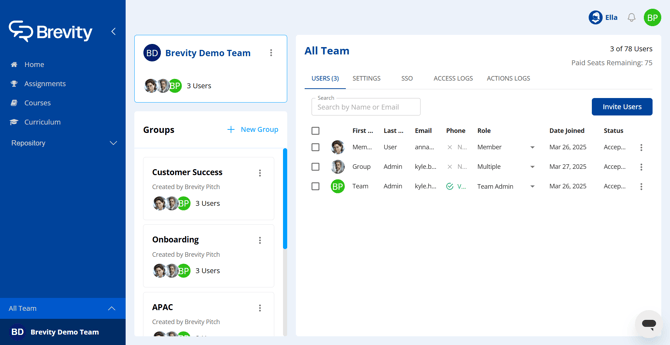
The All Organization user list includes every individual at your organization who has Brevity access. From here, you can invite new Brevity users, remove Brevity users, adjust each user's Brevity roles, and more.
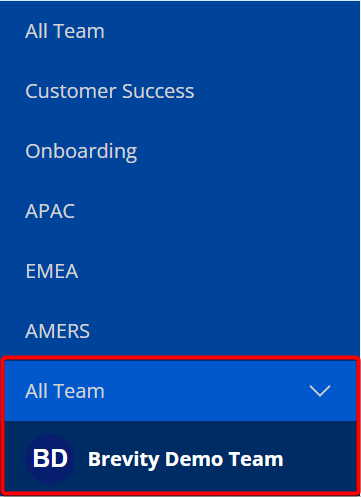
The All Organization user list can be accessed from the All Organization configuration page. To access the All Organization configuration page, click your company's logo in the bottom-left of the Brevity window, and ensure that the All Organization group is selected.
Manage Organization Member Roles
At the all organization level, a User can be either a Member or an Organization Admin. Additionally, you can manage team roles for users who are members of teams within your organization from the all organization level. For more information about Brevity roles, see:
To change a user's role at the all organization level:
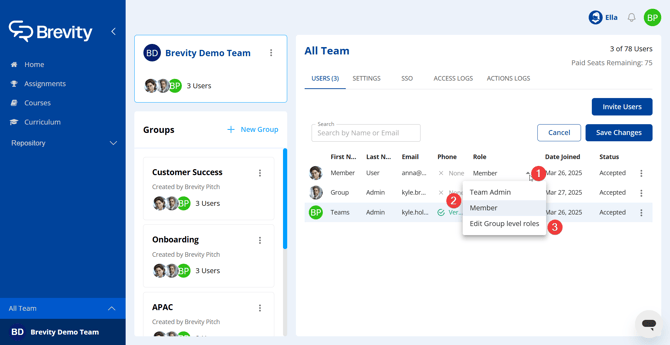
- Click the user's current role in the Role column.
- To change the user's role at the all organization level, click either Organization Admin or Member.
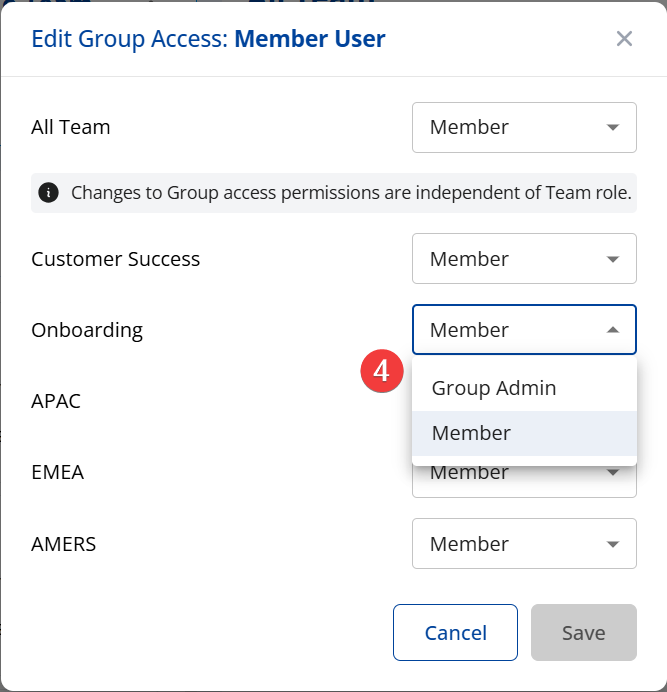
- To change the user's roles within any applicable groups, click Edit Team level roles.
- For each group, click the current role drop-down menu and select the appropriate role.
Change Member Name
To change a user's name in Brevity:
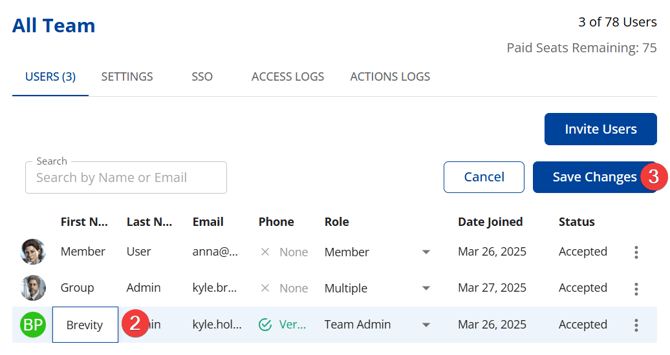
- Hover over the member's first or last name. Your cursor changes to a pencil icon.
- Click the first or last name and make changes as needed.
- When finished, click Save Changes.
Note that the email address associated with a Brevity account cannot be changed by Brevity admin users. If a new email address is needed, reach out to your Brevity Customer Success Manager.
Request Phone Verification
Future Brevity features will be available for mobile devices. A prerequisite for using these features is that users have verified their phone numbers in the Brevity platform. While each user will need to verify his or her own phone number, team admins can remind users via email to verify their phone numbers.
To request that a single organization member verify their phone number:
- Click the three-dots menu at the far right of the user's row.
- Click Send email reminder to verify phone number.
To request that multiple organization members verify their phone numbers:
- Click the check box at the far left of each user's row.
- Click Actions > Send email reminder to verify phone number.