
Table of Contents:
- Meeting History: Access past meetings and open Meeting analysis
- Team Overview: Admin & manager insights
- FAQs
Prerequisite: You’ll only see meetings here after your calendar and/or Gong are connected in the Connections tab. See also: Connections tab: Integrate Your Calendar and Gong to Brevity
Dashboard: See upcoming meetings, Review past meetings
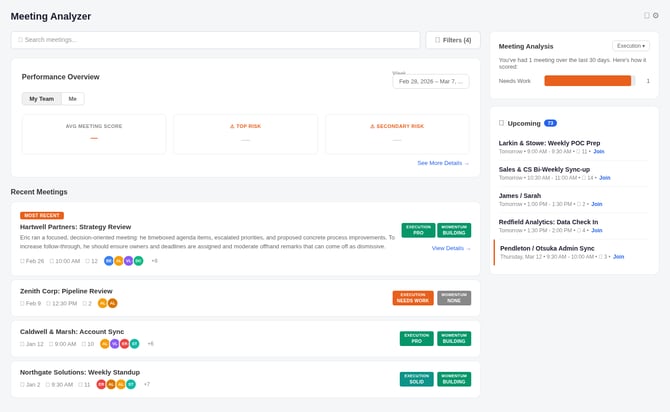
Go to the Meeting Analyzer tab to see:
- You or your Team's performance overview - summary of your meeting reports over 7 day periods
- At-a-glance summaries of recent meetings
- Your upcoming meetings that Brevity has detected.
Note:
- Brevity Notetaker requires 2+ people and a video conference link in the calendar event to schedule joining.
- If auto-join is OFF (Connections tab), you will need to use the dashboard to summon the Brevity Notetaker to a meeting as it is starting.
How to summon Brevity Notetaker to a meeting
You may need to summon the Brevity Notetaker to a meeting if:
- Auto-join is set to OFF
- You change meeting details within a few minutes of the meeting start time
- You add a meeting to your calendar with video conferencing details within a few minutes of meeting start time
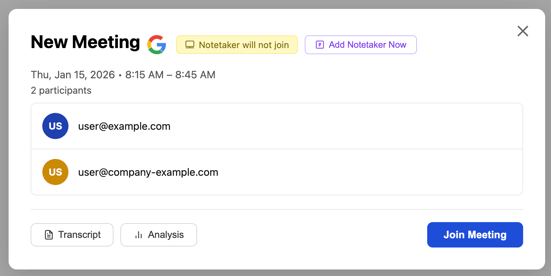
To Summon the notetaker, navigate to your calendar (icon in upper right) open the meeting details, and click "Add Notetaker Now"
How to access past meetings and open meeting analysis
Go to Meeting Analyzer → Recent Meetings module and select a meeting to view detailed reports of your past meetings.
Use the filters at the top to quickly find the meeting you need:
- Search bar – Search by meeting title or keywords.
- Date range – Narrow down to a specific time period.
- Additional filters – e.g., only meetings with recordings, only meetings where a Notetaker was present.
When you find the meeting you want to review:
- Click View meeting analysis
- You’ll be taken to a detailed analysis page for that single meeting.
Any past meeting with a successful transcript (via Brevity Notetaker) or imported from Gong will have a Meeting analysis available.
Individual Meeting Analysis: Overview tab
Inside Meeting Analysis, the Overview tab is your main summary for a single meeting.
Here you’ll see:
-
Meeting header
- Title, date, and total length of the call.
-
Performance score & summary
- A score (e.g., “Solid”) indicating your overall performance on that call.
- A short narrative summary of how you did.
-
Start / Stop / Continue guidance
- Start: Behaviors or tactics you should add to your next calls.
- Stop: Behaviors that may be hurting your outcomes.
- Continue: Things you did well and should keep doing.
- Many suggestions include specific phrasing or alternative ways you could have said something.
-
Meeting classifications
- AI-based classification of the type of meeting (e.g., discovery, demo, follow-up).
- Helps you understand patterns in which types of meetings you’re having and how you perform in each.
On the right side of the page:
-
Video player (if available)
- If the meeting had a video recording (e.g., from Zoom or Google Meet) captured via your calendar integration and the Brevity Notetaker:
- Watch the call directly in Brevity.
- Change playback speed up to 2x.
- Jump to specific portions of the call by navigating the timeline or transcript.
- If the meeting had a video recording (e.g., from Zoom or Google Meet) captured via your calendar integration and the Brevity Notetaker:
-
Transcript
- Full transcript of the meeting, aligned with the audio/video.
Use the Overview tab to get a quick but comprehensive read on how the meeting went and what to adjust next time.
Individual Meeting Analysis: Risks tab
Inside Meeting Analysis, the Risk Report tab highlights potential pitfalls and deal risks identified in the conversation.
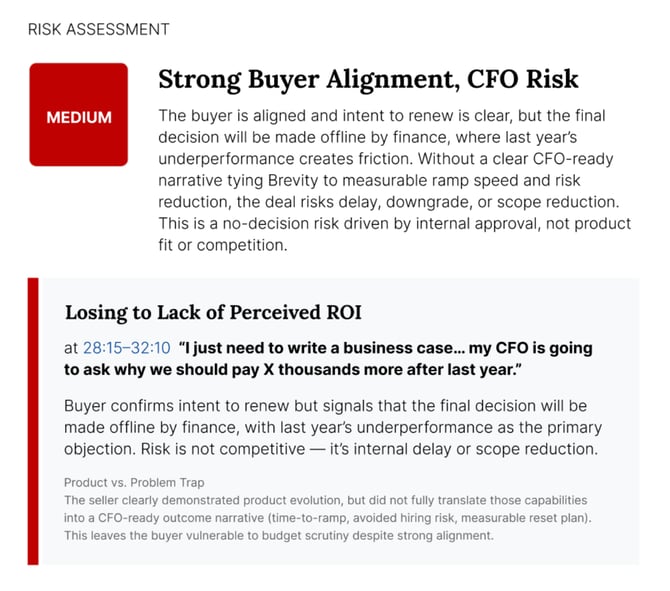
You’ll see:
-
Risk categories
- Examples include risks like “Losing to no decision”, where a deal may stall or fail to progress.
-
What’s driving the risk
- Brevity shows which parts of the conversation indicate that risk.
- You may see references to specific behaviors or gaps that increase the likelihood of a stalled deal.
-
What to do next
- Recommended actions to reduce risk and keep the opportunity or relationship moving forward.
Use the Risk Report when you want to:
- Prepare for next steps with that account or contact.
- Turn the meeting into a coaching moment with your manager.
- Understand why a deal might be stuck and how to re-energize it.
Team Overview: Admin & manager insights
From the Meeting Analyzer dashboard, see overall scores for your own or your teams performance, and dig deeper in the Team Overview (click "see more details")
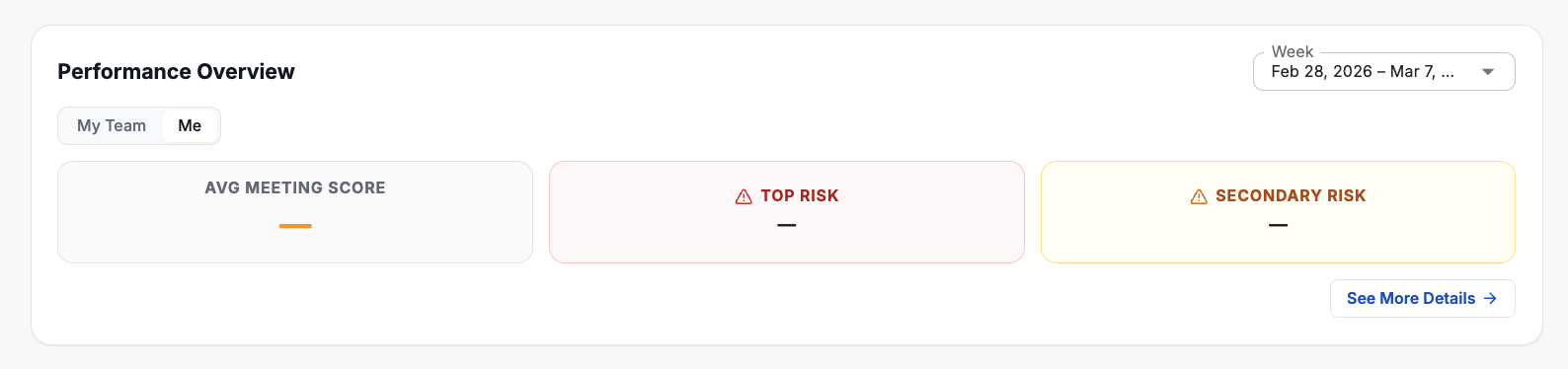
This gives you aggregated analytics at the team and user level.
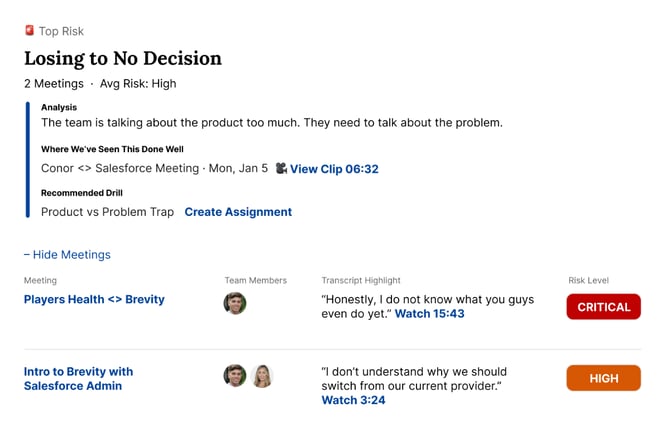
In Team overview, you’ll see:
-
Weekly recap
-
Average score across included meetings.
-
Top two risks identified across all included meetings
-
-
Team Summary
-
Per-team member -
-
Average score,
-
Number of meetings reviewed, and
-
Insights from those meetings
-
-
-
Risk Reports
- Get summaries and insights into the detected risks for your team with transcript call outs and links directly into meetings to watch or read key moments.
- Next Steps
- Guidance and suggestions on next steps for your team based on their meeting analysis.
Filters and sorting
Use the controls to tailor the view:
- Date range / week selector – Move between current and previous weeks.
- Select a Team for a report
- Select to view a report for just yourself or for the whole team
FAQs
-
Why don’t I see any meetings in the Meetings tab? Ensure you’ve connected a calendar and/or Gong in Connections. If those are set up and you still see nothing, confirm that:
- Your meetings have a virtual meeting link (for the Notetaker).
- The Brevity Notetaker is enabled for those meetings.
-
What qualifies a meeting for analysis? A meeting will have analysis if:
- The Brevity Notetaker successfully joined and produced a transcript, or
- It was imported from Gong with a usable recording and transcript.
-
Can I watch call recordings inside Brevity? Yes. For meetings with a video recording (e.g., Zoom, Google Meet), Brevity embeds the video in the Meeting analysis page. You can adjust playback speed up to 2x and jump between sections.
-
Why do some meetings show only a transcript and no video? Video will only appear if a recording was captured and associated with the meeting (via your calendar integration and Notetaker, or via Gong). If the call wasn’t recorded, you’ll see transcript-based analysis only.
-
I’m an admin—how do I find which reps need the most coaching? Go to Meetings → Team overview, select the desired week, and sort by:
- Highest risk score to see the riskiest patterns first, or
- Number of meetings to focus on your highest-volume reps. Then click into each user to review their specific risks and example calls.
-
Can reps see each other’s meetings? Visibility depends on your organization’s settings and permissions. By default, the Team overview and wider access to others’ meetings is typically reserved for admins and managers.
Don't see the Meetings Tab but interested in trying it out? Contact your Customer Success Manager for details.