
We’re currently transitioning our admin model from Team > Group to Organization > Team > Group, with admin roles becoming Organization Admin and Team Admin. As a result, some language in this article (for example, references to “Team” or “Group”) may not exactly match what you see in the product today. The underlying functionality described here remains the same, even if the labels and hierarchy in your app look slightly different while we complete this transition.
Table of Contents
- Dashboard Overview
- Filtering the Dashboard
- Saving your filter as a Custom Preset
- Wrap up: Why use dashboard preset filters
The Analytics Dashboard
The Analytics dashboard provides a snapshot of Brevity usage and results, and includes filters to help you track performance by date, team, user, and assignment. You can also create reusable dashboards with frequently-used filters.
You can access the Analytics tab from the Brevity Home page. We recommend setting the team to All Organization in order to take advantage of all available filters.
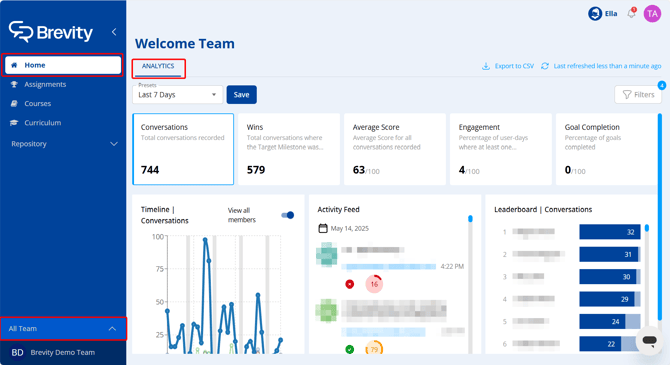
Analytics Dashboard Overview
The Analytics dashboard provides the following snapshot data:
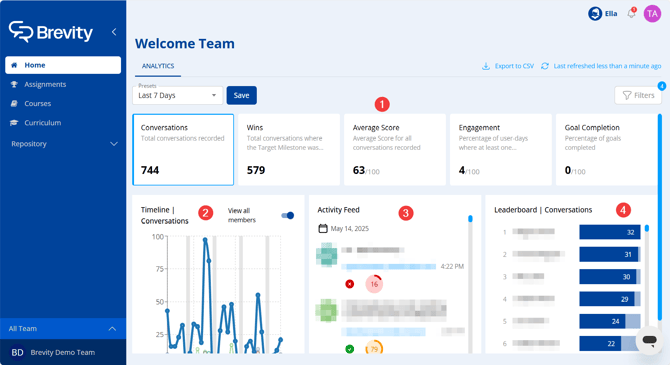
- Summary Widgets. The summary widgets include data about the number of conversations, wins, average score, engagement, and goal completion for the selected time frame. Clicking any of the summary widgets updates the timeline, activity feed, and leaderboard to show the selected metric.
- Timeline. Shows activity trends.
- Activity Feed. Shows a summary of role play results.
- Leaderboard. Shows a list of users sorted according to the selected activity metric.
Filtering by team, date, user, and assignment
To filter the data shown on the Analytics tab:
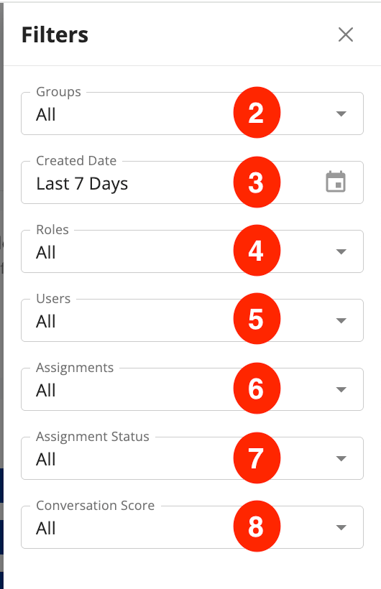
- Click Filters. The Filters panel appears.
- Use the Teams drop-down to include or exclude data by team.
- Use the Created Date drop-down to include data from a specific date range.
- Use the Roles drop-down to exclude data from the activity feed and leaderboard by Role (e.g. Focus on Member practice sessions only)
- Use the Users drop-down to include or exclude data by Brevity user.
- Use the Assignments drop-down to include or exclude data from specific assignments.
- Use the Assignment Status filter to exclude data from previously 'closed' assignments.
- Use the Conversation Score filter to filter data by a score threshold -- e.g. exclude any attempts below your goal score for an assignment or exclude sessions that the user likely ended early (scores < 30 likely indicate an incomplete session).
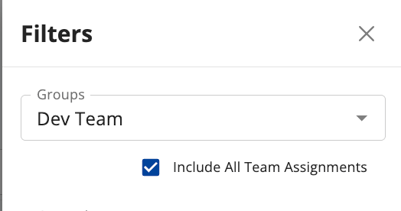
Note: When selecting a subset of teams or viewing the dashboard from within a team, you have the option to include any assignments at the All Organization level as well as team-specific assignments.
Saving Filter Presets
When you want to reuse a specific combination of filters, you can save that combination as a preset in order to quickly access the same data in the future. This is useful, for example, if you want to create presets to quickly access data for various teams over the last seven days. To create a preset:
- Adjust filters as needed.
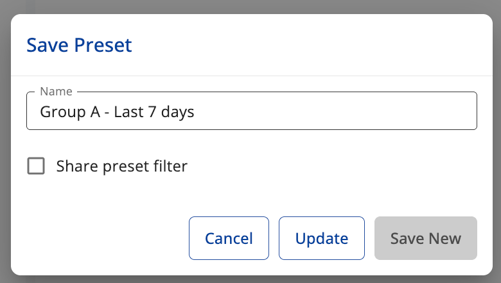
- Click Save next to the Presets drop-down menu. The Save Preset window appears.
- Enter a name for your preset
- [Optional] Choose to share your filter with other relevant Admin or Users by clicking the "share" checkbox.
- Share to any members of a team.
- Share to any users based on role (Organization Admin, Team Admin, Members).
- Or select specific users by name.
- Click "Save New"


Update a Preset filter
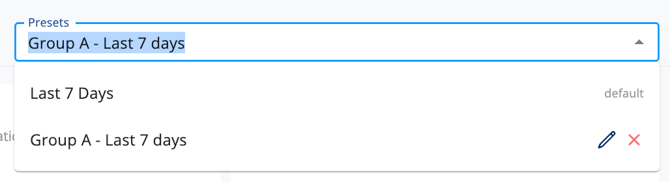
Upon saving a preset, you will have the option to update after changing filters. Simply make the necessary changes to your filters, select your preset from the dropdown menu by clicking the edit button (pencil icon), and click "Update."
Wrapping up: why filters and presets matter
- Cut noise: Filters focus your dashboard on the right organization, scenarios, and date range.
- One-click coaching: Save a preset to open the same, clean view every week.
- Faster decisions: See target milestone pass rate, recurring misses, avg. score and number of attempts for 1 or more specific assignments all at a glance.
- Plug into manager workflows:
- Run KPI-First 1:1s Using Brevity: use the preset as your agenda starter.
- Facilitate Effective Team Coaching Sessions: pick clips and standardize phrasing.
- Troubleshooting Low Scores for Top Performers: spot anomalies fast, see feedback from your users, or filter out incomplete role plays by score threshold.
- Consistency across managers: Share presets to align on what “good” looks like.
- Related resources: Coaching in Brevity - Manager Hub