
In this article you'll learn:
1. What are Brevity email digests?
Email digests are automated scorecards that summarize Brevity usage and performance over a specific time window. They help:
- Members track their own practice and progress
- Team Admins see how their team is engaging
- Org Admins understand adoption and performance across the organization
There are nine digests in total:
| Cadence | Member Scorecard | Team Scorecard | Org Scorecard |
|---|---|---|---|
| Daily | Daily Member Scorecard | Daily Team Scorecard | Daily Organization Scorecard |
| Weekly | Weekly Member Scorecard | Weekly Team Scorecard | Weekly Organization Scorecard |
| Monthly | Monthly Member Scorecard | Monthly Team Scorecard | Monthly Organization Scorecard |
All digests are configured from Analytics → Digests in Brevity.
2. Who receives which digest?
Roles in Brevity
- Member – end user (rep, CSM, support, etc.)
- Team Admin – manages a specific team and only sees team‑scoped assignments
- Org Admin – has visibility across the entire organization
Note: A person can hold more than one role (e.g., Team Admin + Member).
Member Scorecards (Daily / Weekly / Monthly)
- Intended recipients: Members (and anyone you add as an outside recipient)
- Data scope: Only that individual member’s activity during the time window
- Default behavior: Each selected member receives their own scorecard only.
Team Scorecards (Daily / Weekly / Monthly)
- Intended recipients: Team Admins (plus optional outside recipients)
- Data scope:
- Only members on that team
- Only conversations on assignments scoped to that team (Org‑level assignments are excluded so that the email matches what the Team Admin sees in their Analytics.)
- Admins are excluded from the data in these emails, for consistency between widgets and the leaderboard.
Each Team Scorecard email reflects the team(s) managed by the Team Admin recipient.
Organization Scorecards (Daily / Weekly / Monthly)
- Intended recipients: Org Admins (plus optional outside recipients)
- Data scope:
- All members across the organization
- Team Admins who also practice (multi‑role users who are expected to complete roleplays)
- Org Admin activity is excluded from the metrics
- Includes all assignments across the org (team‑scoped and org‑level)
This lets Org Admins see both general member adoption and whether managers are modeling practice behavior.
New licensed users are added automatically
When a new user joins your organization with a paid license, they're automatically added as a recipient of any active digest they're eligible for. You don't need to edit each digest's recipient list during onboarding — new members will start receiving the right scorecards on the next send.
Eligibility still respects the digest type:
- Member Scorecards — the new user is added as a recipient of their own activity summary.
- Team Scorecards — if the new user is a Team Admin (or is added to a team whose admin already receives the digest), team-scoped digests update accordingly.
- Organization Scorecards — new Organization Admins are added automatically.
You can remove any recipient from a digest's recipient list at any time from Analytics → Digests.
3. What’s in each digest?
A. Member Scorecards (Daily, Weekly, Monthly)
Cadence & time window
- Daily Member Scorecard – last 24 hours of activity
- Weekly Member Scorecard – last 7 days of activity
- Monthly Member Scorecard – last 30 days of activity
Key content
- Roleplays completed – total number of conversations recorded
- Practice minutes – total time spent practicing
- Rank in organization – how they rank vs. other members in the org
- Assignment list – bullet list of assignments they recorded on, with count of conversations per assignment
- Link – takes the member to the Brevity homepage to keep practicing
If the member did not practice in the period, the scorecard will show zero activity (no roleplays, no minutes, no ranking movement).
B. Team Scorecards
Daily Team Scorecard
Recipients: Team Admins Data window: Last 24 hours Data scope: Team‑level assignments, members only
Widgets & content
-
Conversations widget
- Number of members who did at least one roleplay
- Total roleplays recorded (conversations)
- Total minutes of practice
- Simple day‑over‑day trends
- Assignment with the most conversations in that period
-
Leaderboard
- Top performers on the team
- For each person:
- Name
- Team(s)
- Total conversations
- Average score
- Best score
- Names link to that person’s individual report card in Analytics
-
Dive deeper link
- Button/link to the Analytics Overview page, scoped to the Team Admin’s view
Weekly Team Scorecard
Recipients: Team Admins Data window: Last 7 days Data scope: Team‑level assignments, members only
Widgets & content
-
Conversations breakdown
- % of members who did at least one roleplay (with week‑over‑week trend)
- Count of members by activity level:
- 1 conversation
- 2–5 conversations
- 6+ conversations
- 0 conversations
- Roleplays per active user (active = member who logged in at least once during the period)
- Total minutes of practice (with trend)
- Assignment with the most conversations
-
Leaderboard
- Same behavior as daily (top performers + links to report cards)
-
Dive deeper link
- Takes Team Admin to Analytics Overview for their team
Monthly Team Scorecard
Recipients: Team Admins Data window: Last 30 days Data scope: Team‑level assignments, members only
Widgets & content
-
Conversations breakdown (monthly)
- Same buckets as weekly (1 / 2–5 / 6+ / 0 conversations)
- Month‑over‑month trends for engagement and practice minutes
-
Roleplay Activity widget
- List of assignments the team used
- For each assignment:
- Total conversations
- Average score
- Best score and the member who achieved it
-
Leaderboard
- Top performers on the team for the month
-
Dive deeper link
- Goes to Analytics Overview for the Team Admin
C. Organization Scorecards
Daily Organization Scorecard
Recipients: Org Admins Data window: Last 24 hours Data scope:
- Members across the org
- Team Admins who practice
- Assignments at both team and org levels
- Org Admin activity is excluded
Widgets & content
- Conversations widget (org‑wide engagement)
- Leaderboard with members’ names and their teams
- Dive deeper link to org‑level Analytics Overview
Weekly Organization Scorecard
Recipients: Org Admins Data window: Last 7 days Data scope: Same as daily org scorecard (members + practicing Team Admins, no Org Admin activity)
Widgets & content
- Conversations breakdown (same buckets as Weekly Team Scorecard)
- Role plays per active user
- Total minutes of practice with week‑over‑week trend
- Top assignment by total conversations
- Leaderboard (top performers across the org)
- Dive deeper link to org‑level Analytics Overview
Monthly Organization Scorecard
Recipients: Org Admins Data window: Last 30 days Data scope: All org members and practicing Team Admins, org‑wide assignments; Org Admins excluded from metrics
Widgets & content
- Monthly conversations breakdown (with month‑over‑month trends)
- Role play Activity (assignment‑level usage, average and best scores with best performer)
- Leaderboard (top performers across the org)
- Dive deeper link to org‑level Analytics Overview
4. How to configure email digests
All configuration happens in Analytics → Digests.
Step 1 – Open the Digest configuration
- Sign in to Brevity.
- Go to Analytics in the main navigation.
- Click the Digests tab.
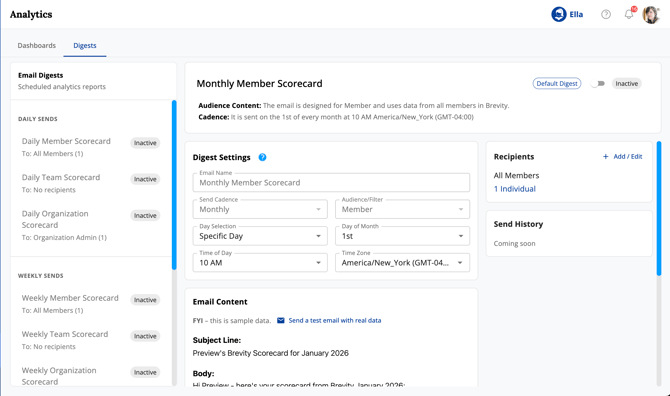
You’ll see options for Daily, Weekly, and Monthly sends each with Member, Team, and Organization scorecard variants.
Step 2 – Choose the digest to configure
- Select the card or row for the digest you want to set up, e.g.:
- Daily Member Scorecard
- Weekly Team Scorecard
- Monthly Organization Scorecard
Step 3 – Set recipients
Behavior differs slightly by digest type:
Member scorecards
- Choose which teams to include; all members in those groups are added as recipients.
- Optionally:
- Add individual members directly.
-
- Add outside recipients (email addresses that are not Brevity users).
Team scorecards
- You can add Team Admins as recipients (admins are listed based on your current workspace).
- Each Team Admin receives a scorecard for the team(s) they manage.
- You can also add outside recipients by email.
Organization scorecards
- You can add Org Admins as recipients.
- You can also add outside recipients by email.
To stop a digest for someone, remove them from the recipient list for that digest.
Step 4 – Preview and send a test email
When you click into any digest card (Daily/Weekly/Monthly, Member/Team/Org):
- You’ll see a preview of the email, including the data widgets that will be included (Conversations, Leaderboard, Roleplay Activity, etc.).
- From this configuration window, you can click Send a test email with real data.
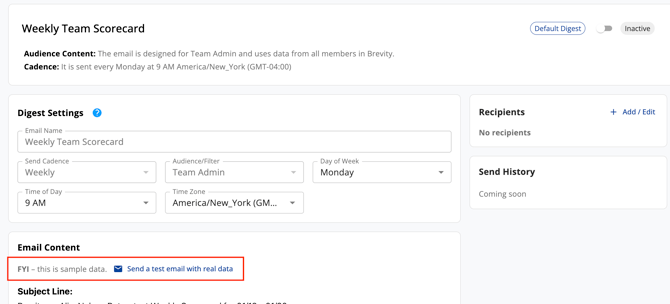
Important:
- The test email only goes to you, regardless of who is listed as a recipient on the digest.
- Use this to confirm your digest choice.
Step 5 – Set send time and schedule
For each digest, you can configure:
- Time of day to send
- For weekly digests: day of week + time
- For monthly digests: day of month + time (as applicable in your UI)
To activate or update the digest, be sure to toggle the switch from Inactive to Active and click Save Changes.

FAQs
-
Which email digests do my members automatically receive? Members you select in the Member Scorecard configuration receive their own daily, weekly, and/or monthly scorecards summarizing only their personal activity.
-
Why don’t I see org‑level assignments in my Team Scorecard? Team Scorecards are intentionally scoped to team‑level assignments only, to match what Team Admins can see in Analytics.
-
Why aren’t admins included in my Team Scorecard metrics? Team Scorecards focus on member engagement only to keep the digests focused on user activity. Admin usage is visible in other Analytics views but is excluded from these emails.
-
Who is counted in Organization Scorecards? Org Scorecards include all members and Team Admins, across all assignments, but exclude Org Admin activity from the metrics.
-
How is an “active user” defined in the weekly and monthly emails? An active user is someone who logged in at least once during the time window.
-
Can I send digests to managers who aren’t Brevity users? Yes. For any digest, you can add outside recipients by email address, and they’ll receive the same scorecard.
- Are new users added to my digest recipient lists automatically? Yes. When a new user joins your org with a paid license, they're automatically added to any active digest they're eligible for, so admins don't have to update recipient lists on each onboard. You can still remove a user from a digest at any time from Analytics → Digests.
-
How do I stop or change the timing of a digest? Go to Analytics → Digests, open the relevant digest, and:
- Remove or edit recipients to change who receives it
- Update the time of day (and day of week/month for weekly/monthly digests)