
A team admin sees the results of the people on the teams they administer and coaches from them. In the Launch Hub, step 6, Assign team admins, places each person under their team admin with one file upload. The review shows where everyone lands, and who would be promoted to team admin, before anything changes.
Before you start
- Only Org Admins can assign team admins and sub-teams.
- Create your teams (step 3) and upload your people (step 5) first. The file places people who are already in the organization or who already have a pending invitation. It sends no invitations and adds nobody new.
- A team admin named in the file must have already joined Brevity. To make someone who hasn't joined yet a team admin, use Promote to team admin on the sub-teams page, described below.
Org Admin and Team Admin
Org Admins see everyone in the organization. They run the Launch Hub, manage sub-teams and receive the Org Scorecard. Org Admins don't need to be on a team. The launch can't be scheduled until at least one Org Admin is named.
Team Admins are admins of one or more teams. A team admin sees these for the people they oversee:
- Team Scorecard emails, one per team they administer
- Analytics
- Recordings
- The home dashboard
- Training-plan analytics
A team admin can't see the Launch Hub or the sub-teams page and can't change who they oversee. Administering a team means belonging to it, so a team admin also appears in that team's member list.
Several team admins on one team
A team can have more than one team admin. Each team admin with nobody assigned sees everyone on the team.
To give each manager their own reps, assign the reps to them. The people assigned to one team admin form that admin's sub-team. Once a team admin has anyone assigned, they see only those people. A team admin with no assigned sub-team members still sees the whole team.
Example: Sales East has two managers, Dana and Marcus. Both are team admins of Sales East. Dana's reps are assigned to Dana and Marcus's reps to Marcus, so each sees results only for the reps they coach.
For more on what a sub-team limits, see Scoping a Team Admin to Specific Members with Sub-Teams.
One person as team admin of several teams
One person can be a team admin of several teams. They see everyone on all of those teams and get a separate Team Scorecard email for each team.
Sub-team assignments apply across all of a team admin's teams. If you assign people to them in one team only, they see nobody in their other teams. Assign their people on every team they administer, or assign nobody.
Assign team admins by file upload
Step 1: Get the file
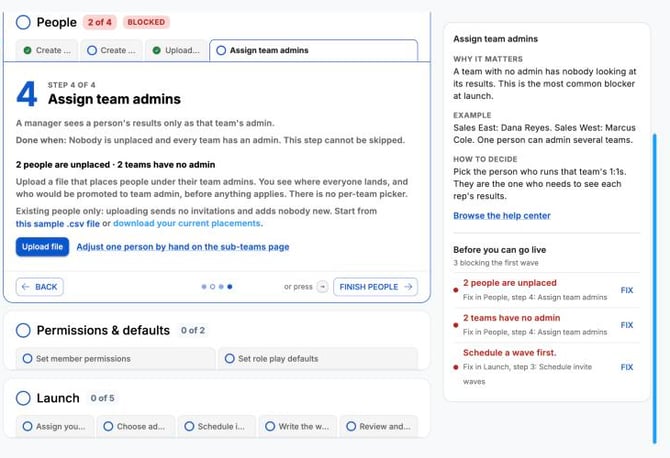
- In the Launch Hub, open step 6, Assign team admins.
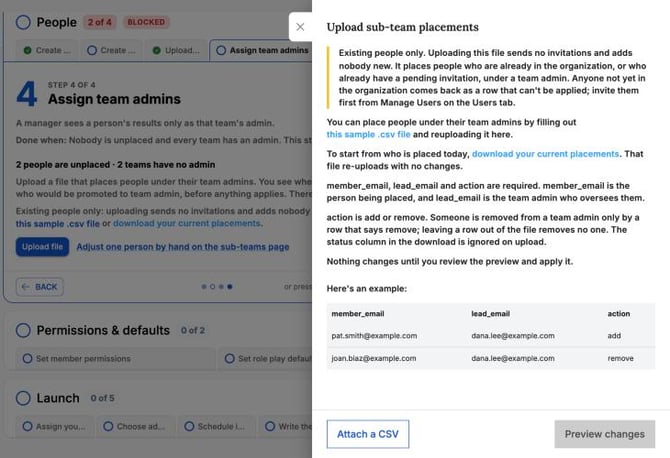
- Select Upload file. The Upload sub-team placements tray opens.
- Select this sample .csv file to download a blank example, or select download your current placements to start from who is placed today. The current placements file re-uploads with no changes.
The file has three required columns:
member_email: the person being placedlead_email: the team admin who oversees themaction:addorremove
For the Sales East example, the file has one row per rep:
pat.smith@example.com,dana.lee@example.com,addjoan.biaz@example.com,marcus.cole@example.com,add
A person is removed from a team admin only by a row that says remove. Leaving a row out of the file removes no one. The status column in the downloaded file is ignored on upload.
Step 2: Preview the file
- In the tray, select Attach a CSV and choose your file.
- Select Preview changes.
Nothing changes until you review the preview and apply it.
Step 3: Review where each person lands
The Review before applying screen lists every placement under its team admin. The counts at the top show To add, To remove, Already correct, Not in effect and Cannot apply.
- People with a pending invitation are marked Pending. Their placement follows them when they join.
- A person moving from one team admin to another is shown as a move.
- Rows that can't be applied are grouped with the reason. The most common reasons are a person who isn't in the organization, and a team admin who doesn't administer that person's team. Put the person on that team first, or name a different team admin.
Step 4: Promote a lead to team admin
When the file names a lead who isn't a team admin yet, the review groups that lead's rows under people named as leads who are not team admins yet. Those rows can't be applied until the lead administers the team.
If everyone named under the lead is on one team, that team is filled in under Team they will administer, and you can change it. If the people named under the lead are spread across teams, you select one or more teams under Teams [name] will administer. Rows for people outside the teams you pick are reported for you to fix.
- Select Review promotions.
- Check or choose the team the lead will administer.
- Select Promote and place [number]. If the lead isn't on the team yet, the button reads Add to the team and promote, and the lead is added to the team as well.
- To leave a lead as they are, select Skip this lead. Their rows appear as not applied in the results.
- The confirmation lists each lead, the teams they will administer and how many people they will see. Select Promote [number] and apply [number].
A lead is promoted only if their placements land. A team admin with nobody assigned sees everyone on their teams, so a lead whose placements fail is not promoted.
Remove the last person from a team admin
When the file removes the last person assigned to a team admin, that admin would see everyone on their teams again. The review holds these removals back. Select Review removals, then select Remove and let [name] see everyone or Keep these placements.
Step 5: Apply
- Select Apply [number] changes.
- When every row lands, the result reads Every row applied. Nobody is notified.
- Select Download the file as applied to keep a copy, or Back to team admins to return to the step.
If some rows can't be applied, select Download [number] rows, fix the addresses or the team admins, and upload the file again. The rows that already worked report as already correct. Each applied file is recorded in the organization's Access & Activity Logs.
When the step is complete
Applying a file that writes a placement completes step 6. Promoting a team admin on the sub-teams page completes it too.
The step shows what still blocks your launch, for example "2 people are unplaced", "1 team has no admin" or "No org admin named". The launch can't be scheduled while any of these remain. When nothing blocks it, the step reads "Everyone is placed and every team has an admin."
Adjust one person on the sub-teams page
To change one or two people without a file, select Adjust one person by hand on the sub-teams page in step 6. The Manage sub-teams page opens. Select Back to Launch Hub to return.
- Drag a person from Not in a sub-team onto a team admin to assign them.
- Open a team admin's card menu and select Add Members, Remove all members or Change Role.
- A team admin's card reads Sees everyone while nobody is assigned to them.
- To make someone a team admin, select Promote to team admin on the team, choose people, and select Make [number] team admins of [team]. Invitees, whether pending, scheduled or draft, become team admins when they accept. Org Admins aren't listed, because they already see everyone.
- If people aren't on any team, select Add them to a team.
The page also has Upload file and Download placements, which work the same way as the upload in step 6.
After launch, open the sub-teams page from the Teams page: open the ⋮ menu in the team header and select Manage Sub-Teams.
Frequently asked questions
Is anyone notified when I assign a team admin or change a sub-team?
No. The people placed and the team admins are not notified.
What happens if I upload the same file twice?
Rows that already exist count as Already correct. A file in which every row already exists shows "This file changes nothing".
Can I name someone who hasn't joined yet as a lead in the file?
No. A lead in the file must have joined Brevity. Use Promote to team admin on the sub-teams page for an invitee; they become a team admin when they accept.
What happens when I change a team admin back to a member?
Their sub-team assignments are cleared. If you make them a team admin again later, they start with nobody assigned and see their whole team.
Can a sub-team let a team admin see people on another team?
No. A sub-team only narrows what a team admin sees within the teams they already administer.