
If you’ve recorded successfully before but now can’t, something likely changed on your device or network.
Common causes:
-
Switching devices
-
Switching browsers
-
Plugging in a new headset
-
Operating system updates
-
Corporate network restrictions
-
New security software or browser extensions
Follow these steps in order.
Step 1: Fully Restart Your Browser
Close the entire browser (not just the tab).
Reopen it and try again.
Step 2: Check Device Permissions
On Mac
System Settings → Privacy & Security → Camera / Microphone
Make sure your browser is enabled.
On Windows
Settings → Privacy → Camera / Microphone
Ensure your browser has permission.
Step 3: Check Headset or Input Device
-
Unplug and replug your headset.
-
Refresh the page after plugging it in.
-
Confirm the correct input device is selected.
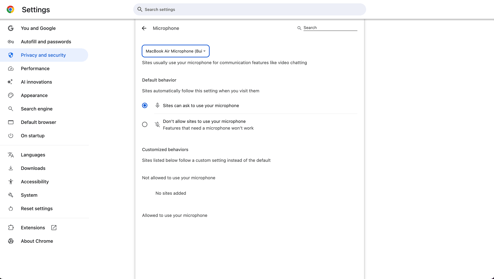
- Confirm your "default" device is correctly configured in your browser (Browser Settings > Privacy & Security > Site Settings > Microphone)
Step 4: Disable Extensions or VPN
Browser extensions can interfere with recording.
Try:
-
Opening a Private / Incognito window
-
Temporarily disabling ad blockers or privacy extensions
-
Turning off your VPN
-
Trying Google Chrome if you're using Edge
Step 5: Test a Different Network
If you are on a corporate or restricted network:
-
Try switching to a mobile hotspot.
-
If it works on hotspot but not on your regular network, the issue is likely a firewall or network restriction.
If your microphone works in other apps but fails mid-session here, see:
AI Stopped Responding or Mic Cuts Out