Overview
Ella is Brevity's conversational AI agent who can help you build a Brevity role play in under three minutes. You can interact with Ella through either voice or text commands. By default, she uses voice commands, making the process feel like a natural conversation.
Creating a new role play shouldn't be an obstacle to practicing - and winning - conversations in Brevity. Ella was designed to simplify that creation process and remove the barrier to getting more practice reps.
Create an Assignment
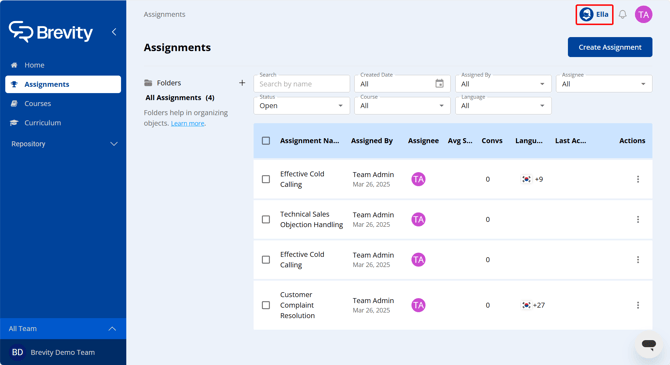
Click the Ella icon in the top-right corner of the Brevity window.
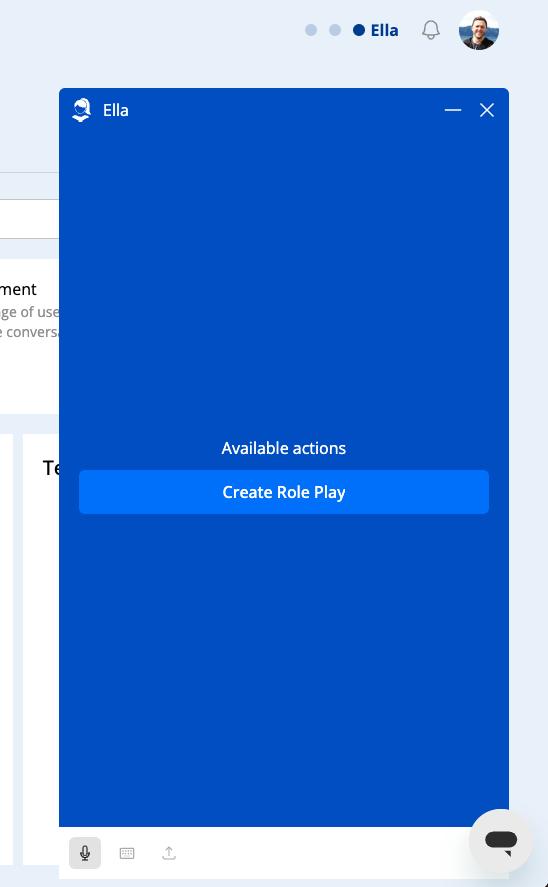
Under Available Actions, click Create Role Play. Ella will begin guiding you through the process of creating a role play.
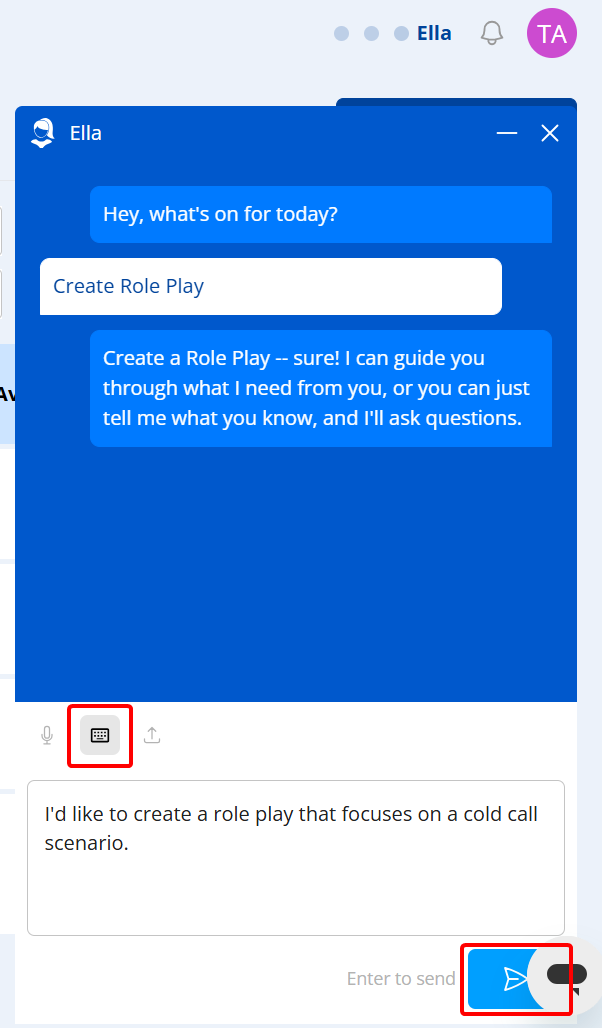
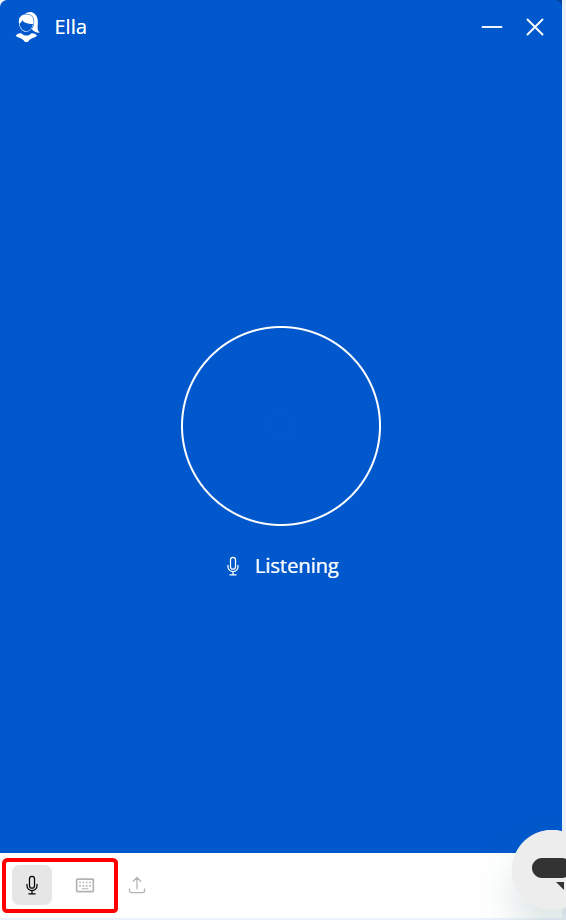
If you prefer, you can also communicate with Ella by typing. Click the keyboard icon at the bottom of the Ella panel, then type your instructions and either strike the Enter key or click Send.
Ella will offer to guide you through the process, so you can respond to her prompts to provide the necessary information for the role play. But you can also just start talking, and she'll ask questions if she thinks anything is missing. She will summarize whatever you say to make sure she gets it right. Feel free to correct her if she gets it wrong!
If you elect for the step-by-step, guided approach, Ella will cover three main topics:
- What is this conversation about, who are you talking to, and what is the goal of the conversation?
- How do you know this person, and how do they communicate?
- Optionally, you can paste a URL into the chat, e.g. a LinkedIn url of the real person you'll be talking to, and Ella will attempt to scrape it for information.
- Are there key objections, questions, or other specific topics you might encounter during this conversation?
If you would rather skip the guided process and cover everything at once, here's a handy prompt to use: "I am [role] at [company] in [the industry] and I am talking to [prospect] at [organization category] who has a [specific description] conversational style. The goal of the conversation is [objective] and objections I expect are [objections]."
Adding a Persona Based on a LinkedIn Profile
To build a persona from a LinkedIn profile, first switch to keyboard entry. You can switch between voice and text entry at any time using the microphone and keyboard icons at the bottom of the Ella panel.
Once you are using typed messaging, paste the URL of the LinkedIn profile you want to use as the basis for the persona.
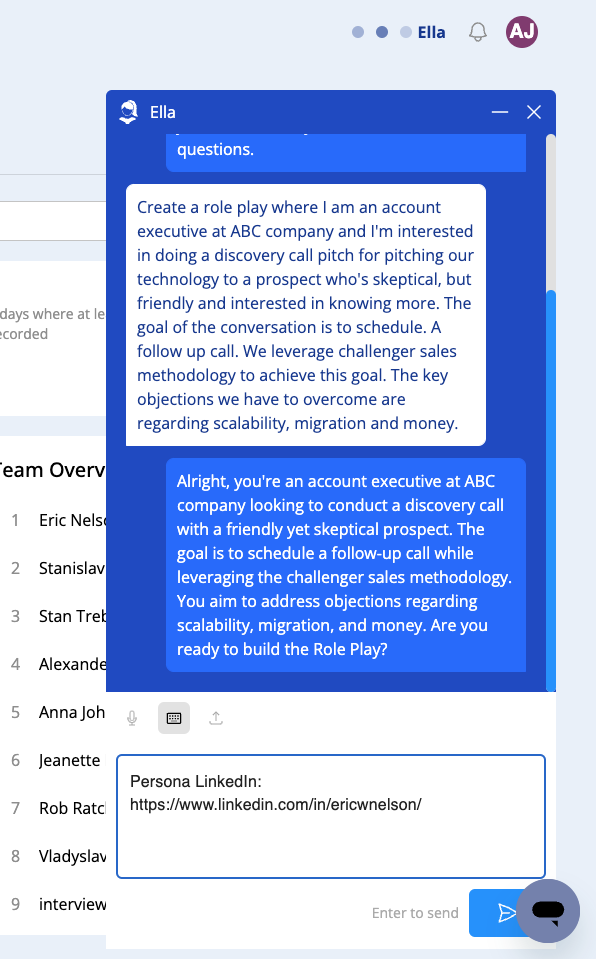
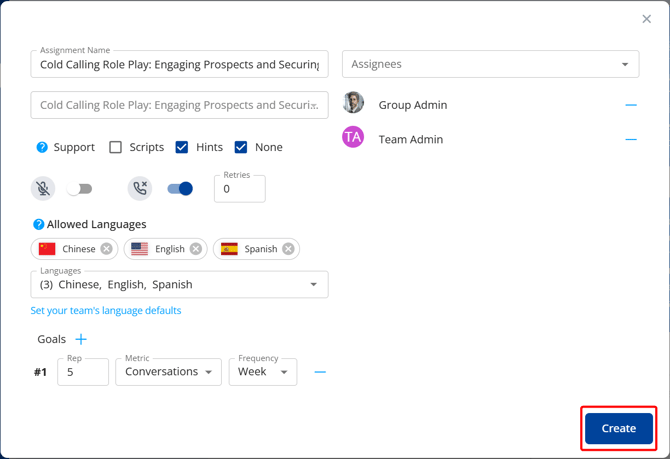
Once we provide Ella with the necessary information, she will ask us to confirm if we're ready to proceed in creating a role play. A simple "Yes, I'm ready" will prompt Ella to open the Assignment Builder. Adjust assignment settings as needed. For more information, see:
Once your settings are configured, click Create to create the assignment.
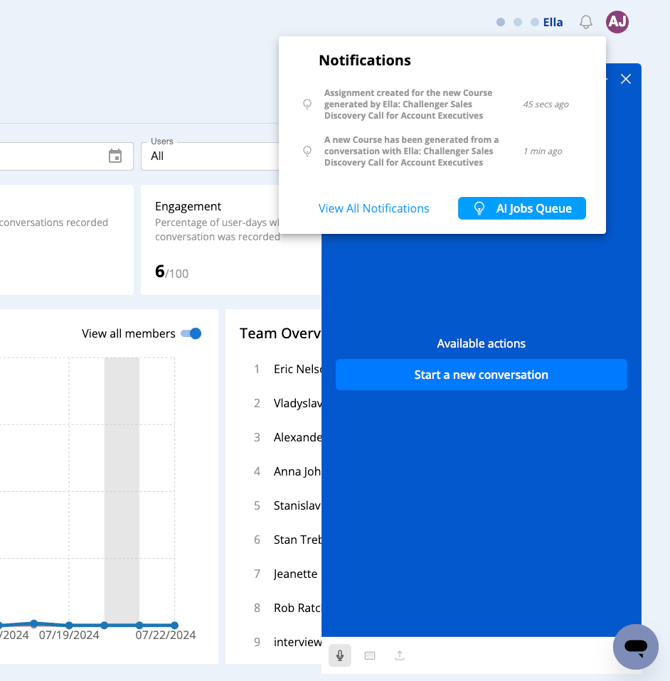
When the assignment is ready, you can click the notification bell to begin practicing, or you can find the assignment on the Assignments tab.