
Meeting Analyzer scores every call against your Playbook and can raise signals — a risk, an objection, a competitor mention, or a key playbook moment. You can send any of those signal alerts straight into Slack, in near real time, so the right people see them where they already work instead of waiting to open the dashboard.
Setting this up has two parts: connect Slack once (paste a token from your own Slack app), then add Slack as a destination on each alert in Playbook.
What you need
- Connections, Meeting Analyzer, and Playbook enabled for your organization. Each are required for configuring and activating Slack alerts — if you don't see Playbook, ask your Customer Success Manager to enable them for your org.
- A Slack workspace where you can create an app (or an admin who can), plus the channel(s) you want alerts to post to.
Step 1 — Connect Slack (one-time)
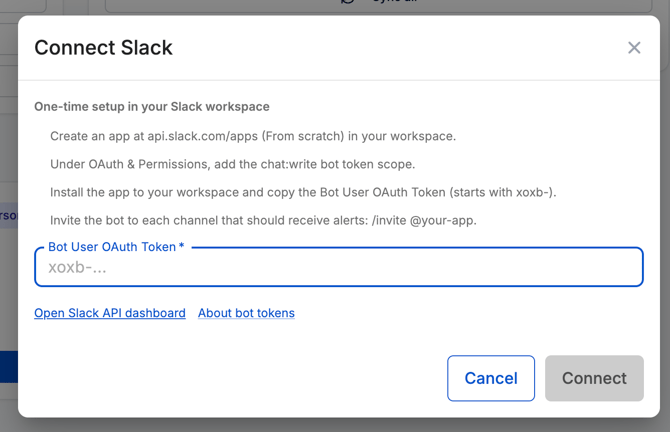
Brevity posts to Slack using your own Slack app and its bot token. In Brevity, go to Connections → Notifications → Slack and follow the in-app instructions:
- Create an app at api.slack.com/apps (choose From scratch) in your workspace.
- Under OAuth & Permissions, add the
chat:writebot token scope. - Install the app to your workspace and copy the Bot User OAuth Token (it starts with
xoxb-). - Invite the bot to each channel that should receive alerts: in that Slack channel, type
/invite @your-app. (If the bot isn't in a channel, posts to it will fail.) - Back in Brevity, paste the Bot User OAuth Token into the Slack connection and click Connect. [SCREENSHOT-1]
You only do this once. After it's connected, you choose which alerts go to which channels in Playbook (Step 2).
Step 2 — Send an alert to Slack (in Playbook)
Slack is added as a destination on an individual alert, so you control exactly which signals post and where. It's configured per alert.
- In Playbook, edit the signal/alert you want to send to Slack (or create a new one).
- Under What happens when detected, click Add action and choose Post to Slack.
- Enter the Slack channel ID for the destination channel (for example,
C0123ABCD), and set the priority. - Save the signal.
Repeat for each alert you want in Slack — different alerts can post to different channels. (You can also stack it with other actions, like an in-app Alert, on the same signal.)
Finding a channel's ID
In Slack, open the channel, click its name to open channel details, and scroll to the bottom — the Channel ID starts with C. (Or copy the channel link; the ID is the last part of the URL.) Use that value in the Slack channel ID field.
FAQ
Where do the alerts show up? In whatever Slack channel you set as the destination on each alert — you choose the channel per alert by its channel ID.
Do we use a Brevity Slack app, or our own? Your own. You create a Slack app in your workspace, give it the chat:write scope, and paste its bot token into Brevity. That's what lets Brevity post to your channels.
Why isn't my alert posting to the channel? The most common cause is that the bot hasn't been invited to that channel — run /invite @your-app in the channel. Also confirm the channel ID is correct and the alert has a Post to Slack action saved.
Can different alerts go to different channels? Yes. Slack is set per alert, so you can route each signal to whichever channel makes sense.
Do we need Playbook for this? Yes — alerts are Playbook signals, so Playbook (and Meeting Analyzer) must be enabled for your org.
Is there a per-user version? Alerts post to channels, not to individuals — set the destination channel on each alert.
Need help? Reach out to your Customer Success Manager.