
Before you begin
-
Who can do this?
Only Organization Admins can create, edit, or delete User Groups and manage group membership. -
Who can be in a User Group?
Any existing member of your Brevity organization (Org Admins, Team Admins, and Members). -
What User Groups do not do:
-
They do not change a user’s role or permissions.
-
They do not add or remove team memberships.
-
They do not invite new users to Brevity.
-
1. Access the User Groups tab
-
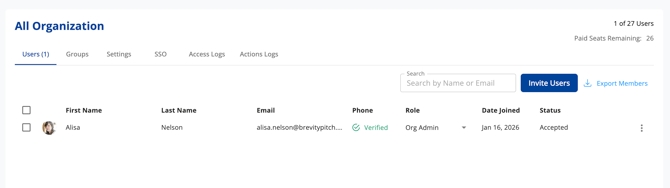
From the main navigation, go to your Organization dashboard.
-
Make sure you’re in the All Organization view (not inside a specific team).
-
In the organization header, select Groups.
-
On desktop, you’ll see a table of all User Groups.
-
On mobile, you’ll see a list of User Group cards.
-
From the Groups tab, Org Admins can create, edit, delete, and open User Groups.
2. Create a new User Group
Use this when you want to define a new cohort (for example, “New AEs (0–6 months)” or “Enterprise AEs – North America”).
-
Go to Organization › Groups.
-
Click + Create User Group.
-
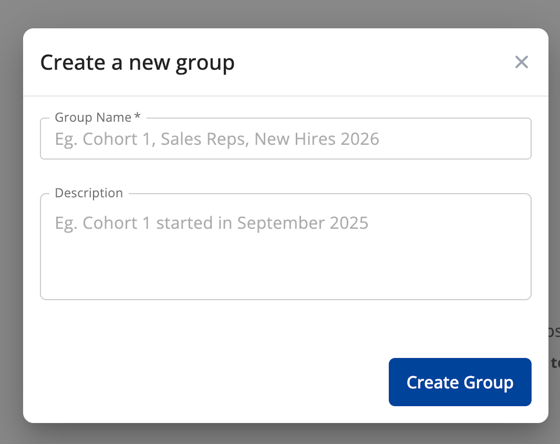
In the Create group dialog:
-
Group name (required)
Examples:-
New Hires 2026 -
Enterprise AEs – North America -
Pilot Cohort – Q3
-
-
Description (optional)
Example:New AE cohort that started in September 2025
-
-
Click Create group.
What happens next
-
The group appears in your organization’s list of User Groups.
-
It becomes available in:
-
Analytics filters.
-
Supported assignment workflows (see “Create assignments by User Group” below).
-
-
No users are added automatically; you’ll add members in the next steps.
3. Edit a User Group’s name or description
Use this when you need to rename a group or clarify its description.
-
Go to Organization › Groups.
-
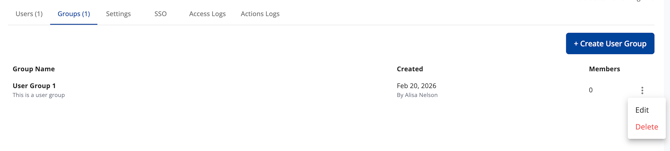
Find the User Group you want to edit.
-
Open the more actions menu (three dots) for that group.
-
Click Edit.
-
Update:
-
Group name
-
Description (optional)
-
-
Click Update group.
Notes
-
Changes take effect immediately across Brevity, including Analytics filters and assignment‑related dropdowns.
-
If there’s an issue (for example, duplicate name), you’ll see an error message before changes are saved.
4. Delete a User Group
Deleting a User Group removes that grouping but does not remove or deactivate any users.
-
Go to Organization › Groups.
-
Find the User Group you want to delete.
-
Open the more actions menu (three dots) for that group.
-
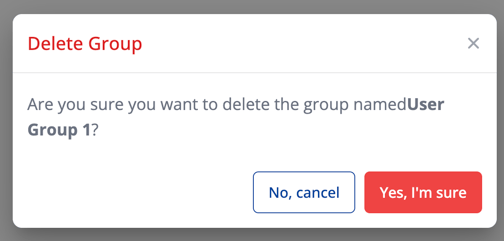
Click Delete.
-
Review the confirmation message and click Yes, I’m sure to confirm.
What happens when you delete a User Group
-
The User Group is removed from:
-
The Groups list.
-
Analytics filters and other selection menus (including the bulk assignment creator).
-
-
Users remain:
-
In your organization.
-
In their existing teams.
-
With the same roles and permissions.
-
If a view, preset, or workflow previously used that User Group as a filter or target, it will no longer be available and may:
-
Default to “All users”, or
-
Show that the previous filter/selection is no longer available.
5. View details for a User Group
Use the User Group detail page to see who is in a group and manage membership.
-
Go to Organization › Groups.
-
Open a group:
-
Desktop: click anywhere on the group row.
-
Mobile: tap the group card.
-
On the User Group detail page, you’ll see:
-
Group name and description.
-
A Back to all groups link.
-
A Users (N) tab showing current members.
-
An + Add members to group button.
-
A list of group members (for example: name, email, date added, and actions).
6. Add members to a User Group
You can only add users who are already members of your organization.
-
From the User Group detail page, click + Add members to group.
-
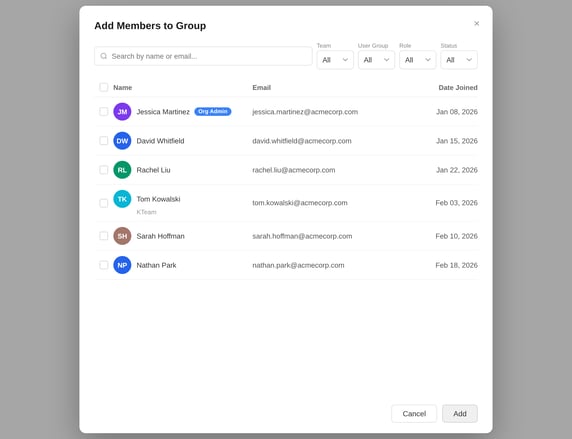
In the Add members dialog:
-
Search for and select one or more users.
-
Use filters to quickly select Users including:
- By team
- By User Group
- By Role
- By invitation status (Accepted or Pending)
-
-
Click Add.
What happens when you add members
-
Selected users are added to the User Group immediately.
-
They keep all existing team memberships and roles; nothing about their access changes.
-
The member list and group member count update right away.
-
The group can now be used in Analytics and assignment workflows to target this cohort, subject to each admin’s existing scope.
If there’s a problem (for example, an invalid selection), you’ll see an error message and can adjust your selection.
7. Remove members from a User Group
Removing someone from a User Group does not remove them from Brevity or from any teams.
-
From the User Group detail page, find the member you want to remove.
-
Open the more actions menu (three dots) for that member.
-
Click Remove from group.
-
Confirm in the dialog.
What happens when you remove a member
-
The user is removed from that User Group only.
-
They stay:
-
In the organization.
-
In any teams they belong to.
-
With the same roles and permissions.
-
-
They will no longer be included when you:
-
Filter by that User Group in Analytics.
-
Target that User Group in bulk assignment creation.
-
If something goes wrong, you’ll see a “Failed to remove…” message and can try again.
8. Create assignments by User Group (bulk assignment creator)
User Groups can be used as a targeting option when creating bulk assignments. This lets Org Admins assign content to a defined cohort across multiple teams in one step.
Note: Only Organization Admins can create assignments scoped to an entire User Group. Team Admins remain limited to their team‑scoped assignment options; User Groups do not expand their visibility or targeting.
Open the bulk assignment creator
-
Go to your Assignments area (for example, Assignments or Assignment Management depending on your navigation).
-
Click Create assignments or Bulk assign (label may vary slightly based on your tenant version).
-
The Bulk assignment creator modal opens.
Filter by User Group
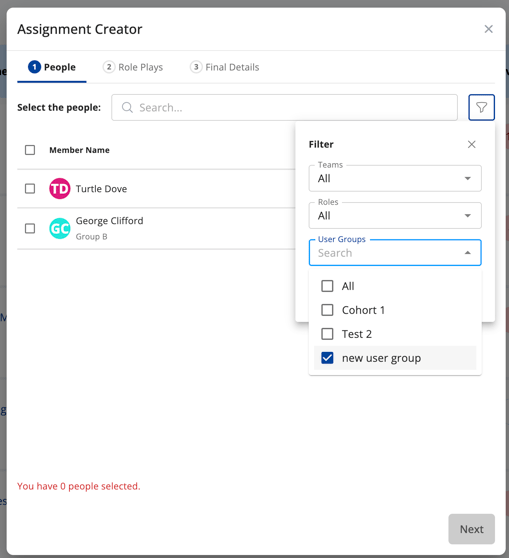
Inside the bulk assignment creator modal:
-
Locate the section where you choose who will receive the assignment (for example, a “Recipients”, “Who to assign to”, or “Filters” section).
-
Open the User Group filter.
-
Select one or more User Groups you want to target.
When you filter by User Group in the bulk assignment creator:
-
The recipient pool is automatically scoped to:
-
Only users who are members of the selected User Group(s), and
-
Within your Org Admin scope (entire organization).
-
-
Any additional filters in the modal (for example, team or role filters) will intersect with the User Group selection, not override it.
Complete and confirm the bulk assignment
-
Select the course(s) or content you want to assign.
-
Review the assignment settings (due dates, reminders, etc.).
-
Confirm the recipient count shown in the modal:
-
This count is based on the current filters, including your User Group selection.
-
-
Click Create assignments (or the equivalent confirm button).
What happens when you assign by User Group
-
All users who:
-
Are in the selected User Group(s), and
-
Match any additional filters you applied
will receive the assignment(s).
-
-
Assignments behave like any other assignment:
-
They appear in users’ dashboards.
-
They are included in Analytics and scorecards, subject to existing RBAC rules.
-
-
If a user is later added to or removed from the User Group, existing assignments are not automatically changed by group membership changes (unless otherwise noted in a future enhancement).
9. Use User Groups in Analytics and Scorecards (at a glance)
After you’ve defined User Groups and, optionally, created assignments by User Group, you can:
-
Filter Analytics by User Group
On supported dashboards (Overview, Adoption, Engagement, Individual Progress, report cards), use the User Group filter to see results only for:-
Members of the selected User Group, and
-
Within your existing role‑based scope.
-
-
Send Member Scorecards to a User Group (Org Admins)
When configuring Member Scorecards, select a User Group as the recipient to send that scorecard to all Members in that group.
Related Articles:
Learn what User Groups are and how they behave: User Groups Overview