
Overview
The Team Merge Wizard lets organization admins combine multiple teams into a single team. Use it to consolidate teams after a reorganization, clean up duplicates, or bring pilot groups together — all in a few clicks.
Who Can Use This
The Team Merge Wizard is available to organization admins only. If you don't see the merge option, check with your org admin to confirm your role.
How It Works
The merge wizard is a two-step process:
Step 1: Select Teams
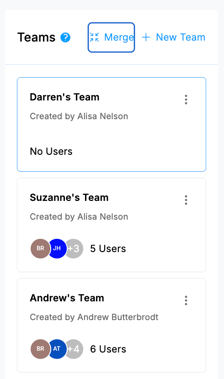
- Open the Team Merge Wizard from your organization settings.
 .
. 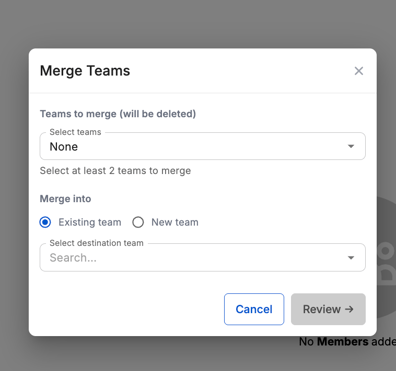
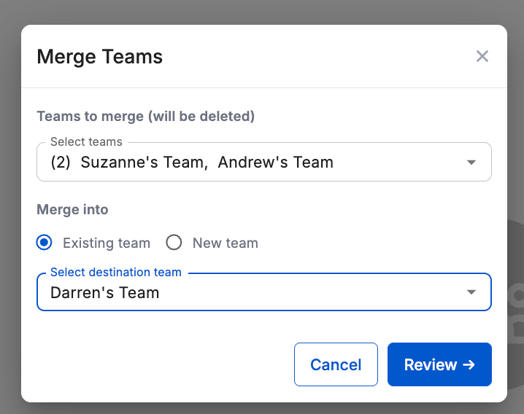
- Choose one or more source teams — these are the teams that will be merged.
- Choose a destination team:
- Pick an existing team to merge into, or
- Enter a new team name to create a fresh destination.
Step 2: Review and Confirm
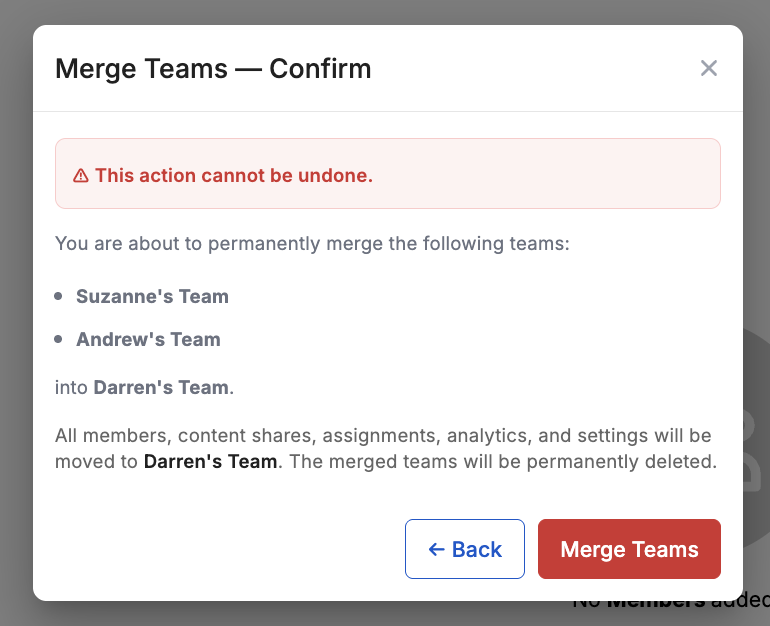
- Review the impact summary, which shows what will be transferred and which source teams will be removed.
- Click Confirm to start the merge.
The merge happens instantly. Once complete, all source teams are permanently removed and their contents live in the destination team.
What Gets Transferred
When teams are merged, everything from the source teams moves to the destination team:
- Members — all team members transfer to the destination, and admin privileges are preserved
- Pending invitations — any outstanding invitations carry over
- Scenarios — all practice scenarios and their analytics
- Assignments — course assignments, including progress and scores
- Vocabularies — vocabulary lists and vocabulary items
- Personas — custom AI personas
- Saved filters — any saved filter sets
- Feed posts — pinned feed posts
- Overview layouts — team overview dashboard configurations
- Analytics digests — scheduled analytics digest settings
- Notification settings — team notification preferences
What Happens to the Source Teams
Source teams are permanently deleted after the merge. This cannot be undone. Make sure you've selected the correct source and destination teams before confirming.
When to Use Team Merge
- After a reorg — departments or teams have been restructured and you need to reflect that in Brevity
- Cleaning up duplicates — test or duplicate teams that should be consolidated
- Combining pilot groups — merging a small pilot team into the main team after a trial period
FAQs
Can I undo a merge?
No. Merging is permanent — source teams are deleted after the merge completes. Double-check your selections in Step 2 before confirming.
What happens if a member exists in both a source team and the destination team?
The member will appear once in the destination team. Their content and permissions are preserved.
Can I merge teams across different organizations?
No. The Team Merge Wizard only works within a single organization.
Will assignments in progress be affected?
No. All assignment progress, scores, and history transfer intact to the destination team.