
How to View and Restore Version History for Repository Items
This guide shows you how to view the change history of any item in your Repository and restore a previous version if you need to undo a change.
Version History is available on all six Repository item types: Courses, Training Plans (coming soon), Assignments, Contexts, Personas, and Topics.
How Version History Works
Every time you or a teammate saves a change to a Repository item, Brevity automatically saves a version snapshot. There is no extra step required — just save as you normally would, and the version is recorded.
Each version captures the full state of the item, who made the change, and when it happened.
Who Can Access Version History
Your access to Version History depends on your permissions for that item:
| Your Permission Level | What You Can Do |
|---|---|
| View access | Browse the version history and preview any past version |
| Edit access | Browse history, preview past versions, and restore a previous version |
| Org Admin | Full access to version history on any item in your organization |
How to View Version History
- Navigate to the table list of the Repository Item of interest (a Course, Training Plan, Persona, Context, Topic, or Assignment).
- Click the ⋮ (three-dot menu) in the header area of the item.
- Select History from the menu.
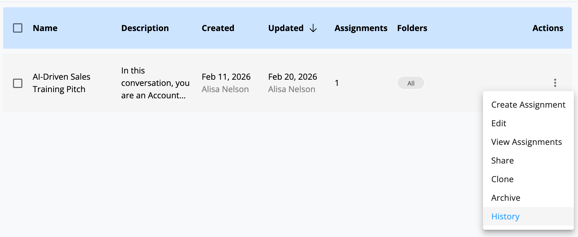
- A panel opens on the right side of the screen showing all saved versions, newest first. Each entry shows the version number, who made the change, and when.
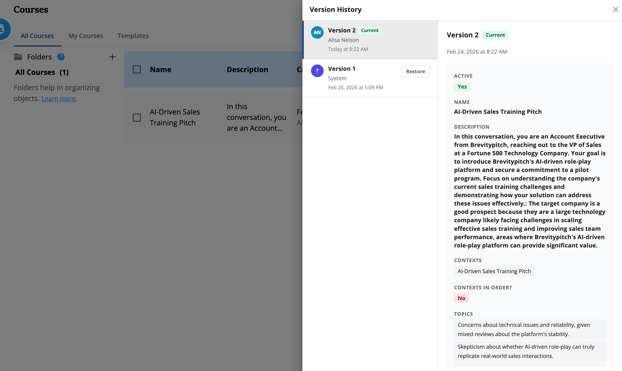
The most recent version is labeled Current Version so you always know which version is live.
You can also view the Version History of any item while you are in the editing view. Look for the Clock icon. For courses, this is located near the "Save Course" button.
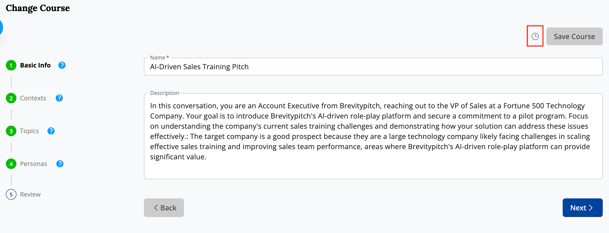
For repository items inside the Course editor, see history directly from the card alongside Edit, Clone, and Share buttons.

How to Preview a Past Version
- Open the Version History panel (see steps above).
- Click on any version entry to expand it.
- A read-only preview shows the full state of the item at that point in time — including the name, description, and any linked Personas, Topics, or Contexts.
This lets you see exactly what the item looked like before a change was made, without affecting the current version.
How to Restore a Previous Version
If you have Edit access to an item, you can restore any previous version:
- Open the Version History panel.
- Find the version you want to restore and expand it.
- Click Restore This Version.
- A confirmation dialog appears. Confirm to proceed.
- The item updates to reflect the restored content. You are redirected to the item in its restored state.
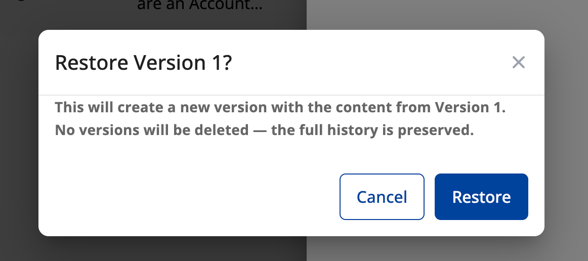
Important: Restoring a version does not delete any versions. If you restore version 3, a new version is created (for example, version 8) with version 3's content. Versions 4 through 7 remain fully intact in the history. You can always go back.
What Gets Versioned
Version History captures all the content fields of each item type, including:
- Courses — name, description, instructions, linked Personas, Topics, and Contexts
- Training Plans (coming soon)— name, description, passing criteria, and the full chapter and section structure
- Assignments — goals, modes, and assignees (not learner progress)
- Contexts — name, description, custom instructions, and milestones
- Personas — name, title, company, description, voice settings, and attributes
- Topics — name, type, and active status
Note: Restoring an Assignment version restores its settings and configuration. Learner progress and practice session data are not affected. Restoring a Training Plan version restores the entire plan, including all chapters and sections as they existed in that version.
Items That Existed Before Version History
Items that were created before Version History was available already have a starting version (Version 1) based on their state when the feature was deployed. All changes made after that point are tracked normally.
Frequently Asked Questions
Can I compare two versions side by side? Side-by-side comparison is not available yet but is planned for a future update. You can preview any individual version to see its full state.
Does restoring a version notify anyone? No. Restoring a version does not send any notifications. The restore is visible in the version history if anyone checks.
Is there a limit to how many versions are saved? No. All versions are saved automatically with no limit.
I accidentally deleted a Persona that was linked to a Course. What happens if I restore an older version of that Course? The restore will proceed, but the deleted Persona will be skipped. All other content from that version will be restored normally.
Need Help?
If you have questions about Version History or run into unexpected behavior, reach out to our support team.