
Okta SSO Overview
Brevity supports single sign-on authentication via Okta. The Okta integration allows organization members to access Brevity using their Okta credentials for centralized access management and enhanced security.
Requirements and Considerations
Before beginning the SSO setup, ensure the following requirements are met:
-
Admin Access
You must have administrative access to both:-
Your Okta organization
-
Your Brevity organization
-
-
Brevity SSO Feature
SSO must be enabled for your Brevity organization. This is done on the Organizations page in Brevity under the SSO tab. Toggle Enable SSO for your organization to ON (see screenshot below) -
Just-in-Time (JIT) Provisioning
Brevity supports Just-in-Time (JIT) provisioning via SAML SSO.
When enabled:-
A user who successfully authenticates through Okta will automatically have a Brevity account created if one does not already exist.
-
The user will be added to the associated Organization upon first login.
-
Note: If SCIM provisioning is also enabled, Okta should be treated as the source of truth for user lifecycle management. For more information on SCIM provisioning, see our SCIM Okta Setup Guide.
Step 1: Add and Configure the Brevity App in Okta
- Access the Okta Admin Console and sign in with your administrator credentials.
- Go to Applications > Browse App Catalogue.
- In the search bar, search for and select Brevity.
- Click Add Integration and follow the configuration wizard.
- Assign Users
- Go to the Assignments tab
- Click Assign → Assign to People
- Select the users or groups who should have access to Brevity
- Click Done
Step 2: Retrieve Your Okta SSO Credentials
Now you need to gather the credentials from Okta to configure Brevity.
- Navigate to the Sign On tab
- In your Brevity application within Okta, click the Sign On tab
- Locate the SAML Signing Certificates section
- Scroll down to find SAML Signing Certificates
- Copy the IdP Issuer URI
- Look for the field labeled Issuer
- This will be a URL that looks like:
http://www.okta.com/exk... - Copy this entire URL - you'll need it for the Brevity configuration
- Copy the X.509 Certificate
- In the SAML Signing Certificates section, find the active certificate (marked with a green "Active" badge)
- Click Actions → View IdP metadata
- In the metadata XML that opens, locate the
<X509Certificate>tag - Copy only the certificate content between the
<X509Certificate>and</X509Certificate>tags - This will be a long string of letters and numbers (base64 encoded)
- Do not include the XML tags themselves or any
-----BEGIN CERTIFICATE-----/-----END CERTIFICATE-----headers
MIIDqDCCApCgAwIBAgIGAZccQH3dMA0GCSqGSIb3DQEBCwUAMIGUMQswCQYDVQQGEwJVUzETMBEG...Step 3: Configure SSO in Brevity
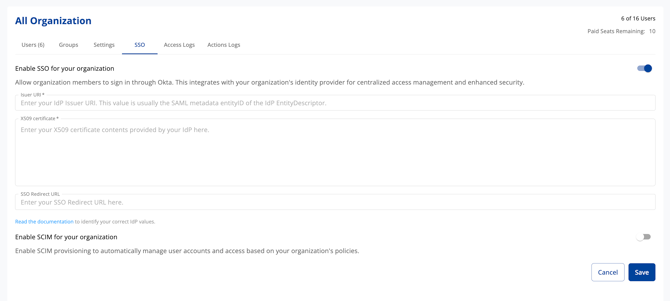
- Log in to Brevity as an administrator
- Navigate to Organization Settings
- Click on your profile icon in the upper right corner
- Select Organizations
- Go to the SSO section
- Enable SSO for Your Organization
- Toggle the Enable SSO switch to the "on" position
- Enter the Okta Credentials
- IdP Issuer URI: Paste the Issuer URL you copied from Okta (e.g.,
http://www.okta.com/exk...) - X.509 Certificate: Paste the certificate content you copied from the Okta metadata (the long base64 string without headers)
- IdP Issuer URI: Paste the Issuer URL you copied from Okta (e.g.,
- Save the Configuration
- Click Save to apply your SSO settings
Step 4: Test the SSO Integration
- Test with a non-admin user first (recommended)
- This prevents potential lockout issues
- Initiate SSO Login
- Open a new incognito/private browser window
- Navigate to your Brevity login page
- Click the SSO login option (or navigate to your organization's SSO URL)
- You should be redirected to Okta for authentication
- Verify the Login Flow
- Authenticate with Okta credentials
- Confirm you're redirected back to Brevity
- Verify you're logged in successfully
- Verify JIT Provisioning (if applicable)
- If testing with a new user who doesn't have a Brevity account, confirm they are automatically created upon first login
- Verify the user has been added to the correct organization
- Check Audience Restriction
- If you encounter authentication errors, verify that the Audience URI in Okta matches exactly:
https://app.brevitypitch.com
- If you encounter authentication errors, verify that the Audience URI in Okta matches exactly:
Troubleshooting
Common Issues
"SAML validation failed" error
- Verify the X.509 certificate was copied correctly without any extra spaces or line breaks
- Ensure you copied only the certificate content (no XML tags or BEGIN/END headers)
- Check that the certificate is active in Okta
"Invalid Issuer" error
- Confirm the IdP Issuer URI matches exactly what's shown in Okta's Sign On tab
- Verify there are no trailing spaces
Users cannot log in
- Confirm users are assigned to the Brevity application in Okta
- Verify the Audience URI in Okta is set to:
https://app.brevitypitch.com
JIT provisioning not working
- Verify that JIT is enabled in your Brevity organization settings
- Check that the user's email in Okta matches the expected format
Additional Resources
- SCIM Okta Setup Guide - For automated user provisioning and lifecycle management
- Need help? Contact your Brevity Customer Success Manager