
Connect RingCentral to Brevity so every phone call and video meeting your team runs through RingCentral flows into Meeting Analyzer automatically. There's no bot to invite, no manual uploads, and no change to how your reps work — once the connection is in place, calls are transcribed, analyzed, and ready for coaching within minutes of hanging up.
Overview
The RingCentral integration uses OAuth 2.0 to authorize Brevity to pull call recordings directly from your RingCentral account. When a call ends, RingCentral notifies Brevity via webhook, Brevity downloads the recording, runs speaker-identified transcription, and runs the full Meeting Analyzer pipeline — coaching signals, compliance checks, risk scoring, and action items.
What gets ingested: phone calls (inbound and outbound) and video meetings hosted through RingCentral, with speaker-identified transcripts.
Plan availability: included on all paid plans at no additional cost.
Before you start
To complete the connection you'll need:
- A RingCentral Admin account. Connecting the integration requires admin-level permissions in RingCentral to grant the necessary API access.
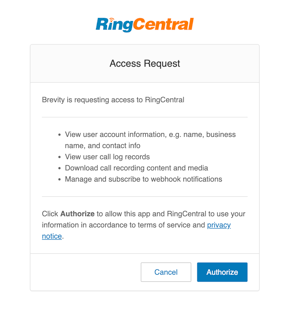
- Permission to grant the following RingCentral scopes during the OAuth consent step:
- Read Call Log — so Brevity can list recent calls and find recordings
- Read Call Recording — so Brevity can download the call audio for analysis
- Webhook Subscriptions — so RingCentral can notify Brevity when a new call completes
If your RingCentral plan restricts any of these capabilities, the connection will fail with a clear error message at the consent step.
Connect RingCentral to Brevity
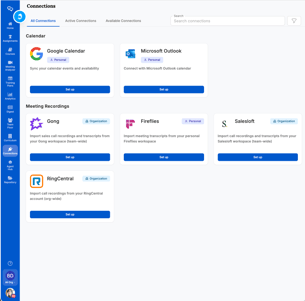
- In Brevity, go to Connections.
- Find the RingCentral tile and click Set up.
- You'll be redirected to RingCentral to sign in (if you aren't already) and review the access Brevity is requesting.
- Approve the requested scopes. RingCentral will redirect you back to Brevity.
- Brevity confirms the connection. Once connected, the RingCentral tile shows a Connected state along with the last sync timestamp.
Most organizations complete this flow in about two minutes.
What gets ingested
When the integration is active, Brevity pulls:
- Phone calls — both inbound and outbound — that were recorded in RingCentral
- Video meetings hosted through RingCentral that produced a recording
- Speaker-identified transcripts generated from the call audio
Each ingested call runs through Brevity's standard Meeting Analyzer pipeline, producing the same coaching, compliance, risk, and action-item outputs you get from other connected sources. Internal-only meetings are classified at ingestion and excluded from org-wide rollups.
How sync works
- New calls are delivered to Brevity in near real time. When a call ends, RingCentral fires a webhook to Brevity, Brevity pulls the recording, and the analysis pipeline starts. New recordings are typically available in Brevity within 15 minutes of the call ending.
- A polling fallback runs every 6 hours so anything the webhook might miss is picked up automatically.
- A 90-day historical backfill runs on first connect, bringing in your recent RingCentral call history. Backfill usually completes within a few hours.
Disconnecting or re-authenticating
Brevity refreshes the OAuth tokens automatically, so most users will never need to re-authenticate. If a token does expire (for example, if your RingCentral admin revokes Brevity's access), the RingCentral tile in Brevity will surface a re-auth prompt.
To disconnect:
- Go to Connections in Brevity.
- Open the RingCentral tile and click Disconnect.
- Confirm. New calls will stop syncing immediately. Calls Brevity has already ingested remain available for review.
To re-authenticate:
- Open the RingCentral tile and click Reconnect.
- Sign in to RingCentral and approve the requested scopes again.
- Sync resumes from where it left off.
Troubleshooting
The OAuth flow returns an error or partial access. This usually means one of the requested scopes wasn't granted. Disconnect and reconnect as a RingCentral Admin, and make sure all three scopes (Read Call Log, Read Call Recording, Webhook Subscriptions) are approved on the consent screen.
Calls aren't showing up in Brevity. Check the last-sync timestamp on the RingCentral tile. If it's recent, the call may still be processing — most calls appear within 15 minutes of ending. If the timestamp is stale, the OAuth token may have expired; click Reconnect on the tile.
Some calls appear but recordings are missing. RingCentral retains call recordings according to your RingCentral account's retention policy (90 days by default on many plans). Calls older than that retention window won't have a recording available to pull.
Internal meetings are appearing in org rollups. Brevity classifies meetings at ingestion based on attendee domains. If an internal-only meeting is being treated as external, contact your Customer Success Manager so we can review the classification.
FAQ
Do I need to invite a meeting bot to RingCentral calls? No. Brevity pulls completed call recordings directly from RingCentral via API. There's no bot, no calendar connection, and no change to how reps run calls.
Does this work for both phone calls and RingCentral video meetings? Yes. Both phone calls (inbound and outbound) and RingCentral video meetings are ingested as long as RingCentral produced a recording.
How quickly do new calls appear in Brevity? Most calls appear within 15 minutes of the call ending. A 6-hour polling fallback catches anything the webhook misses.
How long does the 90-day backfill take? Backfill typically completes within a few hours of connecting. Calls become available in Brevity as they're processed.
What happens if my RingCentral admin revokes Brevity's access? Sync stops, and the RingCentral tile in Brevity surfaces a re-auth prompt. A RingCentral Admin can click Reconnect to restore the integration.
Can I limit which users' calls flow into Brevity? The integration follows the access granted by the connecting RingCentral Admin. Use RingCentral's own user and extension controls to scope what Brevity sees.
Need help? Reach out to your Customer Success Manager.