
Teams decide who can see whose results. In the Launch Hub, step 3, Create teams by reporting line, creates your teams. Step 6, Assign team admins, names the person who oversees each team and splits a team into sub-teams when it has more than one manager.
Before you start
- The Launch Hub is available to Org Admins before your organization launches. It opens on your home page.
- Create your teams before step 5, Upload your people. The upload file's
teamscolumn places each person on a team, using a legend of the teams that exist when you upload. - Your launch can't be scheduled until at least one team exists.
Teams, sub-teams and content groups
Teams
Teams set oversight. Build them to mirror your reporting lines. A team admin sees the results of the people on the teams they administer: Team Scorecard emails, analytics, recordings, the home dashboard and training-plan analytics. Org Admins see everyone.
A person can belong to several teams. Each of those teams' admins sees that person's results.
Sub-teams
A sub-team is the set of people within a team who are assigned to one team admin. Use sub-teams when several managers share one team and each coaches their own reps.
- A team admin with nobody assigned sees everyone on the teams they administer.
- Once a team admin has people assigned, they see only those people.
- A sub-team only narrows what a team admin sees. It never gives access to people on another team.
You set up sub-teams at step 6. See Assign team admins and sub-teams.
Content groups
Groups are a second way to deliver content, grouping people by tenure, product or role. A group gives nobody access to anyone's results; access comes only from teams. Groups are step 4, Create content groups (optional). See User Groups: Overview.
Teams answer who coaches whom. Groups answer who should practice this content.
Create teams in the Launch Hub
- On your home page, go to the People section of the Launch Hub and open step 3, Create teams by reporting line.
- Enter a name in the Team Name field.
- Select Save, or press Enter. The field clears for the next team.
- Repeat for each team. Each team you create is listed under Teams created so far.
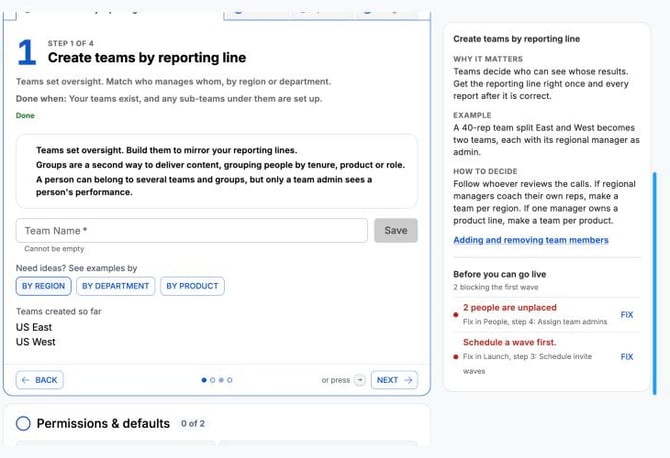
For name ideas, select By region, By department or By product under Need ideas? See examples by. Selecting an example fills the Team Name field. The team is created only when you save it.
Choose how to divide teams
Follow whoever reviews the calls. Each team should match one manager, or one group of managers, who coaches the people on it.
By region
If regional managers coach their own reps, make a team per region, for example EMEA and APAC.
Split North America the same way when it has more than one regional manager. The examples under By region use US West, US Central, US East and Canada. If one manager covers all of North America, make one North America team. When regional managers join later, make them team admins of that team and give each a sub-team.
By department
If each function has its own manager, make a team per department. The examples under By department are SDRs, Account Executives, Account Management and Customer Success. Each department's manager becomes that team's admin and gets a Team Scorecard for that department only.
By product line
If one manager owns each product line, make a team per product, for example Product A, Product B and Platform. A rep who sells two product lines can be on both teams, and both product managers see that rep's results.
One team with several managers
Sales East has 40 reps and two managers. Make one Sales East team. At step 6, make both managers team admins of Sales East and assign each manager's reps to them. Each manager then sees only the reps they coach.
Make two teams instead when Org Admins should see the two groups reported as separate teams, with a Team Scorecard for each.
One person who oversees several teams
A sales director oversees US West and US East. Make the director a team admin of both teams. The director sees everyone on both teams.
If you assign people to the director in one team only, the director sees nobody in the other team. Assign the director's people on every team they administer, or assign nobody.
How team choice affects reporting and scorecards
- A team admin sees results only for people on the teams they administer, narrowed to their sub-team when they have people assigned.
- Team Scorecard emails go out once per team. A team admin of three teams gets three emails. Org Admins can also receive a Team Scorecard for each team.
- The Team Scorecard covers the team's members. It leaves out Org Admins and team admins, and it counts assignments made to the team, not assignments made to the whole organization.
- The Org Scorecard goes to Org Admins only and covers the whole organization.
- A person on no team has no team admin, so only Org Admins see their results. The Launch Hub lists such people as unplaced under Before you can go live, and the launch can't be scheduled until each one is on a team. Org Admins don't need a team.
Which scorecard emails are sent is set in step 11, Choose admin alerts.
Change your structure after launch
After launch, manage teams on the Teams page. Open the ⋮ menu in the team header:
- New Team adds a team.
- Merge Teams combines two or more teams into an existing team or a new team. A merge is permanent.
- Manage Sub-Teams changes who each team admin oversees.
To rename or delete a team, open that team's menu and select Edit Name or Delete.
When someone leaves a team, they drop off that team admin's sub-team automatically. When a team admin is changed back to a member, their sub-team assignments are cleared.
[Screenshot to add: 03-teams-menu.png. Teams page with the team header menu open showing New Team, Merge Teams and Manage Sub-Teams]
For more on adding people to a team, see Create a Brevity Team.
Frequently asked questions
Can a person be on more than one team?
Yes. Each of their teams' admins sees their results.
Should new hires be a team or a group?
Make new hires a team only if they have their own manager. To send them onboarding content without changing who coaches them, use a content group such as "New hires under 90 days".
Do I need sub-teams?
Only when a team has more than one team admin and each should see only their own reps. A team with one admin needs no sub-teams.
Can I skip creating teams?
No. The launch can't be scheduled until at least one team exists and everyone except Org Admins is on a team.