
Does This Sound Like Your Issue?
-
The AI stopped responding
-
You saw a Failed Video Upload message
-
Your mic works in Zoom or Teams, but not here
-
You received a partial score after the session
-
Transcript entries are missing or incomplete
-
You saw a No Audio Detected message
-
Refreshing temporarily fixes the issue
If this sounds familiar, the issue is likely related to your network connection — not your microphone.
Note: If you intentionally stopped the role play early (for a phone call, meeting, or other reason), see Role Play Ended Early or Got Interrupted
What’s Happening?
Role plays rely on a continuous, real-time connection to:
-
Stream your audio
-
Transcribe your speech
-
Generate AI responses
-
Calculate scores based on the transcript
If your network briefly drops, becomes unstable, or blocks part of that connection, the session can partially fail — even though your microphone is working.
Because scoring depends on the transcript, missing entries can result in incomplete milestones and low scores.
How Network Issues Can Appear
1. “No Audio Detected” Pop-Up
You may see a pop-up indicating no audio was detected and that the session won’t be saved.
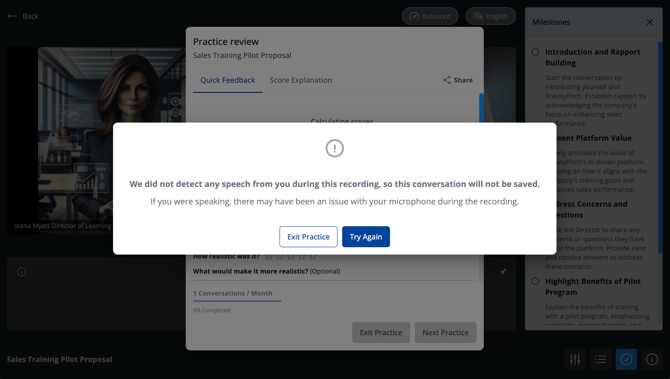
This can happen if:
-
Browser permissions are blocked
-
Your microphone isn’t selected correctly
-
Network prevents audio from reaching our servers
- Your org is using Open AI Realtime but your network blocks Open AI (if you know your company blocks Open AI or chatgpt, see Allowlisting Brevity Services)
2. AI Stops Responding Mid-Session
-
AI stops talking or freezes
-
Session retries or spins
-
Refreshing may temporarily fix it
3. Partial Score or Analytics Not Calculated
-
Only part of your transcript may be captured if the connection drops mid-play
-
Your score may appear incomplete, spinning, or stuck
-
If the session fails toward the end, you may see:
-
The video and transcript appear correctly
-
Your score never finalizes (back-end shows
-1and analytics arenull)
-
-
This is caused by network instability, not your microphone
4. Transcript Incomplete
-
AI may continue responding
-
Your statements may not appear in the transcript
-
Score and feedback are based on what is captured
Tip: Keep the transcript window open to confirm your statements are being recorded in real time. Missing transcript entries indicate a network issue.
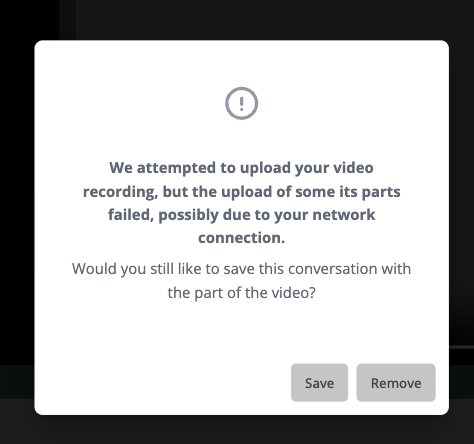
5. Video Upload Failed Error
-
You see:
“We attempted to upload your video recording, but the upload of some of its parts failed, possibly due to your network connection.” -
You’re then given the option to save or remove the video
What’s Actually Happening
Your video is uploaded in small segments throughout the session — not just at the end.
If your network briefly drops, becomes unstable, or blocks part of the connection at any point during the role play, one or more segments may fail to upload successfully. When the session completes, the system attempts to reassemble those segments. If some parts are missing, you’ll see this message.
This does not usually mean:
-
Your camera failed
-
Your microphone failed
-
The session wasn’t recorded
It means part of the upload process was interrupted.
For a deeper explanation of how video uploads work, see:
👉 Why Is My Video Only Partially Uploaded?
Signs This Is a Network Issue
-
Your mic input indicator shows activity
-
AI stops responding or video upload fails
-
Transcript shows your statements but score keeps spinning or is incomplete
-
Works on hotspot but not on corporate WiFi
-
Session worked earlier and fails mid-play
-
Refreshing temporarily resolves the issue
Common causes include:
-
Weak or fluctuating WiFi
-
Corporate firewall or security restrictions
-
VPN interference
-
Switching between WiFi nodes
-
Packet loss or latency spikes
Quick Recovery Steps
-
Fully close your browser (not just the tab).
-
Reopen it and start a new session.
-
Move closer to your WiFi router.
-
Turn off your VPN.
-
Try Google Chrome.
-
Test using a mobile hotspot.
Note: If it works on a hotspot but not your regular network, your network may be restricting real-time audio connections.
When Contacting Support
Please include:
-
Browser and version
-
Device (Mac or Windows)
-
Network type (home WiFi, corporate, VPN, hotspot)
-
Whether the session was partially scored
-
Whether the transcript was incomplete
-
Any visible error messages
Providing these details helps us diagnose and resolve issues faster.
You can contact Brevity Support by email or through our support page.