
Browser Device Permissions
To complete a Brevity role play, the platform requires access to your camera and microphone. These permissions are controlled by your web browser.
When you first access a role play, your browser will prompt you to allow camera and microphone access.
If you:
-
Clicked Block
-
Reset your browser
-
Switched devices
-
Changed browsers
-
Updated your system
You may need to grant permissions again.
How to Reset Browser Permissions
-
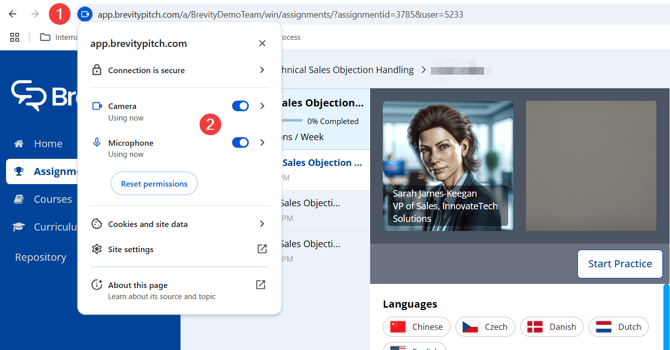
Click the site permissions icon in your browser’s address bar (usually a 🔒 lock icon to the left of the URL).
-
Locate Camera and Microphone.
-
Set both to Allow.
-
Refresh the page.
If you need browser-specific instructions with screenshots, see:
👉 First-Time Setup: Allow Camera & Microphone Access
Additional Troubleshooting Steps
If resetting browser permissions does not resolve the issue, continue below.
Close Other Applications
Ensure no other apps (Zoom, Teams, Skype, Discord, OBS, etc.) are currently using your camera or microphone.
Close any conflicting applications and try again.
Disconnect and Reconnect Devices
If using an external camera or microphone:
-
Unplug the device
-
Reconnect it
-
Try a different USB port if needed
-
Refresh the page after reconnecting
Restart Your Browser
Fully close all browser windows (not just the tab).
Reopen your browser and log back in.
Check Privacy Settings (Windows)
Go to:
Settings → Privacy → Camera
Settings → Privacy → Microphone
Ensure:
-
“Allow apps to access” is enabled
-
Your browser (Chrome, Edge, etc.) is allowed
Disable Browser Extensions
Extensions such as ad blockers or privacy tools may interfere with device access.
Temporarily disable extensions and try again.
Try a Different Browser
If the issue persists, try switching browsers.
Google Chrome is recommended.
Update Browser and Drivers
Ensure:
-
Your browser is up to date
-
Camera and microphone drivers are updated (Windows: Device Manager)
Restart Your Computer
A full system restart can resolve device conflicts.
More Help
If you still experience issues, contact support at support@brevitypitch.com and include:
-
Your device (Mac or Windows)
-
Browser and version
-
Whether this worked previously
-
Any visible error messages