
Overview
The mute button is designed to help you control your audio participation during AI role play sessions, especially if you’re in a noisy environment or need to temporarily pause your microphone input without ending your practice session.
Helpful Tips
- Use the mute button if you need to cough, answer a quick question, or have background noise.
- Remember to unmute yourself when you’re ready to continue speaking with the AI.
- The AI will pause responses until you re-engage, so your role play can resume seamlessly.
How to use the Mute button:
-
Locate the Mute Button:
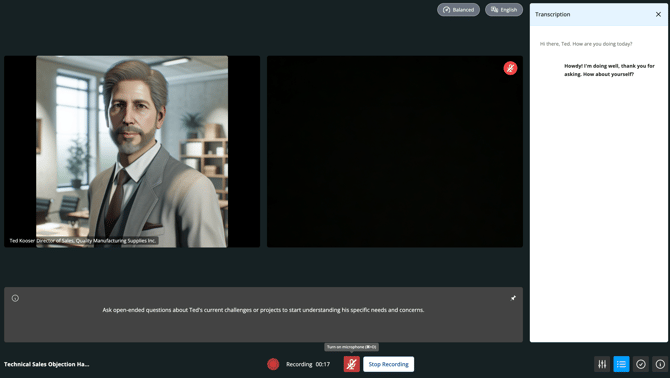
- During any live role play session, you’ll see a microphone icon (mute button) on your session interface—between the Speaker setting and the Blue support menu.
-
Mute Yourself:
- Click or tap the microphone icon to mute your audio. You can also use the command shortcut (Ctrl + D / CMD + D)
- When muted, the icon will display a turn red with a slash to indicate your microphone is off. You will also see a Mute indicator in the top right corner of your video.
- While muted, the AI will not receive any sound from your end.
-
Unmute Yourself:
- When you're ready to reply to the AI, simply click or tap the microphone icon again to unmute and resume your audio input. You can also use the keyboard shortcut (Ctrl + D / CMD + D)