Brevity Users and Seats
When you add a new Brevity user, an email is automatically sent allowing that person to create their Brevity account. Removing a Brevity user removes their ability to log in to Brevity.
Note: Admin may allocate licensed seats, including addition and removal, up to the contracted seat count visible in the upper right corner of the Organization settings page. If additional seats are needed, please contact your Customer Success Manager or email support@brevitypitch.com.
Add an Individual User to Your Organization
To add a single user to your Brevity organization:
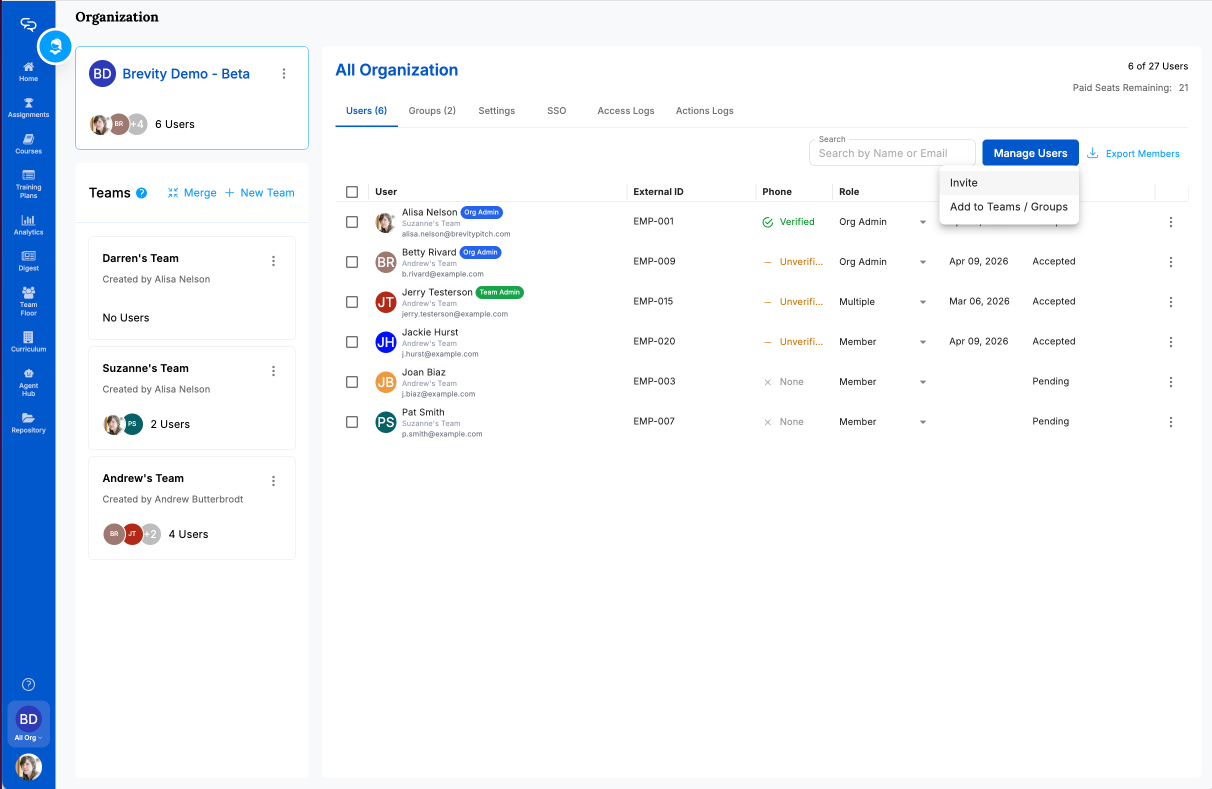
- Click "Manage Users" >> "Invite"
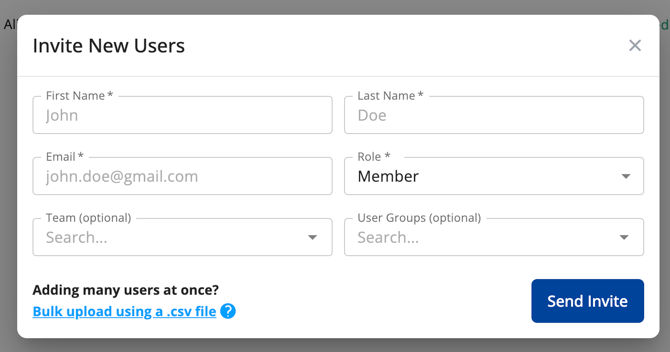
- In the Invite New Users section, enter the person's First Name, Last Name, and Email address.
- Select a role. This role applies to the user at the All Organization level. For additional information, see:
- Optionally, select a team for the user. For more information, see:
- Click Send an invite.
Including external IDs for your users? See: External IDs for User Records
Add Multiple Users to Your Organization
You can add multiple users to your organization by uploading a .csv file. Using a Team or Group code also allows adding those users directly into their designated space in Brevity.
The .csv file must be in the form shown below, including the header first row:
| first_name | last_name | role | teams | groups | |
| John | Doe | johndoe@example.com | admin | 1 | |
| Jane | Doe | janedoe@example.com | member | 2 | A |
To add multiple users to your Brevity organization:
- Click Invite Users.
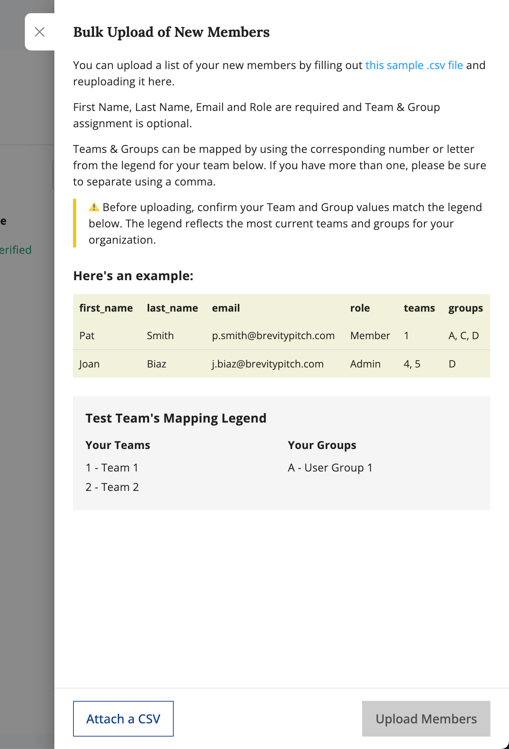
- Click Bulk upload using a .csv file.
- If needed, download the sample .csv file from the side pop out window
- Follow the instructions for the correct way to designate Team and / or Group for new users
- Click "Attach a CSV" and select your completed .csv file.
- Click Upload Members.
Remove a User from Your Organization
To remove a single organization member:
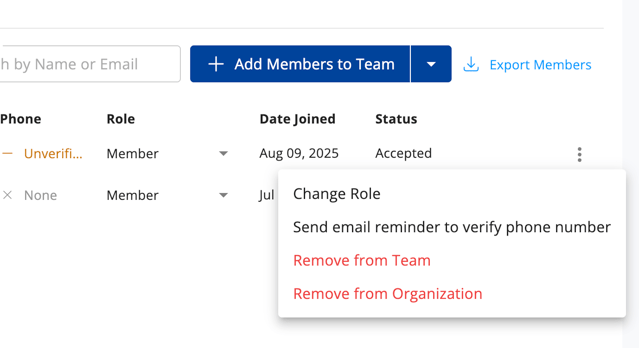
- Click the three-dots menu at the far right of the user's row.
- Click Remove from Organization.
- In the Remove Organization Member window, type the user's email address and click Delete.
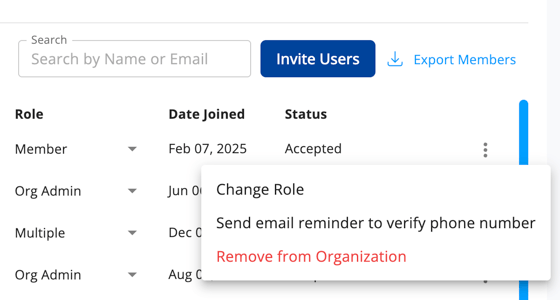
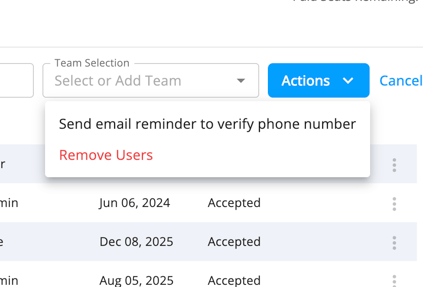
To remove multiple organization members:
- Select the check box at the far left of each user's row.
- Click Actions > Remove Users.
- Follow the prompts in the Remove Organization Member window to confirm deletion.
Add Existing Members to a Team or User Group
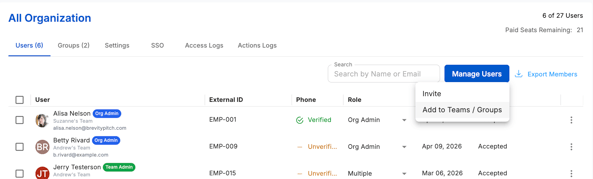
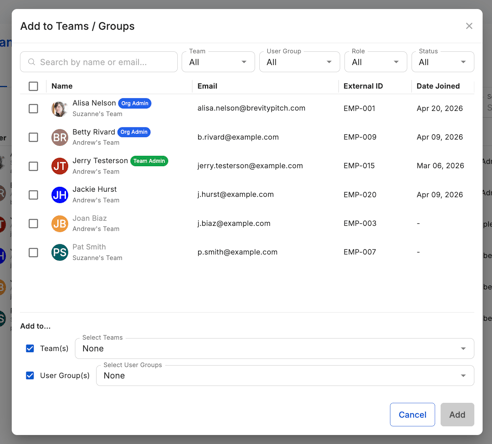
If a Brevity organization account has already been created for a user, you can easily add that user to a team or user group:
- Click "Manage Users" >> "Add to Teams / Groups"
- User available filters and search bar to identify users, select the check box next to users names
- Select the Team(s) / User Group(s) for the selected set of users
- Confirm by clicking "Add (#)"
You can remove users from a Team by navigating to the Team of interest, selecting the three dot Actions menu to the right of their user record, and clicking "Remove from Team." Removing a user from a Team revokes their access to any Team-specific assignments but retains their seat inside the Org.