
We’re currently transitioning our admin model from Team > Group to Organization > Team > Group, with admin roles becoming Organization Admin and Team Admin. As a result, some language in this article (for example, references to “Team” or “Group”) may not exactly match what you see in the product today. The underlying functionality described here remains the same, even if the labels and hierarchy in your app look slightly different while we complete this transition.
Overview: Brevity’s Templates make it easy to quickly create proven, best-practice role play courses without having to build from scratch. Templates cover common sales scenarios (like cold calls, discovery calls, or handling objections) and Brevity's signature Sales Traps series that focus on overcoming the prevent and overcome the symptoms leading to stalled or lost deals (e.g. Getting Ghosted, Losing to No Decision, etc).
After a template is imported into your Course library, they can be customized to fit your organization or target customer profiles.
Who Can Use Templates? The Templates feature is only available to:
- Organization Admins
-
Team Admins creating content for their specific team
-
Members with course creation permissions
If you do not see the Templates tab or the “Create from Template” option, please speak with your Organization Admin about permissions.
For more on Roles and Permissions in Brevity here, see:
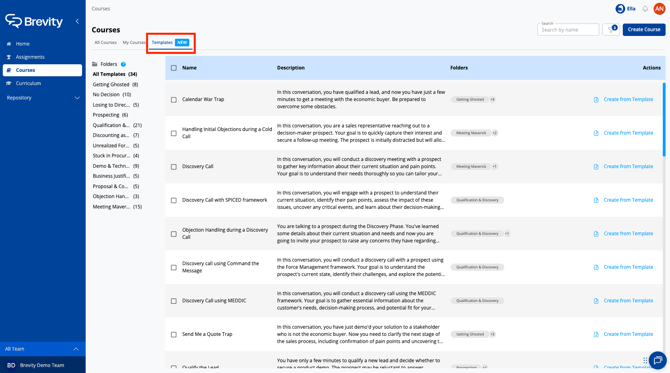
Templates are available on the Courses page in the new Templates tab.
Why Use Templates?
- Fast: Instant access to prebuilt, ready-to-go call scenarios.
- Proven: Created and vetted by Brevity experts—adaptable to real-world challenges.
- Customizable: Add your own personas or tweak the content to match your sales process.
Step-by-Step: Creating a Course from a Template
1. Navigate to the Templates Tab
- In Brevity, go to the Courses page from the main navigation bar.
- Click on the Templates tab at the top of the page.
2. Browse or Search for a Template
-
Browse:
-
Scroll through the complete list of available Templates
- Select a subset of templates to browse from the list of folders on the left side panel based on:
- Call Type (e.g. Prospecting, Objection Handling)
- Deal Stage (e.g. Qualification & Discovery, etc.)
- Closed Lost symptoms (e.g. Getting Ghosted, No Decision, etc).
-
- Search:
- Use the search bar to quickly find a template by keyword (e.g., type “cold call” “discovery”, or "Trap").
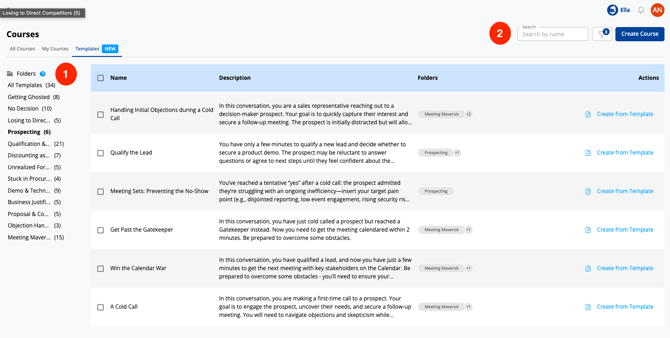
Note: In the Discovery Calls section, you’ll find multiple versions of discovery call templates—each with milestones and objectives already tailored to fit leading sales frameworks including Command the Message, SPICED, and MEDDIC.
This makes it easy to practice and reinforce the specific behaviors and steps needed for the framework your organization uses.
3. Select one or more templates to add as Courses to your Brevity Organization
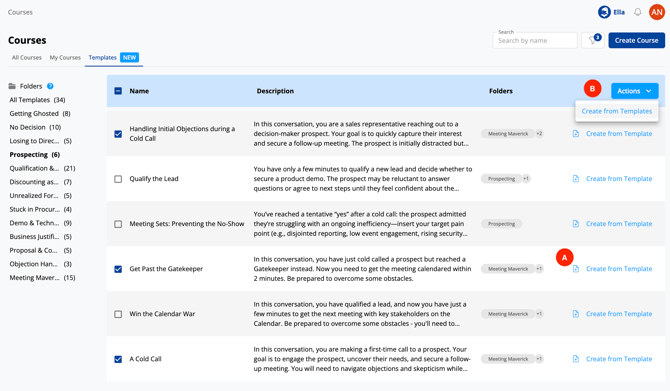
You have two ways to create courses from templates:
A. Creating From a Single Template
- Click the “Create from Template” button in the Actions column next to your chosen template.
- You will be taken directly to the Course Builder page, where you can:
- Review the template details
- Swap or add Personas and Topics as needed (tailor them to your Ideal Customer Profile)
- Proceed to step 4 below.
B. Bulk Creating From Multiple Templates
- Select the checkbox for each desired template.
- Click the “Actions” button that appears at the top right.
- Select “Create from Templates.”
- The selected templates will be immediately added to your Organization's Courses.
- Note: Bulk creation skips the individual course review step during creation; you can edit these courses after they appear in your Courses tab.
- Skip to step 5 below.
4. (Single Template Only) Review and Customize Template Details
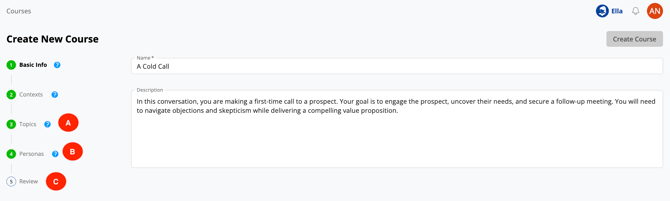
A. Topics:
-
- Add, edit, or remove Topics (common objections, customer issues).
- Topics are especially useful for Cold Calls and Objection Handling scenarios.
- Read more about Topics here: Creating a Topic.
B. Personas:
-
- Template courses come with 1+ personas (participants). Any Persona cards highlighted in blue are included.
- Remove irrelevant personas by deselecting.
- Add relevant personas from your library or create new ones to suit your ICP.
- Read more about Personas here: Creating a Persona
C. Review
-
- Ensure you see the correct Topics and Persona(s)
- Click "Create Course"
5. Further Customize and Assign
- The course now appears in your Courses list and can be assigned for practice.
- You may edit any course—whether created singly or in bulk—at any time once it's been added to your Course library.
- For more on editing or cloning a course, see How to Edit or Clone a Course
Tips & Best Practices
- Start with a template that closely matches your most common sales calls.
- Personalize personas to reflect your actual prospects for more engaging practice.
- Use templates for quick ramp-up, then gradually add custom courses as your selling evolves.
- If you choose to further customize your new course, start first with the Persona and Topics - see how the call evolves once you've incorporated your ICP and the objections or questions your reps hear every day!
Troubleshooting
- "I'm getting an error when I try to create a course from Templates"
Make sure you are not trying to edit any of the existing course assets (Context, Topics, or Personas) before you've added the course to your own library. First complete the Create from Course sequence (Steps 3-4 above), then return to your Organization's Course page to customize and assign your new Role Play.