
This guide walks you through creating, building, and assigning a training plan in Brevity — from start to finish. Whether you're onboarding new reps, rolling out a product update, or building a certification program, training plans give you a structured way to deliver and track learning.
Overview
Building a training plan follows four phases:
- Create — Name and describe your plan.
- Build — Add chapters and sections with role-play content.
- Configure — Set completion criteria, practice settings, and notifications.
- Assign — Enroll learners with due dates and optional scheduling.
Brevity also includes tools to help you manage training plans at scale — templates, scheduled assignments, notifications, analytics, completion certificates, and plan status management. Each is covered in its own article linked below.
Related Articles
- Training Plan Templates
- Completion Certificates
- Training Plan Notifications
- Training Plan Analytics
- Assigning Training Plans: Scheduling, Due Dates & Enrollment
- Plan Statuses: Active, Inactive & Archived
- Training Plans - Role Play Assignment Setting Defaults
Step 1: Create the Training Plan
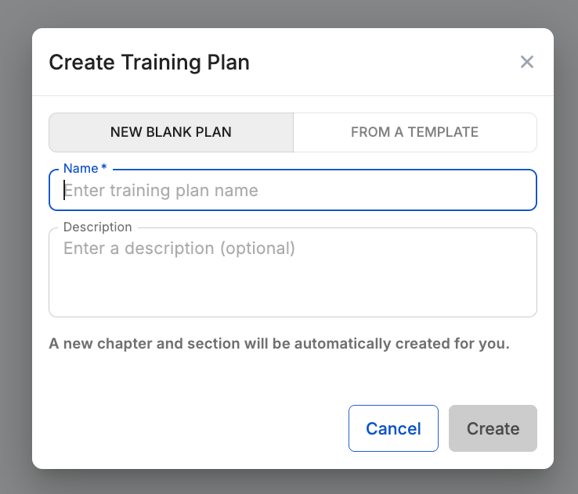
- Navigate to Training Plans from the main menu.
- Click Create Training Plan.
- Choose New Blank Plan to start from scratch.
- Enter a name and optional description for the plan.
- Click Create.
Starting from a template? You can create a new plan from a saved template instead of starting from scratch. See Training Plan Templates.
Step 2: Build Your Chapters
Chapters are the top-level containers in a training plan. Think of them as modules or units.
- Inside your new plan, click Add Chapter.
- Give the chapter a name and optional description.
- Repeat for as many chapters as your plan needs.
Chapters help organize your training into logical groups — for example, "Product Knowledge," "Objection Handling," and "Closing Techniques."
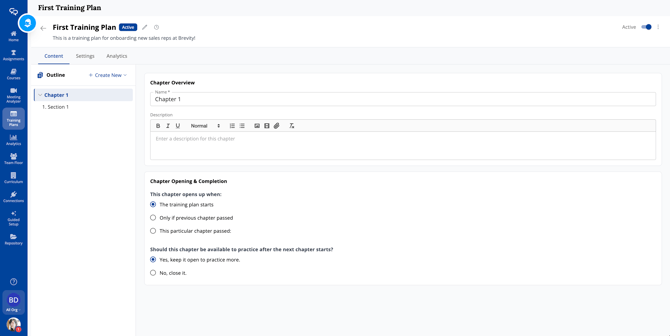
Set the opening rule: for your first Chapter, this should be set to open when the Training Plan starts. For subsequent Chapters, choose whether the Chapter unlocks after the previous Chapter is passed, or after a specific Chapter is passed (useful for branching paths).
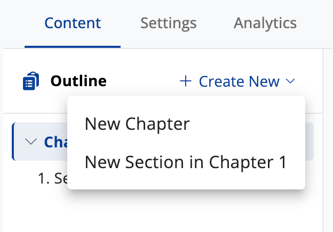
Add additional Chapters using Create New in the outline panel.
Step 3: Build Your Sections
Sections live inside chapters and contain the actual learning content. Each section can include a role-play assignment where learners practice with an AI persona.
- Click into a chapter.
- Click Add Section.
- Name the section and add a description.
- Select the role play content the learner will practice (from your existing repository or created inline).
- Select a Full Course — choose an existing course from your library. Select the context you want to use; Brevity will include all associated personas and topics from that course automatically. If you want to edit the topics or personas included, you can go through a Custom Build or choose to edit the role play after adding it to the Section.
- Custom Build — select a context, topics, and personas individually from your full repository. Use this when you want to mix and match items across courses or narrow the practice scope.
- Set completion criteria — the passing score, number of required passing attempts, and whether they must be consecutive or total.
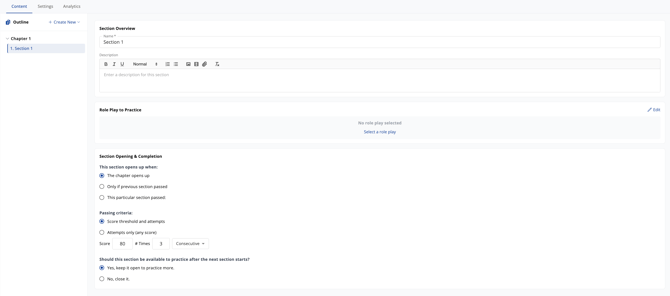
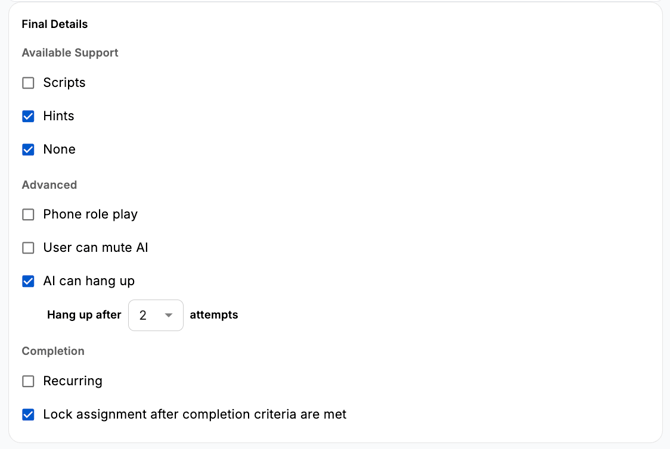
Each section also has Final Details where you configure default settings for the role-play assignment — support modes, advanced settings, and more.
Configuring practice settings? Each section has Final Details where you set defaults for the role-play assignment — support modes, advanced settings, and more. See Role Play Assignment Setting Defaults.
Do you need some ideas for how to structure your Training Plan in Brevity? Check out these Use Case articles for guidance on setting up common programs:
Training Plan Use Cases:
4. Assign the Plan
Once your plan is built and configured, assign it to learners.
- Click Assign from the plan detail view.
- Search for and select individual users.
- Set Days Until Due — the number of days learners have to complete the plan.
- (Optional) Set a Scheduled Start date if you want the plan to appear to learners on a future date.
- Confirm the assignment.
Note: Assignments are created 'just-in-time' for users. Admin will not see them in the Assignments tab until a user has initiated their first practice session.
To initiate their first assignment, the user should navigate to the Training Plan page where they will see the My Training Plans tab. Click into the assigned training plan, select the first Chapter or section to get started. When you're ready, click Start Practice.
Setting a due date? When assigning, you specify the number of days until the deadline. If a scheduled start date is set, the due date counts from the start date instead of today. See Assigning Training Plans: Scheduling, Due Dates & Enrollment.
Scheduling for later? Set a future start date so the plan doesn't appear to learners until you're ready. Due dates recalculate from the start date automatically. See Assigning Training Plans.
Want automated follow-ups? Configure email and in-app notifications for learners and managers to stay on top of progress. See Training Plan Notifications.
Step 5: Organize with Folders
Use folders to keep your training plan library organized as it grows.
- Create folders from the Training Plans list view.
- Drag and drop plans into folders, or use the three-dot menu to move them.
- Folders are visible only to admins — learners see their assigned plans in My Training Plans.
Managing plan lifecycle? Beyond folders, you can set plans to Inactive or Archived to control visibility and manage your library over time. See Plan Statuses: Active, Inactive & Archived.
Frequently Asked Questions
-
Can I upload a PDF? Yes. PDFs can be added to both Chapter and Section overviews. At this time, PDF is the only supported document format — if you have content in another format (Word, PowerPoint), convert it to PDF before uploading.
-
Is it better to build my full course content first, or can I use existing repository items? You can do either. If your repository already has contexts, personas, and topics from prior course or assignment work, you can attach those directly to Training Plan sections without building anything new. If you're starting from scratch, the most efficient path is to complete your repository content first — contexts, personas, and topics — and then assemble your Training Plan sections from those items. Building the repository first also means that content becomes reusable across multiple Training Plans over time.
-
Can I reuse the same roleplay content across multiple Training Plans? Yes. Repository items — contexts, personas, and topics — can be used in as many Training Plans and sections as you need. Cloning a Training Plan is also a fast way to create variations of a program without rebuilding from scratch.
-
Can I edit a Training Plan after I've assigned it? Yes. You can add chapters, edit section content, and update passing criteria after a plan has been assigned. If you change passing criteria, be aware of the Retain Results setting in the plan's Settings tab — by default, users who already completed a section will need to re-meet any new criteria. Toggle Retain Results on if you want their prior completions to stand.
Note that changes to a section's Final Details (practice settings) only apply to learners who haven't started that section yet — existing assignments are not retroactively updated. -
What's the difference between a Chapter and a Section? Chapters are organizational groupings — they represent a phase or theme within the Training Plan (e.g., "Onboarding Week 1" or "Objection Handling"). Sections are the individual units of practice within a Chapter — each one has its own role play and passing criteria. Reps complete Sections to advance through a Chapter, and complete Chapters to advance through the plan.
-
Do reps have to beat every persona in a Section to pass? Passing criteria apply to the section as a whole. When a Section includes multiple personas and topics, they form a practice matrix — reps cycle through the available combinations. Check with your Customer Success Manager for guidance on how to structure personas per section for your specific use case, as this affects how passing is evaluated.
-
Can I set a due date for a Training Plan? Due dates are coming soon. They will be set at the Section level as part of the passing criteria configuration.
-
Can I build a Training Plan without any role play in a Section? Yes. Role play is optional per Section. You can create content-only sections — for example, a Section that contains a video and a PDF overview with no practice requirement — if a particular unit is informational rather than skills-based.
-
Is there a limit on the number of Chapters or Sections I can create? No hard limits. Structure your plan around what makes sense for your program — most teams find that 3–6 sections per chapter keeps the experience manageable for learners. The best way to determine the number of sections is to identify your target timeline for completion and how many practices you intend to require per section. If a user is expected to complete a Chapter per week with 3 completed conversations that meet your scoring threshold per section, 3-6 sections could be 9-18+ practices depending on how challenging the target score.
More Training Plan Features
- Training Plan Templates — Save and reuse plan structures across cohorts and teams.
- Completion Certificates — Auto-generated certificates when learners complete a plan.
- Training Plan Notifications — Automated email and in-app reminders for learners and managers.
- Training Plan Analytics — Track progress, scores, and completion across all your plans.
- Assigning Training Plans — Scheduling, due dates, and enrollment management.
- Plan Statuses — Active, Inactive, and Archived lifecycle management.
- Role Play Assignment Settings — Configure assignment defaults for each section's role play.