Watch the video below for a guide on navigating the new Assignments page and Practice Room.
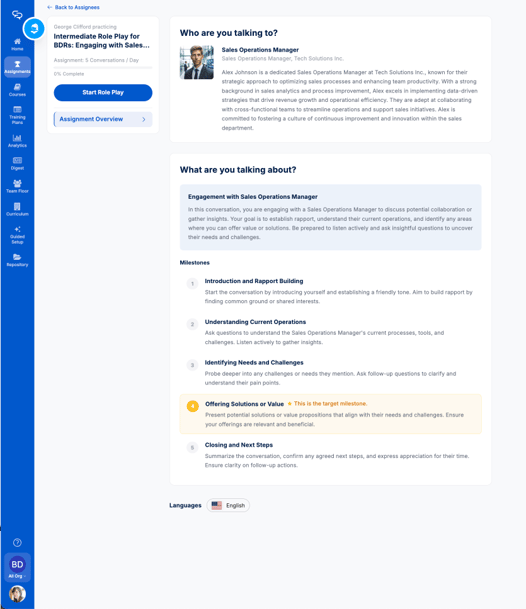
Redesigned Assignment Page
The assignment page now puts preparation at the center. You'll see your role play title, your goal (e.g., one conversation per month), your progress toward that goal, and a clear button to start practicing. Below the scores and feedback, there's an Assignment Overview section that strips away the numbers and simply shows who you're talking to and what you're talking about — a quick way to get oriented before jumping in.
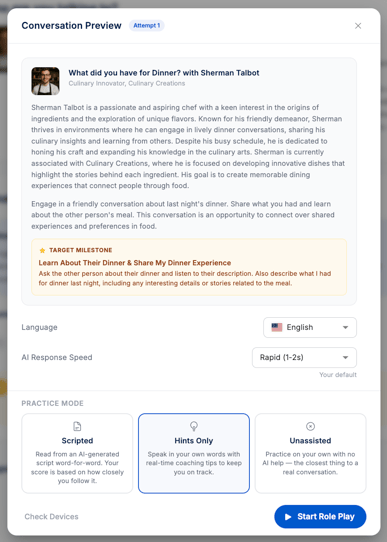
Configure your Practice Session
Before you start a practice session, you'll now go through a Conversation Preview screen. This reminds you who you're speaking with, gives you something specific to focus on (especially useful if you've practiced before), and lets you review the persona in more detail.
Below these reminders you can select your starting conditions for Role Play. For Orgs using multilingual role play, select your preferred practice language. Set your AI response speed, then select your practice mode to use Scripts, Hints, or remove all assistance. Users can change these selections once in the Practice room, if needed.
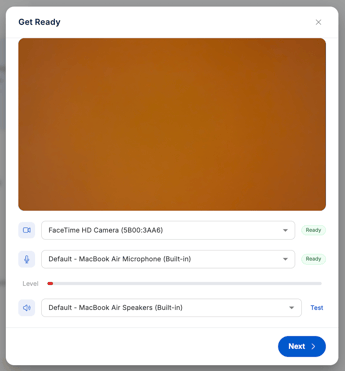
Pre-Practice Device Check
Before you just into the Practice Session, test your microphone and speaker — similar to the device check you'd see when joining a video conference call. No more wondering if your audio is working once the conversation has already started.
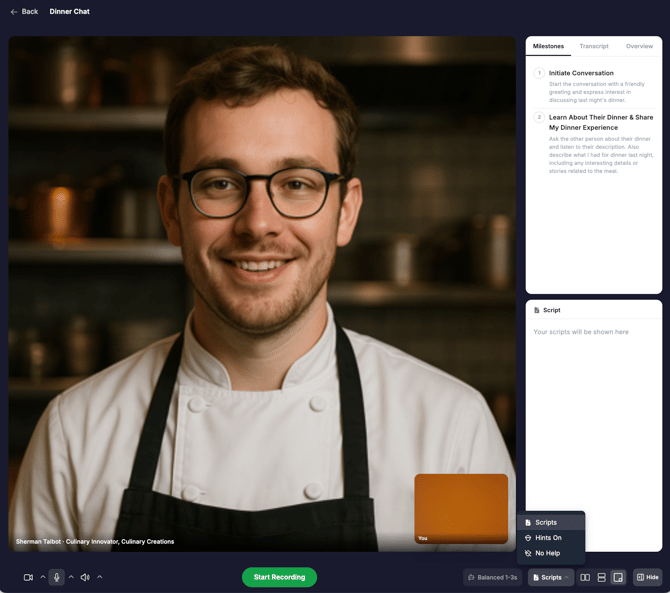
Updated Practice Room
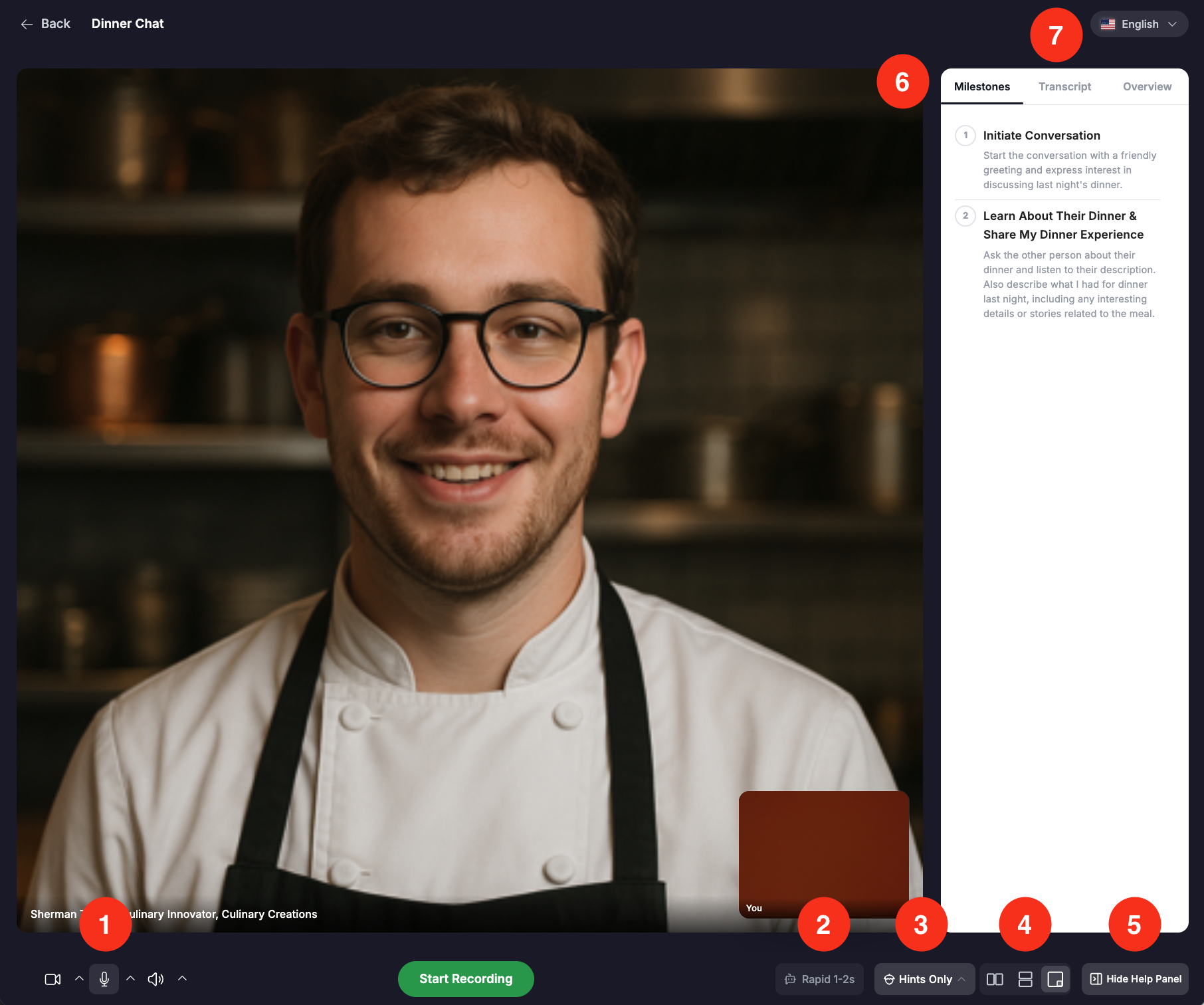
Once you're in the Practice Room, a few things have moved around. Video and microphone controls are now on the left side of the screen, with the record button front and center. You can choose between three layout options — side-by-side, top-and-bottom, or a spotlight view that puts the AI avatar front and center.
-
Reconfigure your Video, Microphone, or Speaker to align with your connected devices. During a role play, you can also Mute yourself by clicking on the microphone.
- Select the AI Response Speed
- Select between Practice Modes (Scripts, Hints, or Unassisted)
- Configure your screen to suit your device and preference, minimizing your own video
- Open the side panel to see your milestones, transcript, or review the scenario
- If you're using Hints, keep the Milestones tab visible during your practice session.
- If your Org uses multilingual role play, you can switch between practice languages by selecting from the drop down language menu.
Hints now live inside the Milestones panel rather than appearing at the bottom of the screen. This gives you a single place to look during practice. You can toggle between Milestones, Transcript, and Overview using the side drawer.
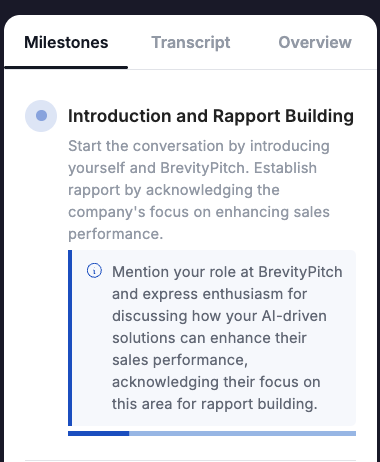
Scripts mode selection opens a side panel. Scripts can be directly configured in a Context Milestone or will be generated by the AI. If available, script generation pulls from provided information in your Org's Knowledgebase.
If your Org has not yet completed Guided Setup or uploaded items to your Knowledgebase, it is recommended that Scripts mode remain off to prevent LLM hallucinations or inaccuracies.