The Pause feature lets you temporarily stop a role play session mid-conversation without ending it. This is useful when you're interrupted, need a moment to collect your thoughts, or want to review your notes before continuing.
Note: Pause must be enabled by your admin on the assignment before it appears in your session. If you don't see a pause button, ask your admin to enable it in the assignment settings.
How to Pause and Resume
- During an active role play session, click the Pause button in the recording controls at the bottom of the screen.
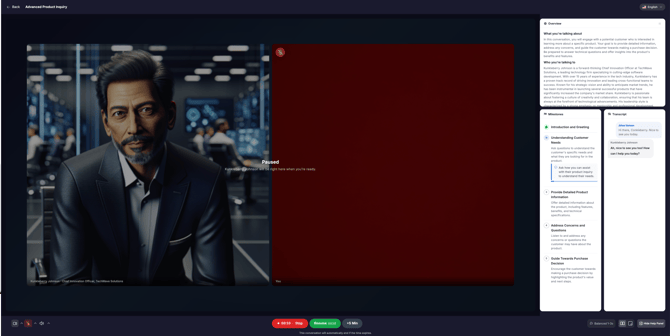
- A "Finishing up..." message appears while the AI completes whatever it was saying. Your speaker and microphone are automatically muted during this transition.
- Once the AI finishes its response, the overlay changes to "Paused." You can take as long as you need.
- When you're ready, click Resume to continue. Your speaker and microphone return to their previous state (if your speaker was muted before pausing, it stays muted on resume). You can review the last statements from the transcript in the side panel and resume by making your next statement.
The recording is preserved as a single continuous file — pausing does not create separate clips or require stitching.
Session Limits
Pause has two guardrails to keep sessions moving:
- Maximum 3 pauses per session. After your third pause, the pause button is disabled and a tooltip explains the limit has been reached.
- Maximum 15 minutes of total pause time. If your cumulative pause time across all pauses reaches 15 minutes, the session automatically ends and whatever progress you made will be saved.
These limits are per session. Starting a new session resets both counters.
What Happens While Paused
- The AI does not speak or listen while paused.
- Your microphone and speaker are muted and locked — you cannot toggle them until you resume.
- The WebSocket connection to the AI stays active. The AI does not disconnect during a pause, so it resumes immediately without any reconnection delay.
- Speaker mute is locked during pause. If you muted the AI speaker before pausing, it stays muted when you resume. If it was unmuted, it returns to unmuted.
Enabling Pause (Admins)
Pause is an opt-in setting configured per assignment.
- Open the assignment in edit mode.
- In the assignment settings, check Allow Pause Recording.
- Save. Learners will see the pause button on their next session.
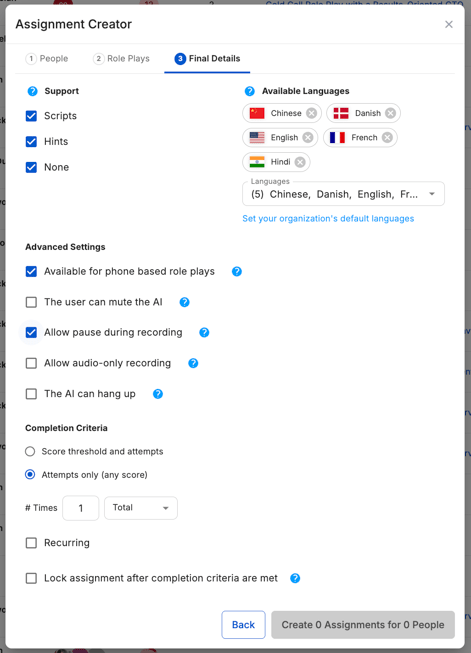
Pause can be enabled alongside other recording controls (Camera On/Off) independently.
Bulk Enable Pause for Open Assignments
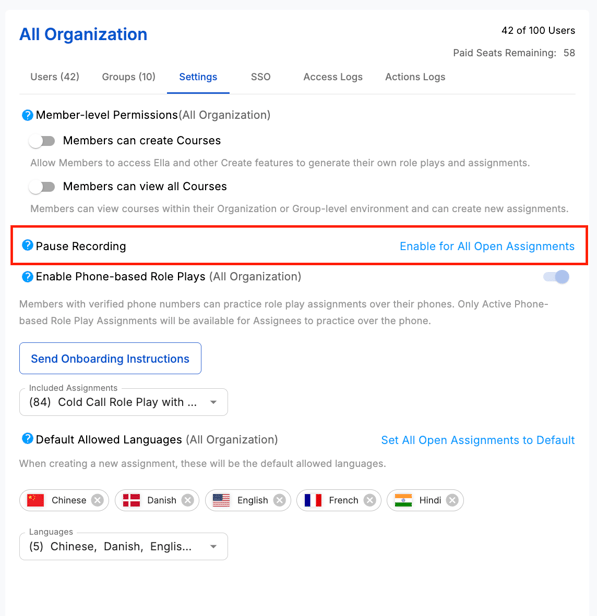
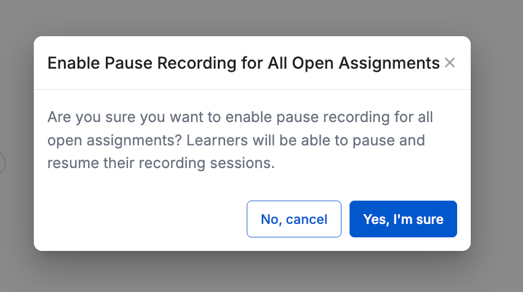
To bulk enable Pause to all open assignments, navigate to the Settings tab on the Org Admin panel, click "Enable for All Open Assignments" and confirm.