
Practice Sessions let learners rehearse role plays privately before submitting their best attempts for official review. Practice sessions are only visible to the learner — admins and managers cannot see them.
How Practice Sessions Work
When an admin enables practice for an assignment, each new session starts in practice mode by default. Every session carries one of two states:
| State | Who can see it | Counts toward completion? |
|---|---|---|
| Practice | Learner only | No |
| Official (Ready for Review) | Learner, admins, and managers | Yes |
Learners can switch a session between Practice and Official at any time. Each time a session is converted, Brevity immediately recalculates whether the learner's completion goal has been met.
The Session Lifecycle
- Start a session — When practice is enabled and budget remains, the launch modal defaults to practice mode. A dumbbell icon badge shows how many practice sessions are left.
- Finish recording — After the conversation ends, a prompt asks: "Happy with the results?" The learner can choose Submit for Review (makes it official) or Done (keeps it as practice).
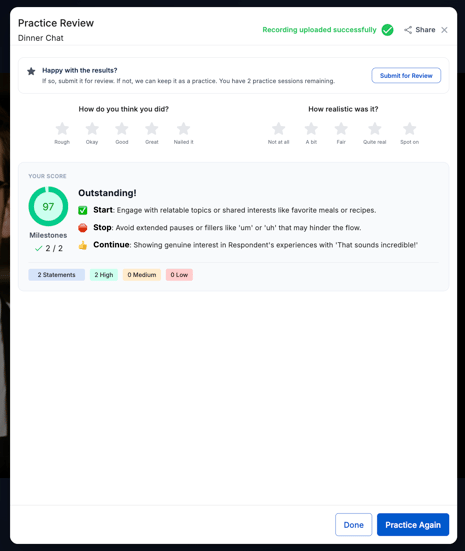
- Convert at any time — From the score view, learners can use Submit for Review (star icon) to make a practice session official, or Move to Practice (dumbbell icon) to pull an official session back to practice. Both options are available on the individual session detail page.
- Completion recalculates automatically — Converting a session to official can complete an assignment. Converting back to practice can reopen it. If moving a session back to practice would drop the learner below their completion goal, a confirmation dialog appears showing the exact progress change (e.g., 3/3 → 2/3).
Practice Budget
Admins choose one of two budget modes when enabling practice:
- Unlimited — No cap on practice sessions. The budget badge shows "Only visible to you."
- Limited — Admins set a specific number of practice sessions per learner per assignment. Once the budget is used up, the next session automatically starts in official mode. The remaining count is displayed in the sidebar, the launch modal, and the post-recording prompt.
Privacy
Practice sessions are completely private:
- Every part of the platform that shows session data — assignment views, session lists, analytics — automatically excludes practice sessions for anyone who isn't the learner who recorded them.
- When an admin or manager views a learner's assignment, the Practice section does not appear at all. The dumbbell icon, budget count, and practice session cards are entirely absent from their view.
Score Circles
Score circles give learners real-time visibility into their progress toward their completion goal. Each qualifying official session fills one circle with a color-coded score. Remaining slots appear as dashed empty rings.
Lock After Completion
Admins can optionally enable a Lock after Completion setting on an assignment. When enabled, this prevents all conversion actions once a learner has met their completion goal — learners cannot move official sessions back to practice after completing the assignment.
How to Enable Practice Sessions (Admins)
- Edit any existing assignment or create a new one.
- Navigate to the final details step of the assignment creation or edit modal.
- Check "Allow practice sessions." Two options appear: Unlimited (default) or a number input.
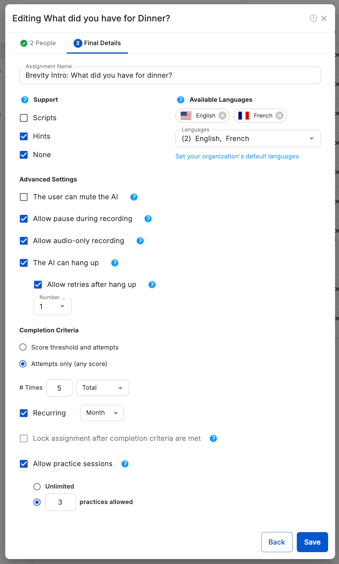
- Choose Unlimited for no cap, or enter a specific number of allowed practice sessions. Blank or zero entries default to 1.
- Save the assignment.
- Optional: Enable Lock after Completion to prevent learners from converting official sessions back to practice once their completion goal is met.
The assignment sidebar will now show both a "Ready for Review" section (star icon) and a "Practice" section (dumbbell icon) for learners.