Pause stops a role play for a short time without ending it. Use it when someone interrupts you, or when you need a moment to think or to read your notes. To leave a role play and finish it later, see Pause and resume a role play.
Note: Pause is off by default. An admin turns it on for each assignment or training plan section. If you do not see the Pause button, ask your admin to turn it on.
Pause and resume
- During a role play, click Pause in the recording controls at the bottom of the screen.
- The message [persona name] is finishing up… appears with Pausing as soon as they're done. The AI completes what it was saying. Brevity mutes your speaker and your microphone.
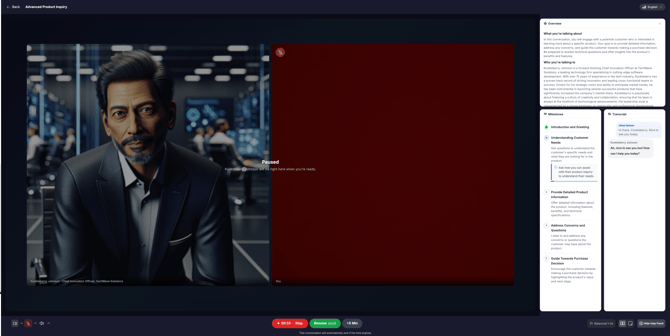
- When the AI stops, the overlay changes to Paused. A countdown on the Resume button shows the time left in the pause.
- When you are ready, click Resume. Make your next statement to continue. The transcript in the side panel shows the last statements.
When you resume, your speaker and your microphone go back to their state before the pause. If you muted the AI speaker before the pause, it stays muted.
Brevity keeps one recording for the whole role play. The paused time is not in the recording.
Pause limits
Caution: If the countdown of a pause gets to zero, the role play ends. Brevity scores it the same as a role play that you stop. During the pause, the screen shows This conversation will automatically end if the time expires.
- 3 pauses for each role play. The tooltip of the Pause button shows how many pauses remain. After you use all 3, you cannot click Pause, and the tooltip shows No pauses remaining (3/3 used).
- Up to 5 minutes for each pause. For more time, click +5 Min during the pause. This adds 5 minutes to the countdown and uses one of your 3 pauses.
When you start a new role play, you get 3 pauses again.
What happens during a pause
- The AI does not speak or listen.
- Your microphone and speaker are muted. You cannot turn them on until you resume.
- The AI stays connected. When you resume, the AI is ready at once.
Turn on pause (admins)
Pause is a setting of each assignment and of each training plan section.
- Open the assignment in edit mode.
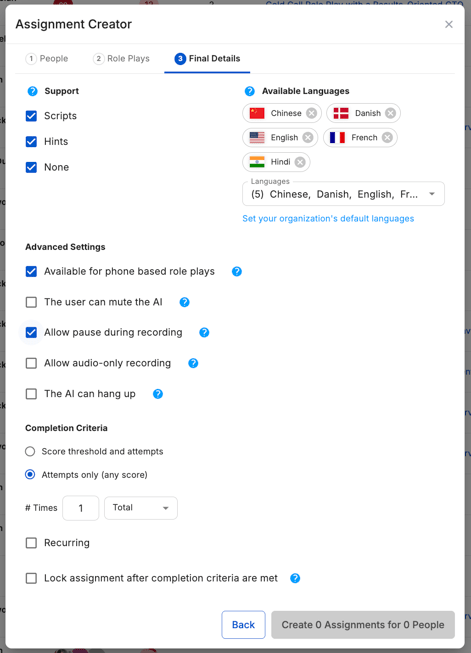
- Go to the Final Details step.
- Select the Allow pause during recording check box.
- Click Save. Learners see the Pause button in their next role play.
For a training plan section, select the Allow pause during recording check box in the Assignment Settings of the section.
The pause setting does not change the camera setting.
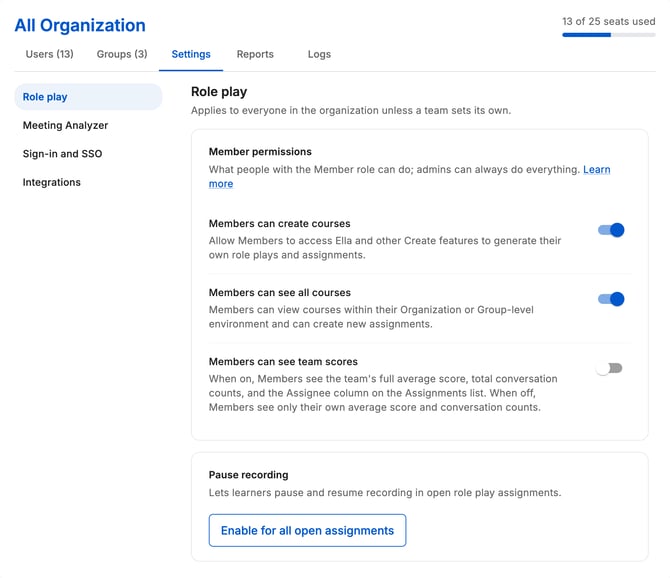
Turn on pause for all open assignments
- Click your company's logo in the bottom-left of the Brevity window, then click View Organization.
- Make sure that All Organization is selected. For one team, select the team in the Teams list.
- Click the Settings tab. If All Organization is selected, click Role play.
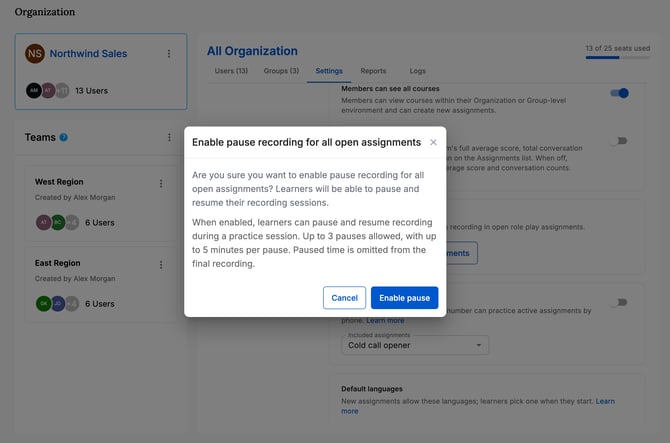
- In the Pause recording card, click Enable for all open assignments. For a team, the button is Enable for the team's open assignments.
- Click Enable pause.